JuanFi Piso WiFi: How to Connect, Log In, Pay and Pause Time
10.0.0.1 is a commonly searched address, not a guaranteed address for all JuanFi machines.
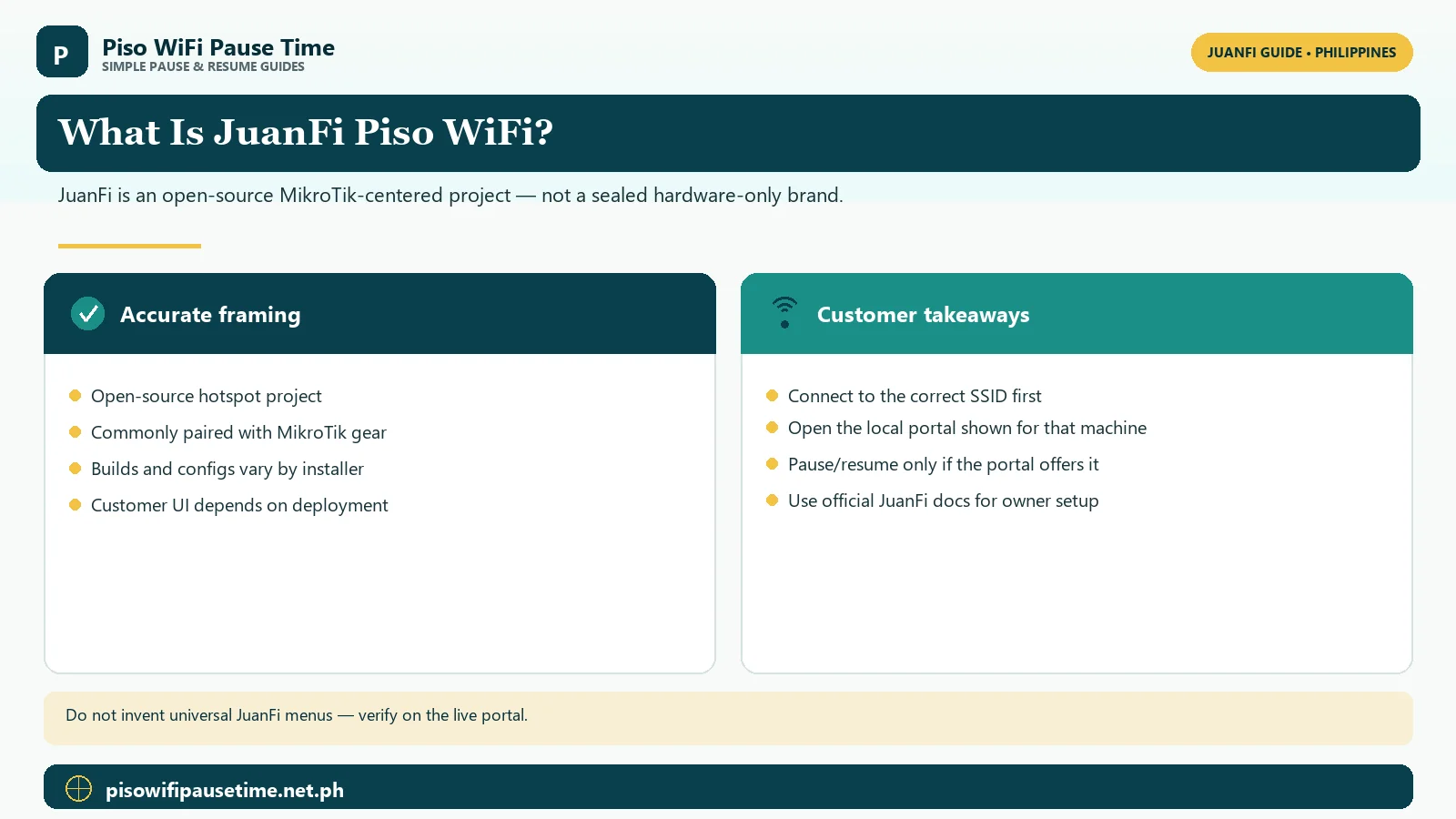
JuanFi Piso WiFi is a coin-operated WiFi vending system that uses MikroTik HotSpot technology to provide paid internet access. It was developed by Ivan Julius Alayan and is available as free, open-source software for WiFi vendo machines.
JuanFi is not a universal WiFi login website. It is software used to operate a WiFi vendo system, and the customer portal is provided through the machine's configured MikroTik HotSpot.
- 1
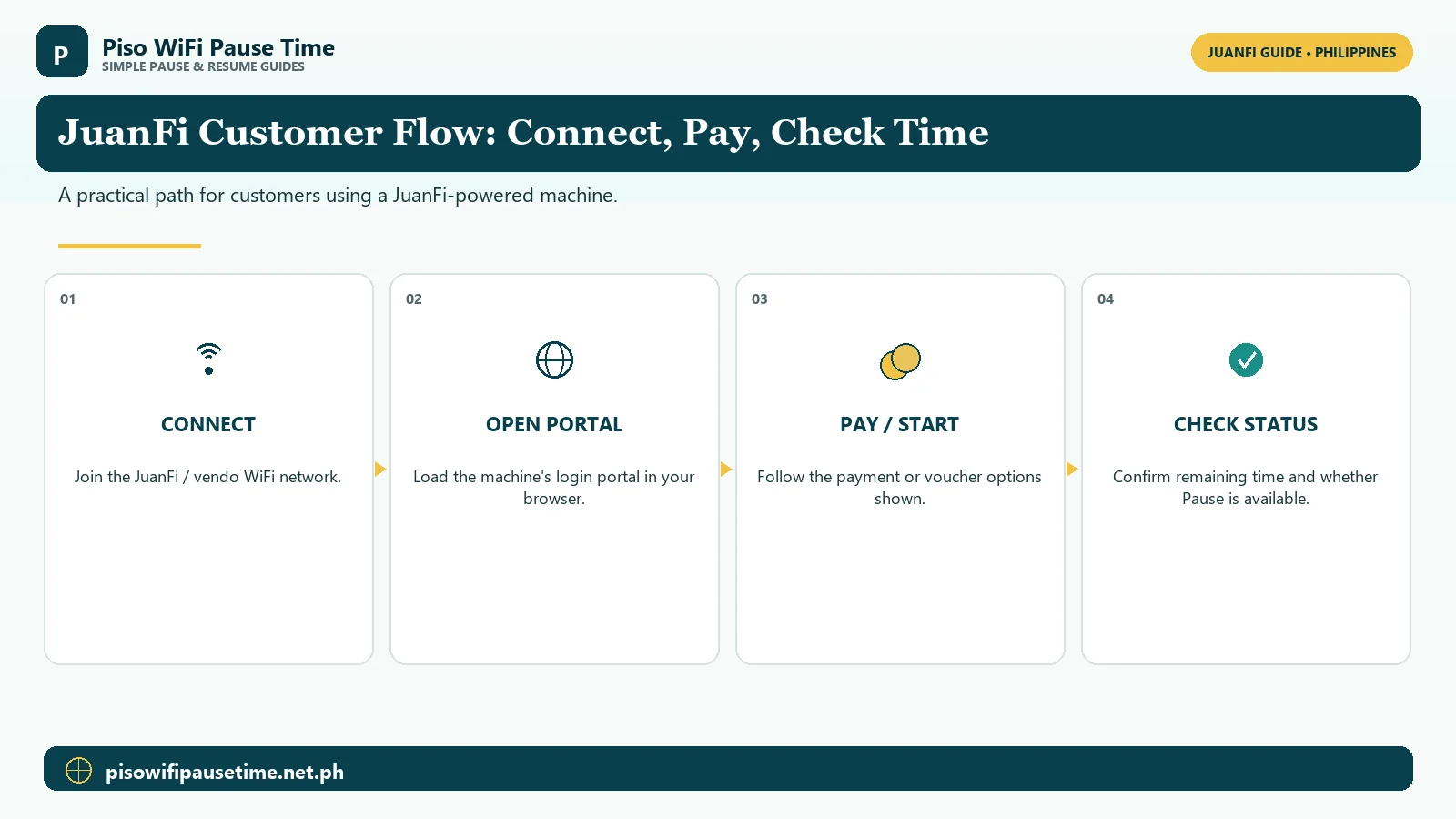
Turn on WiFi on your phone or laptop.
- 2
Connect to the correct JuanFi network.
- 3
Open the customer portal using the machine's actual gateway address.
- 4
Insert coins or enter a voucher if the machine provides those options.
- 5
Check that your internet time has been credited.
- 6
Start browsing.
- 7
Use Pause and Resume if those options are available on your machine.
If you want to use JuanFi Piso WiFi, connect your phone or laptop to the machine's WiFi network and open its customer login portal. Some machines use http://10.0.0.1 as their portal address, but this address is not guaranteed for every JuanFi installation. The correct address depends on the machine's network configuration.
Once the portal opens, follow the available payment instructions. You may be able to insert coins or enter a voucher code, depending on the machine. Check that your internet time has been credited before browsing.
Some JuanFi installations also provide a Pause Time option. If the feature is enabled, you can pause and resume your session according to the machine's settings. The available pause duration and session rules are not the same for every machine.
JuanFi Piso WiFi guide · Philippines
This guide explains how to connect to JuanFi, find the correct login portal, pay for internet access, check remaining time, use Pause and Resume, and fix common problems.
What Is JuanFi Piso WiFi and How Does It Work?
Open-source MikroTik vendo software
JuanFi is free, open-source software developed by Ivan Julius Alayan for WiFi vendo businesses that use MikroTik HotSpot routers. It connects coin-operated vending functionality with a MikroTik-based WiFi hotspot system.
Customers use the machine's wireless network and customer login portal to purchase and access internet time. The machine owner manages the system's rates, vouchers and other settings.
How Does the JuanFi Piso WiFi System Work?
A JuanFi machine connects several components to provide paid WiFi access.
The coin acceptor and controller handle the vending side, while the MikroTik HotSpot manages customer network access. These are related but separate functions.
For example, a machine may recognize a coin but fail to credit internet time. In that situation, the coin input and customer session have not necessarily completed successfully.
What Are the Main Components of a JuanFi Machine?
The official JuanFi documentation describes several hardware components used in supported installations.
| Component | Purpose |
|---|---|
| MikroTik router | Provides HotSpot and network access management |
| ESP8266 / ESP32 | Microcontroller used in the vending system |
| NodeMCU | Controller development board |
| Coin acceptor | Detects inserted coins |
| Access point | Provides the wireless network |
| NodeMCU baseboard | Helps organize supported controller components |
| W5500 LAN module | Supports Ethernet connectivity in applicable builds |
| LM2596 converter | Provides voltage conversion in applicable hardware configurations |
| Power supply | Supplies electrical power to the system |
Not every machine uses exactly the same hardware arrangement. Some installations use wireless controller configurations, while others use LAN-based components.
What Is the Difference Between JuanFi and MikroTik HotSpot?
JuanFi and MikroTik HotSpot have different roles.
- JuanFi: Provides the vending-system software and integration with supported controller hardware.
- MikroTik HotSpot: Controls customer authentication and network access.
- Customer portal: Allows users to interact with the configured HotSpot.
- JuanFi controller: Handles relevant vending and coin-input functions.
This distinction helps explain why the customer login page is not the same as the owner's JuanFi configuration interface.
Sources: Official JuanFi website · Official JuanFi GitHub repository · MikroTik HotSpot documentation.
How to Connect to JuanFi Piso WiFi
Before opening the login portal, connect your phone or computer to the correct JuanFi wireless network.
How to Find the JuanFi WiFi Network
- 1
Turn on WiFi on your device.
- 2
Open the available wireless networks.
- 3
Look for the network name (SSID) displayed by the vending machine or provided by the operator.
- 4
Select the correct network.
- 5
Wait for your device to connect.
Check the network name carefully. Nearby machines may have similar names.
How to Connect Using an Android Phone
- Open Settings.
- Select WiFi or Network and Internet.
- Find the JuanFi network.
- Tap its name.
- Enter a network password if the operator requires one.
- Wait for the connection.
- Open the browser or the captive portal notification.
The exact menu names can differ between Android brands and versions.
How to Connect Using an iPhone
- Open Settings.
- Tap WiFi.
- Find the JuanFi network in the list.
- Tap its name.
- Enter a network password if one is required.
- Wait for the connection.
- Open the login notification if it appears, or open Safari manually.
How to Connect Using a Windows Laptop or Mac
On Windows:
- Select the WiFi icon in the taskbar.
- Choose the correct JuanFi network.
- Select Connect.
- Enter the network password if required.
- Open a browser after connecting.
On macOS
On macOS:
- Open the WiFi menu.
- Select the JuanFi network.
- Enter the password if required.
- Open Safari or another browser.
Why Does JuanFi WiFi Ask for a Password?
A WiFi network password and a customer portal voucher are different things.
A WiFi network password may be required to join a protected wireless network.
A voucher code may be required by the customer HotSpot to activate paid access.
Owner administration credentials are separate and are not needed for ordinary customer access.
If your phone asks for a WiFi password before connecting, ask the machine operator. Do not assume that a voucher code is the WiFi password.
Why Does My Phone Say Connected Without Internet?
Your phone can connect to a WiFi network before you have completed the HotSpot login or payment process.
Possible reasons include:
- The customer portal has not opened.
- Payment has not been completed.
- A voucher has not been activated.
- The session has expired.
- The machine's internet connection is unavailable.
Open the customer portal and check your session. If the session is active but you still cannot browse, the operator may need to check the machine's internet connection.
How to Open the JuanFi Login Portal
The JuanFi login portal is the customer-facing page where you can access the available internet payment and login options. It is normally provided by the MikroTik HotSpot running on the vendo machine.
You do not need to visit the JuanFi developer website to access the customer portal. You need to connect to the correct JuanFi WiFi network first.
Is 10.0.0.1 the JuanFi Login Address?
http://10.0.0.1
10.0.0.1 is a commonly searched local gateway address for Piso WiFi portals, including JuanFi machines. However, it is not a fixed address for every JuanFi installation.
The actual gateway address depends on the MikroTik HotSpot configuration selected by the machine owner.
For example, a machine can use a different local network address. Therefore, if 10.0.0.1 does not open the portal, do not assume the machine is broken. Find the gateway address of the WiFi network you are connected to.
The customer portal address is different from the JuanFi controller setup address and the router's owner administration interface.
How to Open the JuanFi Portal at 10.0.0.1
If 10.0.0.1 is the configured gateway of your JuanFi machine, follow these steps:
- 1
Open WiFi settings on your phone.
- 2
Connect to the JuanFi network.
- 3
Open Chrome, Safari or another browser.
- 4
Tap the browser's address bar.
- 5
Enter
http://10.0.0.1. - 6
Press Go or Enter.
- 7
Wait for the customer login portal to load.
If the portal opens, follow the payment or voucher instructions displayed on the page.
If it does not open, check the actual gateway address instead of repeatedly trying the same IP.
How to Find the Actual JuanFi Gateway Address
The gateway is the local network address your connected device uses to communicate with the router.
You can usually find it in your device's WiFi network details.
- Open Settings.
- Select WiFi or Network and Internet.
- Tap the connected JuanFi network.
- Open its network details.
- Look for Gateway, Router or IP settings.
- Note the gateway address.
- Enter that address into your browser.
The exact menu names can differ between Android brands and versions.
- Open Settings.
- Tap WiFi.
- Find the connected JuanFi network.
- Tap the information icon beside its name.
- Look under the IPv4 Address section.
- Find the Router field.
- Enter that address in Safari.
The Router field shows the local router address for the connected network.
- Connect your laptop to the JuanFi WiFi network.
- Open Command Prompt.
- Type
ipconfig. - Press Enter.
- Find the connected wireless adapter.
- Look for Default Gateway.
- Enter that address in your browser.
Example of the relevant output:
Wireless LAN adapter Wi-Fi:

IPv4 Address . . . . . : 10.0.0.25
Default Gateway . . . : 10.0.0.1
The addresses above are illustrative, not guaranteed JuanFi settings.
- Open System Settings.
- Select WiFi.
- Open the details of the connected JuanFi network.
- Find the TCP/IP information.
- Look for Router.
- Enter that address in your browser.
Is 10.0.0.0.1 a Valid JuanFi Login Address?
No. 10.0.0.0.1 is not a valid IPv4 address because it contains five number groups instead of four.
A standard IPv4 address contains four decimal numbers separated by three dots.
10.0.0.1has four groups.
10.0.0.0.1has five groups.
If you see the second format in a search result or message, check the address again before entering it.
Why Is the JuanFi Portal Not Opening Automatically?
Sometimes a phone connects to the WiFi network without showing the login page.
This can happen because the device does not detect the captive portal, the browser does not redirect, or the HotSpot is not responding.
Try these steps:
- 1
Confirm that you are connected to the correct JuanFi WiFi network.
- 2
Open your browser manually.
- 3
Enter the machine's actual gateway address.
- 4
Check whether mobile data is taking over the connection.
- 5
Temporarily disconnect a VPN if it is interfering with local network access.
- 6
Reconnect to the WiFi network and try again.
Do not change the router's settings or attempt to access its owner administration interface.
If the correct gateway still does not open, contact the machine operator.
Technical reference: MikroTik HotSpot and captive portal documentation.
How to Pay and Start a JuanFi Internet Session
After opening the JuanFi customer portal, the next step is to follow the payment options displayed by the machine.
JuanFi supports coin-slot integration. The official system also documents voucher generation and configurable promotional rates. However, the exact payment options available to customers depend on the individual installation.
How to Pay Using the JuanFi Coin Slot
Follow these steps when the machine provides coin payment:
- Connect to the machine's WiFi network.
- Open the customer portal.
- Check the displayed coin rates.
- Prepare the accepted coins.
- Insert coins into the coin acceptor.
- Wait for the payment process to finish.
- Check whether your internet time has been credited.
- Start browsing after your session is activated.
How to Redeem a JuanFi Voucher Code
Some JuanFi machines provide a voucher option for customers.
A voucher is a code supplied through the machine owner or an authorized seller. It allows the customer to access the internet according to the voucher's configured validity.
If your portal displays a voucher field:
- Connect to the correct JuanFi WiFi network.
- Open the customer portal.
- Find the voucher or code entry option.
- Enter the voucher exactly as provided.
- Check that you have not added extra spaces.
- Submit the code.
- Wait for the portal to process it.
- Confirm that the internet session is active.
Inserting a coin does not automatically prove that internet time has been credited. The coin acceptor must recognize the payment, the controller must process it, and the system must successfully activate the applicable session.
If the machine accepts your coin but stays on processing, avoid inserting more coins immediately. Check the payment status and contact the operator if your time does not appear.
Do not share your voucher code with other people. Under the JuanFi documentation and the device-binding rules applicable to this project, a voucher is associated with one device. Do not expect an activated voucher to transfer to another phone.
If the voucher is rejected, check its validity and contact the person who supplied it.
Which Payment Methods Does JuanFi Support?
The official JuanFi system documents coin-slot integration and voucher-related functionality.
However, you should not assume that every machine supports every payment method.
| Payment option | What customers should know |
|---|---|
| Coins | Supported through the documented coin-slot system |
| Voucher | Available when the machine provides voucher redemption |
| GCash | Only when explicitly offered by the operator |
| Maya | Only when explicitly offered by the operator |
| QR payment | Depends on the individual machine's payment setup |
Look at the machine and customer portal for the payment methods actually available.
Do not send money to a personal account unless the machine operator clearly identifies that payment process.
How to Know If Your JuanFi Payment Was Successful
There are four important stages to check.
The payment input has been detected
The system has processed the request
The applicable time or voucher has been assigned
You can access the internet
If the first stage succeeds but the third does not, you may have a payment-crediting problem.
If time appears but you cannot browse, the problem may be related to HotSpot authentication or the internet connection.
Always check the portal before leaving the vending machine. If the payment was accepted but no time appeared, record the amount and payment time so the owner can investigate.
How Much Does JuanFi Piso WiFi Cost?
There is no official national JuanFi price list that applies to every vending machine.
JuanFi's official documentation allows owners to configure their promotional rates and validity settings. This means the amount of internet time provided for a coin payment can differ between machines.
For example, two JuanFi machines may offer different time packages for the same payment amount.
Before inserting coins:
- Check the rates displayed on the machine.
- Check the available time packages.
- Look for voucher validity information.
- Confirm the price before paying.
- Ask the operator if the displayed rates are unclear.
Do not assume that one peso always provides a particular number of minutes.
Remember: JuanFi is the vending software, not a national pricing authority. The machine owner sets the available promotional rates, so the displayed price on the particular machine is the one customers should follow.
Sources: Official JuanFi website and official JuanFi GitHub documentation.
How to Check JuanFi Status and Remaining Internet Time
After making a payment, you may want to check how much internet time remains.
Some JuanFi installations provide a status page or session information through the customer portal. The exact labels and information depend on the portal template and software configuration.
How to Check Your Remaining JuanFi Time
- 1
Connect to the same JuanFi WiFi network.
- 2
Open the customer portal.
- 3
Look for a Status, User Information or Remaining Time option, if available.
- 4
Open the status information.
- 5
Check the remaining time and any displayed expiration details.
Some portals may show the remaining time directly without requiring you to open a separate status page.
What Information Can the JuanFi Status Page Display?
The documented JuanFi portal template includes examples of session-related information.
Identifies the applicable HotSpot account
Shows the available internet time
Indicates when the applicable session or validity ends
Shows session-related information
Identifies the device's network address
Identifies its network interface
These are documented template examples, not a promise that every machine displays every field.
What Is the Difference Between Remaining Time and Expiration?
These two terms describe different things.
Remaining time
Remaining time is the amount of paid internet time that is still available.
Expiration
Expiration is the deadline or validity limit associated with the session or voucher.
For example, a customer might have remaining paid time but still be subject to a separate voucher or session expiration rule.
Do not assume that a displayed expiration time means the same thing as the remaining minutes.
Why Is My JuanFi Remaining Time Not Showing?
Your remaining time may not appear because:
- Your payment has not been credited.
- The voucher has not been activated.
- The portal has not refreshed.
- Your session has expired.
- The machine does not expose a separate status page.
- The machine has a connection or configuration problem.
Reconnect to the same machine and check the customer portal again.
If you paid but cannot find your session information, contact the operator with your payment details.
Technical reference: Official JuanFi GitHub repository and its MikroTik HotSpot portal template. The template contains session-related fields, but the actual customer interface can differ between installations.
JuanFi Piso WiFi Pause Time: How to Pause and Resume
JuanFi includes a documented pause-expiration feature. Some releases also document pause functionality involving remaining internet time.
This means that customers may be able to pause an active internet session and resume it later if the particular machine supports the feature.
However, not every JuanFi installation has the same pause settings. The availability, behaviour and expiration rules depend on the installed build and the machine owner's configuration.
Does JuanFi Piso WiFi Have a Pause Time Feature?
Yes. Pause-related functionality is included in the official JuanFi documentation.
However, the presence of this feature in the software does not guarantee that every machine provides the same Pause button or the same pause duration.
Check the customer portal to see whether Pause is available for your session.
If your machine supports Pause, follow these general steps:
- 1
Connect to the JuanFi WiFi network.
- 2
Open the customer login portal.
- 3
Confirm that your internet session is active.
- 4
Look for the Pause Time option.
- 5
Select Pause.
- 6
Check whether the portal confirms that your session has been paused.
- 7
Note any remaining-time or expiration information displayed.
The exact button name and layout can differ between portal designs.
If you cannot find Pause, do not assume that your internet time is automatically saved when you disconnect.
If you previously paused a session:
- 1
Return to the same JuanFi machine.
- 2
Connect your original phone or device to its WiFi network.
- 3
Open the customer portal.
- 4
Find the Resume option, if available.
- 5
Select Resume.
- 6
Check whether your internet session becomes active.
- 7
Confirm the remaining time.
If Resume does not appear, the session may have expired or the machine may not support the expected resumption behaviour.
Illustrative only. Labels and timers differ by portal design and owner settings.
How Long Can JuanFi Time Stay Paused?
There is no single pause duration that should be promised for every JuanFi machine.
The official documentation identifies a pause-expiration concept, but it does not establish one universal number of minutes or hours that applies to all installations.
The actual pause validity depends on the build and operator's settings.
Check the portal for any displayed expiration information. If it does not show a clear rule, ask the machine owner.
Do not confuse these three things:
| Term | Meaning |
|---|---|
| Remaining internet time | Paid time available to use |
| Pause duration | Time the session has been paused |
| Pause expiration | Deadline after which the paused session may no longer be valid |
What Is Pause Expiration in JuanFi?
Pause expiration is a feature identified in the official JuanFi documentation.
It relates to the validity of a paused session. It should not be confused with the number of internet minutes the customer purchased.
A customer may have remaining paid time while the session is subject to a separate expiration rule.
The exact behaviour depends on the installed software and configuration.
Can You Resume a JuanFi Voucher on Another Phone?
You should not expect an activated JuanFi voucher or session to transfer to another phone.
Under the documented device-binding behaviour applicable to JuanFi, the voucher is associated with one device.
For the best chance of continuing your session:
- Use the original phone.
- Connect to the same JuanFi machine.
- Avoid switching devices during an active session.
- Do not assume that sharing the voucher will transfer the remaining time.
If your original phone is unavailable, contact the operator. Do not purchase another voucher until you understand what happened to the existing one.
What Happens If You Disconnect from JuanFi WiFi?
Disconnecting from WiFi and pausing a session are not necessarily the same action.
When you disconnect:
- Your phone leaves the wireless network.
- The HotSpot may retain or end the session according to its settings.
- Your remaining time may be affected by the configured session rules.
- Reconnection may depend on the same device and its network identity.
If you want to preserve your session, use the Pause function when it is available instead of assuming that simply turning off WiFi will stop the timer.
Why Is the JuanFi Pause Button Missing?
Possible reasons include:
- The owner has not enabled the feature.
- Your session is not active.
- Your machine uses a different build.
- The current portal does not display the control.
- Your voucher or session type has different rules.
Check the active session first. If the option remains missing, ask the machine owner whether Pause is supported.
Why Did My JuanFi Paused Time Disappear?
A paused session may no longer be available if its validity has expired or if the machine cannot identify the previous session.
Other possible causes include:
- The session has expired.
- The device or network identity changed.
- The machine experienced a configuration or connectivity problem.
- The operator changed the session settings.
These are possible explanations, not confirmed causes in every installation.
Best practice: Use the same device and check the displayed expiration information before leaving the machine.
Understand the difference between paid time and pause expiration
- Purchased internet time: Your available paid balance.
- Active: The session is running.
- Paused: The session is suspended.
- Session validity / expiration: A separate rule that may affect whether the session can still be resumed.
Source: Official JuanFi repository. Pause expiration is documented; a universal duration is not established.
JuanFi Login, Payment and Connection Troubleshooting
If your JuanFi connection is not working, first identify which part of the process has failed.
A WiFi connection, customer portal, payment and active internet session are separate parts of the system. Fixing the correct problem is easier when you know where the process stopped.
Why Can't I Connect to JuanFi WiFi?
If the JuanFi network does not appear or your phone cannot connect, try these steps:
- Make sure WiFi is enabled.
- Check that you are selecting the correct network name.
- Move closer to the vending machine.
- Disconnect and reconnect to the network.
- Restart WiFi on your phone.
- Check whether the machine is powered on.
If the network still does not appear, the access point may be unavailable or the machine may need attention from its operator.
Why Is the JuanFi Login Portal Not Opening?
Try the following:
- Confirm that your device is connected to the JuanFi network.
- Open a browser manually.
- Enter the actual gateway address in the address bar.
- Check the Router or Default Gateway field in your WiFi settings.
- Temporarily disable a VPN if it prevents local portal access.
- Reconnect and try again.
Remember that 10.0.0.1 is not guaranteed to be the correct address.
If the correct gateway is unreachable, the problem may be with the HotSpot or the machine's network configuration.
Why Does JuanFi Show Connected but No Internet?
Your phone can connect to WiFi without having permission to access the internet.
This happens because joining a wireless network and completing HotSpot authentication are different steps.
Check the following:
- Did the customer portal open?
- Did you complete the payment?
- Was your voucher accepted?
- Does the portal show an active session?
- Is the machine's internet connection working?
If your session is active but websites still do not load, the problem may be with the machine's internet connection rather than your phone's WiFi connection.
Why Are Coins Accepted but JuanFi Is Stuck on Processing?
This problem can occur when the coin acceptor recognizes payment but the vending system does not complete the next stage.
The payment process involves several parts:
| Stage | Possible problem |
|---|---|
| Coin recognition | Coin acceptor does not recognize the payment correctly |
| Signal processing | Controller does not complete payment processing |
| Router communication | Controller and MikroTik do not communicate correctly |
| Time crediting | Customer session is not successfully credited |
| Internet activation | HotSpot does not provide the expected access |
The official JuanFi community issue tracker contains reports of coin-processing and coin-slot problems. These are individual reports, not proof that all JuanFi machines have the same defect.
What should you do?
- Wait for the processing message to finish.
- Check whether internet time has appeared.
- Avoid inserting additional coins immediately.
- Record the amount and approximate payment time.
- Contact the machine owner if the time was not credited.
The operator may need to check the coin acceptor, controller and MikroTik connection.
Why Was My JuanFi Payment Accepted but No Time Was Added?
Payment acceptance and internet-time crediting are not necessarily the same event.
If you inserted coins but no time appeared:
- Check whether the portal is still processing.
- Refresh the customer portal if it is safe to do so.
- Check whether the machine shows a successful payment.
- Record the amount paid.
- Contact the operator if your session was not activated.
Do not keep inserting coins to test whether the machine will work.
Why Is My JuanFi Voucher Code Not Working?
A voucher may be rejected for several reasons:
- The code was entered incorrectly.
- An extra space was added.
- The voucher is no longer valid.
- The voucher has already been used.
- The code is not accepted by that particular machine.
- The session has already been activated.
Try entering the code again carefully.
If the portal still rejects it, contact the voucher seller or machine owner. Do not publish or share working voucher codes.
Why Does JuanFi Disconnect After I Enter a Voucher?
A disconnection after voucher submission does not always mean that the voucher failed.
Possible explanations include:
- The device lost its WiFi connection.
- The session was activated but the portal closed.
- HotSpot authentication did not complete.
- The voucher was not successfully processed.
- The machine experienced a connection problem.
Reconnect to the same JuanFi network and check the customer portal before entering the voucher again.
If the session is already active, avoid redeeming the same voucher repeatedly.
Why Is the JuanFi Pause Button Not Working?
If the Pause button does not respond:
- Check whether your session is active.
- Refresh the customer portal.
- Reconnect to the same WiFi network.
- Open the portal again.
- Check whether the pause option is still available.
If the button remains unavailable, the feature may not be enabled or supported in the current installation.
The machine owner may need to check the configuration.
Why Can't I Resume My JuanFi Session?
If Resume does not work:
- Confirm that you are connected to the original machine.
- Use the same phone where possible.
- Check whether the session has expired.
- Look for any displayed expiration information.
- Reopen the customer portal.
- Contact the operator if the session is missing.
Do not assume that a new device will automatically recover an existing voucher or session.
What Happens If the JuanFi Machine Restarts During Your Session?
A machine restart can interrupt the customer experience.
- Wait until the machine becomes available again.
- Reconnect to its WiFi network.
- Open the customer portal.
- Check whether your existing session is still available.
- Check the remaining time.
- Contact the operator if your payment or time is missing.
Whether a session survives a restart depends on the machine's software and configuration.
JuanFi Troubleshooting: Find the Right First Step
Use this quick guide to identify what you should check first.
| Problem | Recommended first step |
|---|---|
| Cannot connect to WiFi | Check the SSID, WiFi signal and machine availability. Try reconnecting. If the network is missing, report it to the operator. |
| Login portal will not open | Confirm the connected WiFi network, find its actual gateway address and enter that address in your browser. Do not assume every machine uses 10.0.0.1. |
| Connected but no internet | Check whether you completed portal authentication and whether your payment or voucher activated a session. If the session is active, the operator may need to check the internet connection. |
| Coins accepted but no time appeared | Do not insert more coins immediately. Record the payment amount and time, check the portal, and contact the operator if your internet time was not credited. |
| Voucher rejected | Check the code, spaces and validity. A voucher may already have been used or may not be valid for that machine. Contact the voucher provider. |
| Pause or Resume unavailable | Check whether your session is active and whether the machine provides Pause. If the option is missing or does not work, ask the operator to check the build and settings. |
| Remaining time disappeared | Reconnect to the same machine and check the session and expiration information. If your paid balance is missing, report the payment details to the operator. |
When should you contact the operator?
Contact the machine owner if:
- Your payment was accepted but no time was credited.
- Your voucher is rejected despite being entered correctly.
- The portal cannot be reached using the correct gateway.
- Your paid session disappeared.
- Pause or Resume does not work.
- The machine repeatedly disconnects.
Give the operator the payment amount, approximate time and description of the problem. Never send your private account passwords.
JuanFi Password, Customer Login and Online Safety
Many people search for a JuanFi password because they want to connect to the network or open the customer portal.
However, a WiFi network password, a customer voucher and an owner's administration password are different things.
What Is the Password for Juan Piso WiFi?
There is no single universal customer password for every JuanFi machine.
Depending on the installation:
- The WiFi network may be available without a separate network password.
- Some networks may require a password supplied by the operator.
- The customer portal may ask for a voucher or other supported HotSpot authentication.
- The owner uses separate administration access to manage the vending system.
If your phone asks for a WiFi password before connecting, ask the machine operator.
If you are already connected and the portal requests a voucher, follow the payment instructions shown on that portal.
Is the JuanFi WiFi Password the Same as the Login Portal Password?
No. These terms refer to different types of access.
| Access type | Purpose |
|---|---|
| WiFi network password | Allows a device to join a protected wireless network |
| Customer voucher | Provides the applicable paid internet access |
| HotSpot authentication | Controls access to the network |
| Owner administration access | Allows the owner to manage the machine |
Do not confuse customer access with the owner's private administration account.
Do Customers Need a JuanFi Admin Password?
No. Ordinary customers do not need owner administration access to purchase or use internet time.
The administration interface is intended for the person managing the machine.
If you are a customer, use the customer HotSpot portal and the payment options displayed there.
If you own the machine, use the details established during your own setup, the device label or information provided by your installer. Never assume that credentials published for another machine will work on yours.
Can You Share a JuanFi Voucher With Another Phone?
You should not expect an activated voucher or remaining session to transfer to another device.
The device-binding rules in the JuanFi documentation applicable to this guide associate the voucher with one device.
For this reason, use the original device when checking or resuming an existing session.
Is It Safe to Use JuanFi Public WiFi?
A Piso WiFi network is a shared wireless network. You should use the same basic precautions that apply to other public WiFi services.
Follow these tips:
- Use websites that support HTTPS.
- Avoid entering sensitive banking information on unfamiliar websites.
- Do not share your voucher unnecessarily.
- Avoid suspicious login pages.
- Do not enter private passwords into pages that are not clearly associated with the service.
- Disconnect when you finish using the machine.
- Do not attempt to access the machine's administration interface.
A captive portal is a network-access page. Its appearance alone does not prove that a website is safe. Check the page and the requested information before entering anything.
JuanFi Manager, Features and Information for Machine Owners
Who Developed JuanFi?
JuanFi was developed by Ivan Julius Alayan.
The official JuanFi website describes it as free, open-source software for WiFi vendo businesses using MikroTik HotSpot routers.
The project aims to help make low-cost internet access available through WiFi vending machines.
You can find its official information through the JuanFi website and official GitHub repository.
What Is JuanFi Manager?
JuanFi Manager is an Android application associated with managing JuanFi vending systems.
It is intended for machine owners and operators, not ordinary customers who simply want to connect to the internet.
The official JuanFi website links to the application on Google Play.
What Can JuanFi Manager Do?
The official product information describes management functions that include:
- Remote access to supported vending systems.
- Voucher generation.
- Owner-side management features.
The functions available depend on application and system compatibility.
Customers do not need to install JuanFi Manager simply to connect to a JuanFi WiFi network.
What Hardware Does a JuanFi Piso WiFi Machine Use?
The official documentation lists several hardware components.
| Hardware | Role |
|---|---|
| MikroTik router | HotSpot and network access management |
| ESP8266 | Microcontroller option |
| ESP32 | Microcontroller option |
| NodeMCU | Controller development board |
| Coin acceptor | Detects customer coin payments |
| Access point | Creates the WiFi network |
| W5500 | Ethernet module for applicable LAN builds |
| LM2596 | Voltage converter in applicable LAN builds |
| Power supply | Supplies power to the system |
The official documentation also describes wireless-based and LAN-based configurations.
These options explain why the internal hardware and physical arrangement can differ between JuanFi machines.
Why Do JuanFi Features Differ Between Machines?
Different JuanFi installations may use different software releases, hardware and MikroTik settings.
For example:
- One machine may provide a Pause option.
- Another may use a different customer portal design.
- Some machines may offer voucher entry.
- The available payment methods may differ.
- The owner may configure different promotional rates.
- Session validity and expiration settings may vary.
The software's documented features should not be interpreted as a guarantee that every machine has the same customer interface.
What Features Are Documented in the JuanFi System?
The official GitHub documentation lists several functions.
| Feature | Explanation |
|---|---|
| Wireless and LAN options | Different controller connection configurations |
| MikroTik integration | Connects vending functionality with HotSpot |
| Pause expiration | Pause-related validity functionality |
| Codeless generation | Supports code-generation functionality |
| Coin-slot abuse protection | Helps protect the vending system |
| LCD display | Displays information on supported hardware |
| Multi-vendo support | Supports applicable multi-machine setups |
| Promotional rates | Owners can configure rates and expiration |
| Sales dashboard | Owner-side reporting functionality |
These are system-level features, not promises about what every customer sees on the portal.
Where Can Owners Find Official JuanFi Documentation?
Use the original project resources rather than relying on unrelated websites for technical setup instructions.
- JuanFi official website
- JuanFi GitHub repository
- JuanFi GitHub releases
- JuanFi Wiki
- JuanFi Manager on Google Play
The GitHub repository contains the project's documentation, hardware diagrams, configuration information and other technical resources.
For owners, the correct instructions depend on the hardware and software build being used.
Sources: JuanFi official website · JuanFi GitHub repository.
Frequently Asked Questions About JuanFi Piso WiFi
1. What Is JuanFi Piso WiFi?
JuanFi is free, open-source software developed by Ivan Julius Alayan. It integrates coin-operated vending functionality with MikroTik HotSpot routers to provide paid WiFi internet access.
2. How Do I Connect to Juan Piso WiFi?
Turn on WiFi, connect to the correct JuanFi network, open your browser and visit the machine's customer portal. Follow the displayed payment or voucher instructions and check that your internet time has been credited.
3. What Is the JuanFi Login IP Address?
Some JuanFi machines use 10.0.0.1, but this is not a universal address. The correct portal address depends on the MikroTik HotSpot configuration. Check your device's WiFi network details to find the actual gateway.
4. What Is the Password for Juan Piso WiFi?
There is no universal customer password for every JuanFi machine. Some networks may require a password from the operator, while the customer portal may use a voucher or another supported authentication method.
5. How Much Is One Peso of JuanFi WiFi?
There is no official standard JuanFi rate. Each machine owner configures promotional rates and internet-time packages. Check the prices displayed on the particular vending machine before paying.
6. Can I Pause JuanFi Internet Time?
Yes, where the machine supports and enables the Pause feature. Open the customer portal during an active session and select Pause if it is available.
7. How Long Can JuanFi Time Stay Paused?
There is no universal pause duration for every JuanFi installation. The pause-expiration rules depend on the software build and owner configuration.
8. Can I Use My JuanFi Voucher on Another Phone?
Do not assume that an activated voucher can be transferred. JuanFi's device-binding rules associate the voucher with one device. Use the original phone when continuing an existing session.
9. Does JuanFi Support GCash or Maya?
Payment options depend on the individual machine. JuanFi documents coin-slot integration, but you should only use GCash, Maya or QR payment when the operator explicitly offers that option.
10. Is JuanFi Manager Required for Customers?
No. JuanFi Manager is an owner-oriented management application. Customers generally use the machine's WiFi network and customer HotSpot portal to access internet time.
Official JuanFi Resources and Technical References
The following resources provide further information about JuanFi and the technology behind it.
| Resource | What it explains |
|---|---|
| Official JuanFi website | Software identity, features and hardware requirements |
| Official JuanFi GitHub | Source code, setup documentation and system architecture |
| JuanFi releases | Published software releases |
| JuanFi Wiki | Project documentation |
| JuanFi Manager | Owner management application |
| MikroTik HotSpot documentation | Captive portal and authentication |
Important Information About This Guide
pisowifipausetime.net.ph is an independent informational website. It is not the official JuanFi developer website and does not operate or manage individual JuanFi vending machines.
JuanFi is open-source software, and individual machine owners may use different configurations, hardware and software versions.
For machine-specific issues involving payments, vouchers, missing internet time or session expiration, contact the operator of the machine you used.
This is an independent informational guide for customers. It is not the official JuanFi developer website. Machine features, portal addresses, payment options and session rules can vary by operator and installation.