Piso WiFi Voucher Code: How to Get, Redeem and Fix It
START HERE
How to redeem your Piso WiFi voucher code
- Connect your phone, tablet or laptop to the correct Piso WiFi network.
- Open your browser and go to the machine's customer portal. Use
10.0.0.1only if it is the address provided for that machine. - Find the Voucher, Voucher Code, Redeem or similar option.
- Enter your code exactly as it appears on your voucher slip or message.
- Tap Submit, Redeem or Activate, then wait for the result.
- Check the portal for an active session and your remaining time or data.
A voucher is not guaranteed to work on every Piso WiFi machine. It may be linked to a particular platform, machine or operator configuration. If the portal rejects your code, check its details and ask the seller or machine owner to verify it before buying another voucher.
1. How to Redeem a Piso WiFi Voucher Code at 10.0.0.1
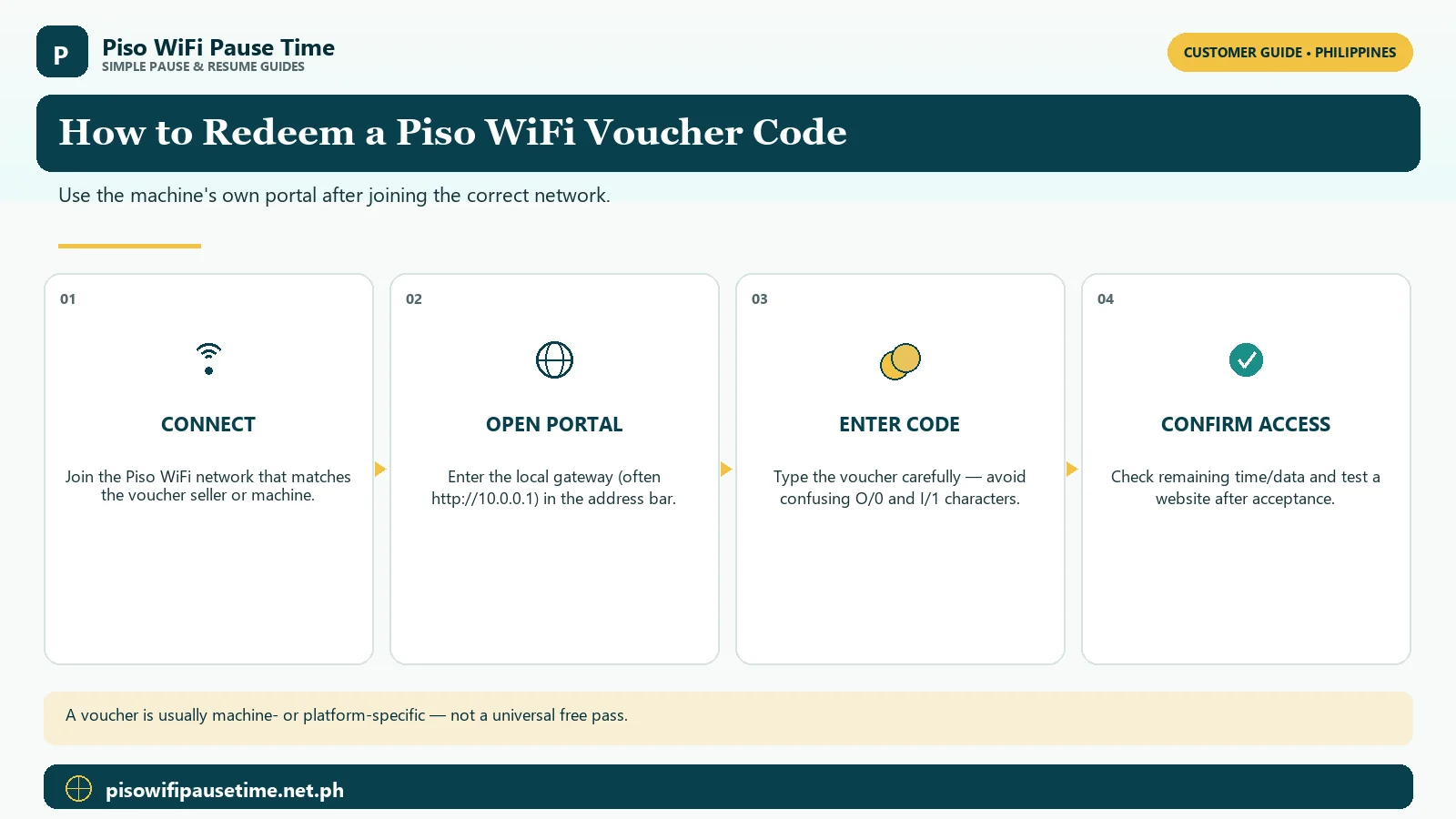
You can redeem a Piso WiFi voucher through the machine's customer portal if voucher access is available. The portal checks the code and, when it accepts the voucher, applies the package or session linked to it.
Open the WiFi settings on your phone, tablet or laptop. Find the network name (SSID) displayed on or near the Piso WiFi vendo machine. Select that network and wait until your device connects.
Make sure you are connected to the correct machine. If you connect to another WiFi network, the Piso WiFi customer portal may not open.
Some machines automatically open a login or payment page after you connect to their WiFi network. This page is called a captive portal.
If the page does not appear automatically, open Chrome, Safari or another browser. Enter the portal address provided by the machine and press Enter or Go. Many Piso WiFi setups use 10.0.0.1, but not all machines use this address. Check the machine's label, printed instructions or operator guidance if it does not open.
Remember that 10.0.0.1 is a local network address. It is not a voucher code and does not provide free internet access by itself.
Look at the options displayed on the customer portal. Depending on the machine and software, you may see a field or button labelled Voucher, Voucher Code, Enter Voucher, Activate Voucher, Redeem or WiPass.
Select the appropriate option and check whether a code-entry field appears. The portal may have different buttons for inserting coins, buying a voucher, viewing rates or activating an existing voucher. Choose the option for entering the code you already have.
The machine may not support voucher redemption through that portal, or the operator may not have enabled the voucher option. Do not enter your code into an unrelated field. Ask the machine owner whether voucher access is available.
Type the voucher code exactly as it appears on the printed slip or message. Before submitting it, check every letter and number, remove unwanted spaces, follow any uppercase or lowercase instructions, and confirm that the voucher is intended for the machine or system you are using.
When the code is ready, tap Submit, Redeem or Activate, depending on the portal. Wait for the system to process your request. Avoid repeatedly submitting the same code while the portal is still responding.
After submitting the code, look for a confirmation message or session information. The portal may display voucher accepted, successful activation, active session, remaining time, data balance or package details.
If the voucher is accepted but no time or data appears, check the session status before trying another code.
Voucher activation and working internet are not exactly the same thing. The system may accept a voucher while the machine's internet connection has a separate problem.
| What you see | What it means | What to do |
|---|---|---|
| Voucher accepted | The portal has accepted the code | Check your session |
| Active session | A session appears to have started | Check remaining time or data |
| Time or data displayed | The allowance is visible | Try opening a website |
| Active session but no internet | The connection may have another problem | Check the network and contact the operator |
2. Where to Get a Valid Piso WiFi Voucher Code
You can get a Piso WiFi voucher from the machine owner or an authorized seller who supplies vouchers for that machine or supported system. The important point is to obtain a code from a source that can confirm where it is valid. A voucher from one machine should not automatically be assumed to work on another.
Get a Voucher from the Piso WiFi Machine Owner
The local machine owner or operator is usually the best person to ask. Depending on the setup, the operator may sell a printed voucher slip, provide a voucher through a designated seller, offer a code through an available customer portal, or announce a promotion or reward.
Ask the operator which machine or platform the voucher is intended for before paying.
Buy from an Authorized Voucher Seller
Some operators may allow other people or shops to distribute their vouchers. Before buying, confirm that the seller is connected to the operator or authorized to issue vouchers for the machine you plan to use. Be careful with unknown online sellers who cannot explain which system their codes support.
Check the Voucher Details Before Paying
Do not check only the price. A voucher may have other conditions that affect how you use it.
- Issuing machine: Which Piso WiFi machine or operator issued the code?
- Compatibility: Which machine or platform accepts it?
- Package: Does it provide time, data or both?
- Price: Does the price match the advertised package?
- Speed: Are download or upload speed limits stated?
- Validity: Does the unused code have a redemption deadline?
- Timer: Does the package start counting at purchase or activation?
- Device conditions: Are there limits on the number of users or devices?
- Support: Can you contact the seller if the code is rejected?
Keep your voucher slip and proof of purchase until you have confirmed that the session works.
Can You Buy a Voucher Through the Piso WiFi Portal?
Some Piso WiFi customer portals display a Buy Voucher button or another purchase option. For example, AdoPiSoft's official captive portal documentation lists options such as showing a Buy Voucher button and an Activate Voucher form. This demonstrates that portal features can be configured, but it does not mean every Piso WiFi machine offers the same options.
If you do not see a purchase button, ask the local operator where vouchers are available.
Buy Voucher
Activate Voucher form · configured per machine
3. Are Free Piso WiFi Voucher Codes, Lists and Generators Real?
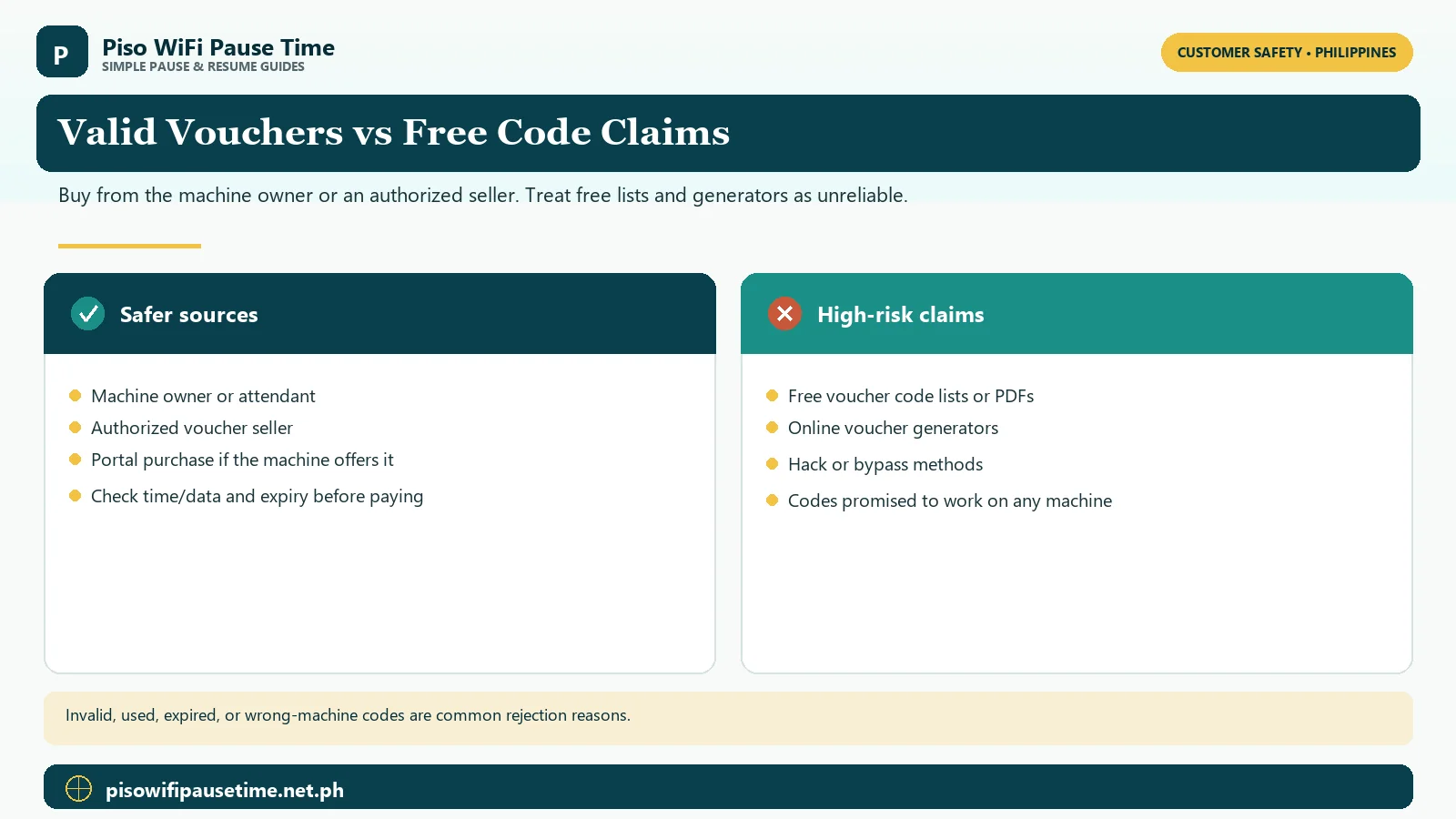
Free Piso WiFi voucher codes may be available when a machine owner offers a genuine promotion, reward or giveaway. However, there is no universal free voucher code that is guaranteed to work on every Piso WiFi machine. The source of the code matters. A code must still be valid and accepted by the system that receives it.
Can You Get a Free Piso WiFi Voucher Code?
Yes, a machine owner may offer a free voucher as part of a promotion or reward. The offer and its conditions are decided by that operator.
To check whether a free offer is genuine, ask the local machine owner about current promotions, check the operator's official announcement or communication channel, confirm which machine accepts the promotional voucher, and check any stated expiry or usage conditions.
Do not assume that a code is free or valid simply because a website or social media post describes it that way.
Do Free Piso WiFi Voucher Code Lists or PDFs Work?
Public voucher lists and PDF files are not reliable sources of guaranteed working internet access. A code copied from an old list may be already redeemed, expired, invalid, intended for another machine or unsupported by the portal you are using.
A voucher is not a universal password for all Piso WiFi systems. The receiving system must recognize and accept it. Avoid websites that promise unlimited working codes without identifying the issuing operator or supported machine.
Can a Piso WiFi Voucher Code Generator Create Free Internet Access?
A legitimate Piso WiFi platform may include a voucher-management feature used by an operator to issue prepaid access codes. That is different from a random website claiming that customers can generate free working vouchers.
A code must be issued or recognized by the relevant Piso WiFi system. Typing random characters into a customer portal will not create a valid voucher.
For example, AdoPiSoft documents voucher options that allow an operator to define package types, prices, limits and code formats. Those are system-managed voucher settings, not a public customer code generator.
What About Piso WiFi Voucher Code Hacks or Bypass Methods?
A hack or bypass is not a legitimate way to redeem a paid voucher or obtain authorized internet access. If you need internet access without paying the normal price, ask the operator whether a free promotion or reward is available. You can also check the machine's listed payment options.
- Free codes work on every machine — Free offers depend on the issuing operator
- Public voucher lists always work — Codes may be expired, used or unsupported
- A generator creates unlimited codes — A customer website cannot guarantee valid codes for a particular machine
10.0.0.1provides free internet — It is a local portal address on some machines- A hack can activate any voucher — Legitimate access requires an accepted payment or authorized offer
| Online claim | What you should know |
|---|---|
| Free codes work on every machine | Free offers depend on the issuing operator |
| Public voucher lists always work | Codes may be expired, used or unsupported |
| A generator creates unlimited codes | A customer website cannot guarantee valid codes for a particular machine |
10.0.0.1 provides free internet | It is a local portal address on some machines |
| A hack can activate any voucher | Legitimate access requires an accepted payment or authorized offer |
Do not share an unused voucher code publicly. Someone else may be able to redeem it if the system accepts the code.
4. Will a Piso WiFi Voucher Code Work on Any Machine?
No. You should not assume that a Piso WiFi voucher code works on every machine. A voucher is issued through a particular operator's system. The machine receiving the code must support the relevant voucher feature and recognize the code under its rules.
Why Piso WiFi Voucher Codes Can Be Machine-Specific
A voucher code is linked to a prepaid access package. The issuing system determines the package and its conditions. The receiving machine may check whether the code is valid, still available for redemption, supported by that system, within its configured validity period and allowed under package user or device limits.
If the code belongs to another machine or system, the customer portal may reject it.
Does the Same Piso WiFi Platform Guarantee Compatibility?
Not necessarily. Two machines can use the same platform but have different voucher settings, packages or configurations. The platform name alone does not prove that a particular voucher can be redeemed on both machines.
Before buying a voucher, ask the seller whether it is intended for the exact machine you plan to use.
How LPB, AdoPiSoft and PisoFi Voucher Features Can Differ
LPB Piso WiFi
LPB's official website describes a voucher system with custom time or data limits. It also describes LPB Cloud Session Time, which stores customer session time in the LPB Cloud and synchronizes remaining time across supported LPB machines. This is an LPB-specific feature. It does not prove that every LPB voucher works on every other Piso WiFi platform.
AdoPiSoft
AdoPiSoft documents several voucher types, including time, data, time with data capping and subscription vouchers. Its documentation also describes settings for speed, expiry, pause and maximum users per voucher. These features depend on the AdoPiSoft system and its configuration.
PisoFi and WiPass
PisoFi's feature documentation describes WiPass vouchers, including separate WiFi and desktop voucher options, configurable packages and certain sharing or transfer features. WiPass is a PisoFi-specific term, not a universal name for every Piso WiFi voucher. Available features may depend on software version and machine settings.
What Should You Ask Before Buying a Voucher?
- Which machine issued this voucher?
- Which machine or platform can redeem it?
- Does the target machine have a voucher field?
- What package does the voucher provide?
- Does it have an expiry or device restriction?
- Can the operator verify it if the portal rejects it?
These questions can help prevent a valid voucher from being purchased for the wrong machine.
5. What Does a Piso WiFi Voucher Code Include?
A Piso WiFi voucher usually represents a prepaid internet package. However, the exact package depends on the system and the settings chosen by the operator. A voucher may provide time, data or a combination of both. Some platforms also document subscription-style packages.
Time-Based Piso WiFi Vouchers
A time-based voucher provides an allowance measured in minutes, hours or days. The system then tracks the session according to its time and expiry rules. Check the package details before redeeming it so you understand the available time.
Data-Based Piso WiFi Vouchers
A data-based voucher provides an allowance measured in megabytes (MB) or another stated data unit. The amount of data available is different from the time a customer can use the session. Once the allocated data is consumed, the system may end the session according to its rules.
Vouchers with Both Time and Data Limits
Some systems support vouchers that combine a time limit and a data cap. This means the package has two conditions: a time allowance and a maximum amount of data. The session may end when either configured limit is reached. Check the operator's package description to understand which conditions apply.
Subscription or Longer-Term Vouchers
AdoPiSoft's official voucher guide also documents a subscription type. Its described subscription option is intended for recurring periods, such as weekly, biweekly or monthly billing, without the same time and data caps used by ordinary time or data vouchers. This is a documented AdoPiSoft feature, not a standard package available at every vendo machine.
Other Voucher Conditions to Check
| Voucher detail | What it means |
|---|---|
| Price | The amount charged for the voucher |
| Time allowance | How much session time is included |
| Data allowance | How much data can be consumed |
| Download speed | The configured download speed limit |
| Upload speed | The configured upload speed limit |
| Expiration | The configured period after which the voucher or session expires |
| Maximum users | How many users may use the voucher, if supported |
| Pause permission | Whether the session is allowed to pause |
| Device conditions | Any restrictions on devices that can use the session |
AdoPiSoft's official documentation lists several of these configurable voucher attributes. Other systems may use different package options.
Piso WiFi Voucher vs Coin Payment
| Feature | Voucher payment | Coin payment |
|---|---|---|
| How it works | Customer enters a code | Customer inserts coins |
| Package | Linked to the issued voucher | Based on the machine's coin rates |
| Processing | System validates the code | Machine processes the payment |
| Conditions | Depend on voucher and platform settings | Depend on machine payment settings |
Some machines may support more than one payment option. Check the customer portal for the methods available at your location.
6. When Does a Piso WiFi Voucher Timer Start and Expire?
The timer and expiry rules depend on the voucher and the system that issued it. Do not assume that every voucher starts counting at the same time. Before buying a voucher for later use, ask the operator when its validity begins and how long you have to redeem it.
Does the Voucher Timer Start When You Buy It or Redeem It?
There is no safe universal answer for every Piso WiFi machine. A voucher may have a redemption deadline, a session allowance or other expiry settings. The way these rules work depends on the platform and operator configuration.
Ask the seller whether the unused voucher has a redemption deadline, whether the session starts when the code is accepted, whether there is a separate expiry period after activation, and whether the voucher can be saved for later use.
Redemption acceptance and session countdown can be separate rules. Confirm both before you buy a voucher you plan to save.
What Is the Difference Between Voucher Expiry and Session Expiry?
Redemption deadline
A deadline for using an unused voucher, if configured. What to check: How long the code remains redeemable.
Session expiry
A rule that limits how long an activated session remains available. What to check: When the active session ends.
Consumable allowance
The time or data included in the package. What to check: How much time or data remains.
| Term | Meaning | What to check |
|---|---|---|
| Redemption deadline | A deadline for using an unused voucher, if configured | How long the code remains redeemable |
| Session expiry | A rule that limits how long an activated session remains available | When the active session ends |
| Consumable allowance | The time or data included in the package | How much time or data remains |
For example, AdoPiSoft's voucher documentation explains that its configured expiration value is added on top of the consumable time set for a time voucher. Its example uses seven days of voucher time plus one additional expiration day, resulting in an eight-day expiry period. That example describes an AdoPiSoft setting and should not be applied automatically to every Piso WiFi platform.
What Is Pause Validity?
Some Piso WiFi systems allow customers to pause an eligible session. They may also apply a separate validity period or limit to the paused session. Pause validity is not necessarily the same as the unused voucher's redemption deadline or the original package duration.
For example, AdoPiSoft documents configurable session expiry and pause limits. Its session settings can define how many times a session may be paused and when it expires. Other platforms may use different rules.
What Should You Check Before Saving a Voucher for Later?
- Whether the code has a redemption deadline.
- Whether its timer starts at purchase or activation.
- Whether the package has a separate session expiry.
- Whether pause is supported.
- Whether any pause validity limit applies.
- Whether the voucher is still unused.
If the printed voucher does not explain these conditions, ask the seller before purchasing it.
7. How to Check Your Piso WiFi Voucher Status and Remaining Allowance
After redeeming a voucher, check the customer portal to see whether the session is active and whether the expected time or data appears. The exact labels depend on the platform and portal design.
How to Check Whether Your Voucher Is Active
- Connect to the same Piso WiFi network.
- Open the machine's customer portal.
- Look for your current session or voucher status.
- Check whether the portal shows an active connection or remaining allowance.
- If the information is missing, refresh the portal after allowing it to finish loading.
Some systems may show an active session without displaying every voucher detail.
How to Check Your Remaining Time or Data
Look for a label such as Remaining Time, Session Time, Time Balance, Data Balance, Remaining Data or Session Status. If your voucher provides time, check the remaining time. If it provides data, look for the data balance. If it includes both, the portal may display both values.
Not every machine uses the same labels or displays the same information.
What If the Voucher Was Accepted but the Remaining Time Does Not Appear?
- Wait for the portal to finish processing.
- Refresh the customer portal.
- Check whether an active session appears.
- Reconnect to the same Piso WiFi network.
- Open the portal again and check the session.
If the voucher was accepted but the allowance is still missing, contact the machine owner or seller. Ask them to verify the transaction before you purchase or submit another code.
Where to Find More Help Checking Piso WiFi Remaining Time
This guide focuses on voucher redemption and voucher-related status. If you need a complete walkthrough of checking your Piso WiFi balance or remaining session time, see our Piso WiFi Remaining Time guide.
8. Why Is Your Piso WiFi Voucher Code Not Working?
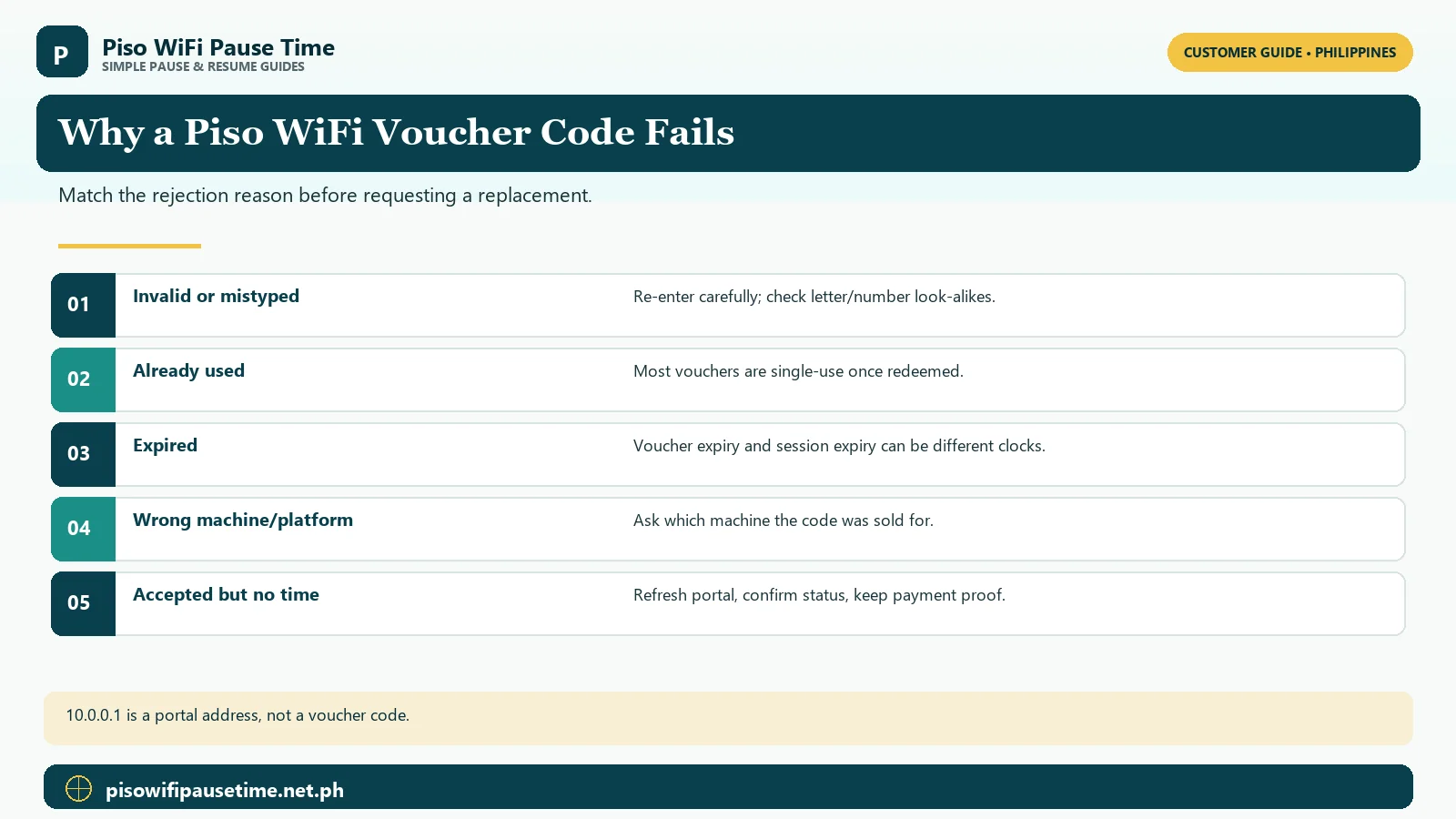
A Piso WiFi voucher may fail because of an incorrect code, an expiry condition, an already-used voucher, a machine compatibility issue or a portal problem. The error message can help you identify the next step.
Quick Piso WiFi Voucher Troubleshooting Table
| Problem | Possible reason | What you should do |
|---|---|---|
| Invalid code | Typing error or unsupported voucher | Check the code and ask the issuer |
| Already used | Voucher may have been redeemed | Check for an existing session |
| Expired | Validity period may have ended | Ask the seller to verify expiry |
| Wrong machine | Voucher may be platform-specific | Confirm compatibility |
| Accepted, no time | Session or allowance may not have updated | Check status before retrying |
| Active, no internet | Network connection may be unavailable | Check the connection and contact the operator |
| No voucher field | Voucher option may not be enabled or supported | Ask the operator |
9. What to Do If 10.0.0.1 Does Not Open
If 10.0.0.1 does not open, the machine may use another portal address, or your device may not be connected to its WiFi network. Try these checks before assuming that the voucher or machine is broken.
Check That You Are Connected to the Correct Piso WiFi Network
Open your device's WiFi settings and confirm that you are connected to the network shown on the vendo machine. The customer portal is normally associated with the local machine network. Connecting to a different WiFi network may prevent the portal from loading.
http://10.0.0.1Use only when the machine states this addressEnter the Portal Address in the Browser Address Bar
Open Chrome, Safari or another browser. Enter the address directly into the browser's address bar rather than typing it into a search engine. Use the address provided by the machine or operator. Try 10.0.0.1 only when it is the stated portal address.
Check for Typing Mistakes
A valid IPv4 address contains four number groups separated by three dots.
10.0.0.1 has four groups.10.0.0.0.1 has five groups and is not a valid IPv4 address.Check for extra zeros, missing dots or spaces.
Check Your Device and Browser Connection
Connection checks
- Confirm that your device is connected to the machine's WiFi.
- Check whether mobile data is interfering with local access.
- Temporarily check whether a VPN is preventing access to the local portal.
- Try another browser if the page remains unavailable.
- Reopen the portal using the correct machine address.
Do not bypass browser security warnings or enter sensitive information into an unfamiliar page.
Follow the Machine's Printed Gateway Instructions
Some Piso WiFi systems use a different local address. The machine's printed instructions, router label or operator guidance should take priority over a generic internet tutorial. If you cannot identify the correct address, ask the operator for help.
For a complete portal-access walkthrough, see our Piso WiFi Login at 10.0.0.1 guide.
10. Can You Pause, Resume or Transfer a Piso WiFi Voucher Session?
Some Piso WiFi systems allow customers to pause or resume eligible sessions. Other systems may not provide these features, or the machine owner may have disabled them. The availability of pause, resume and transfer options depends on the platform, voucher and machine configuration.
Can You Pause a Piso WiFi Voucher Session?
If your machine supports pausing, the customer portal may display a Pause Time or Pause button.
Connect and open the machine portal first.
Confirm an active voucher session before pausing.
Use the Pause Time or Pause control shown in the portal.
Do not leave until the portal shows the paused state.
Do not assume that turning off WiFi automatically pauses your remaining time. AdoPiSoft's documentation describes an Allow Pause setting for voucher sessions. It also documents session pause limits and expiry conditions. This is a configurable platform feature, not a guarantee for every machine.
How to Resume a Paused Voucher Session
Some systems may associate a session with the device used to start it. If the portal does not recognize your previous session on another device, ask the operator whether device transfer is supported.
Can You Transfer Your Remaining Voucher Time to Another Device?
It depends on the platform and its configuration. Some systems document features for transferring remaining time or moving session access. For example, PisoFi's published feature documentation describes transfer-related options and WiPass features.
However, this does not mean every Piso WiFi machine allows customers to move their remaining time between phones, tablets or other devices. Ask the operator before assuming that your active session can be transferred.
Is Sharing an Unused Voucher the Same as Transferring a Session?
No. These are different actions:
Another person may be able to redeem the code, depending on its status and rules.
Remaining time or data is moved through a feature supported by the system.
The same or another supported device continues an existing session, depending on platform rules.
Keep unused voucher codes private. If you want to use your remaining time on another device, ask the operator whether the machine supports that feature.
For detailed instructions, read our separate Piso WiFi Pause Time guide.
11. What to Do If Your Piso WiFi Voucher Is Lost, Damaged or Rejected
If you lose your voucher slip, cannot read the code or paid for a voucher that does not work, contact the seller or machine owner. The operator is usually the person who can verify the issued voucher and check what happened.
What If You Lose Your Voucher Slip?
First, check whether you have another record of the purchase. You may have a receipt, payment confirmation, message from the seller, transaction reference or photo of the voucher slip.
Contact the seller or operator and explain when and where you purchased it. Do not rely on random online voucher lists as a replacement.
What If the Voucher Code Is Damaged or Unreadable?
Do not keep guessing the missing characters. Keep the original slip and show it to the seller or operator. If you have proof of purchase, provide that as well. The issuer may be able to verify the voucher and explain whether a replacement is possible.
What If You Paid but the Voucher Does Not Work?
Prepare the following information before contacting the operator:
- Voucher slip or transaction reference.
- Proof of payment, if available.
- Machine location or identification.
- The exact error message shown by the portal.
- Approximate purchase time.
- Whether you submitted the code.
- Whether the portal displayed an acceptance message.
This information can help the operator investigate the problem.
Can You Get a Refund or Replacement Voucher?
A refund or replacement depends on the seller's or operator's policy and the circumstances of the problem. Do not assume that every rejected voucher automatically qualifies for a refund.
Explain the issue, provide your purchase details and ask the issuer to verify the code. Keep your proof of payment until the issue is resolved.
12. Piso WiFi Voucher Code FAQs
What is a Piso WiFi voucher code?
How do I redeem a Piso WiFi voucher code?
Where can I get a valid Piso WiFi voucher code?
Is there a free Piso WiFi voucher code?
Can I use one Piso WiFi voucher code on any machine?
Is 10.0.0.1 the voucher code or the login portal?
10.0.0.1 is a local IP address used by some Piso WiFi machines to open their customer portal. It is not a voucher code. Some machines use a different portal address.Why does my Piso WiFi voucher code say invalid?
Can I use a Piso WiFi voucher code more than once?
Does a Piso WiFi voucher expire if I do not use it?
When does the Piso WiFi voucher timer start?
What should I do if my voucher is accepted but I have no internet?
Can I check my remaining voucher time at 10.0.0.1?
10.0.0.1 as its customer portal and displays session information, you may be able to check your remaining time there. Other machines may use another address or portal layout.Can I pause a Piso WiFi voucher session?
Can I transfer my remaining voucher time to another phone?
Why is the voucher field missing from the portal?
Can I get a replacement if my voucher slip is lost or damaged?
Final Tips for Using a Piso WiFi Voucher
- Buy your code from the machine owner or an authorized seller.
- Confirm that the voucher is intended for the machine you plan to use.
- Follow the portal address printed on the machine.
- Enter the code carefully and wait for the system to respond.
- Check your remaining time or data after activation.
- Understand the voucher's expiry and session conditions.
- Use Pause or Resume only when the portal supports it.
- Keep unused voucher codes and purchase receipts private.
- Contact the operator if the code is rejected or your payment is not credited.
A Piso WiFi voucher is useful when you understand where it came from, which machine supports it and what package it provides. If you check those details before redeeming it, you can avoid many common voucher problems.
Sources and factual notes
- AdoPiSoft – Vouchers: documented voucher types, speed settings, expiry, pause permission, maximum users and voucher attributes.
- AdoPiSoft – Theme: Captive Portal: configurable Buy Voucher buttons and Activate Voucher forms.
- AdoPiSoft – Session Settings: session pause, resume, expiry and pause limits.
- LPB Piso WiFi – Official Website: LPB voucher packages and LPB Cloud Session Time.
- PisoFi – Features: WiPass, voucher options and transfer-related features. This page is dated December 2019, so its feature descriptions should be treated as version-dependent.
Accuracy note: Platform-specific features are not universal Piso WiFi features. Confirm the rules of the machine and operator before relying on a voucher, pause option or transfer feature.
Customer guide · Always follow the instructions supplied by your local Piso WiFi operator.