Piso WiFi Remaining Time Checker
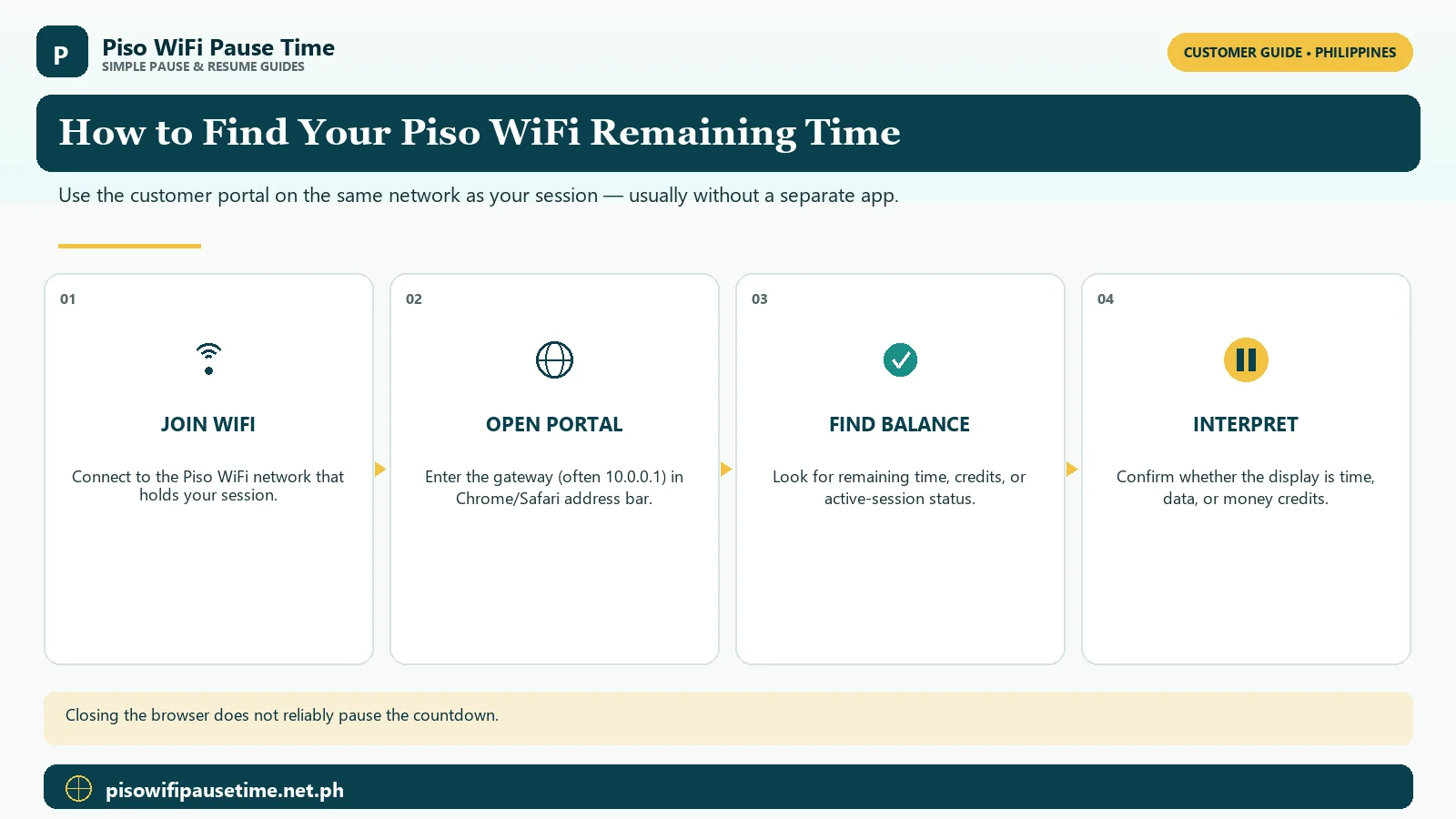
The Piso WiFi remaining-time balance is usually displayed in the customer portal of the vending machine you are connected to. Some machines use 10.0.0.1 as their local gateway address. You can enter this address in your browser to reach the portal when it is configured that way.
http://10.0.0.1You can use the tool in three ways: follow the steps to access your actual Piso WiFi balance, enter your displayed timer to calculate the remaining duration, or choose a problem to receive troubleshooting instructions. You do not need to install an additional application.
Piso WiFi Remaining Time Checker
Check and understand your session
Portal guidance, manual time interpretation and session troubleshooting.
Find your actual Piso WiFi balance
Follow these steps to open the customer portal where your machine displays your real session information.
- Connect to the original Piso WiFi network.
Open WiFi settings and join the network from the machine where you purchased your session. - Open your browser.
Look for the automatic sign-in notification. You can also open Chrome or Safari. - Enter the machine's gateway if needed.
If the machine uses this address, enter http://10.0.0.1 in the address bar. - Find your active session.
Look for Remaining Time, Time Left, Session Time or a similar field. - Enter the displayed value in the Time Interpreter.
Switch to the Time Interpreter above to understand the hours, minutes and seconds.
Not every Piso WiFi machine uses this address. Check the gateway assigned to your connected WiFi network or ask the machine operator for the correct portal address.
Interpret your remaining-time value
Enter the timer exactly as it appears in your Piso WiFi customer portal.
Supported formats: HH:MM:SS or MM:SS. Example: 01:30:00 or 45:20.
Your interpreted remaining time
This is the duration represented by the value you entered.
Diagnose your Piso WiFi session
Select the problem you are experiencing to see what to check next.
Remaining time is missing
- Reconnect to the original vending network.
- Reopen its customer portal.
- Look for your previous active or paused session.
- Refresh the page and check again.
- If the balance remains missing, contact the operator with your payment details.
This checker does not connect to your Piso WiFi machine or retrieve your live account balance. The actual balance is displayed in your machine's customer portal. The interpreter works with the time you enter, and the diagnostic provides guidance based on the problem you select.
The tool helps with three different tasks: reaching the actual customer portal, understanding a displayed timer and identifying possible session problems. It does not replace the machine's own session records.
How to use this checker
The manual interpreter is useful when your portal displays a countdown that is difficult to understand. For example, entering 01:30:00 tells you that you have one hour and thirty minutes remaining.
How to Find Your Piso WiFi Balance at 10.0.0.1
How to Open the Piso WiFi Customer Portal in Chrome
- Open WiFi settings on your phone.
- Connect to the Piso WiFi network where you purchased your session.
- Open Google Chrome.
- Tap the browser's address bar.
- Enter http://10.0.0.1 if this is the machine's configured gateway.
- Wait for the customer portal to load.
- Look for your session or remaining-time information.
Enter the address in the browser's address bar, not in Google's search box.
If the portal does not open, check the correct gateway with the network settings or ask the vending machine operator.
Where to Find Your Active Session and Remaining Time
After opening the customer portal, look for a section containing your customer or session information. Depending on the software, the information may appear under labels such as:
Select the relevant customer-session information if the portal provides a separate dashboard. Do not assume that every Piso WiFi portal has the same layout or dashboard path. The available information depends on the vending software and its configuration.
What If 10.0.0.1 Does Not Open?
- Check your WiFi connection: Make sure your phone is connected to the original Piso WiFi network.
- Check the address: Make sure you entered the gateway correctly.
- Try the captive portal: Check whether your phone has displayed a network sign-in notification.
- Refresh the browser: Close and reopen the portal page.
- Check VPN or proxy settings: Temporarily disable a VPN or proxy if it is interfering with access to the local network.
- Ask the operator: The machine may use a different gateway address or may have a temporary network problem.
The address is not a regular website. It is a private IP address used for communication within a local network.
What Is 10.0.0.1 in Piso WiFi?
10.0.0.1 is a private IPv4 address that can be used as a local gateway. In a Piso WiFi installation, the gateway may provide access to the machine's customer portal.
When your phone connects to the vending machine's WiFi network, it becomes part of that local network. You may then be able to open the customer portal through the configured gateway address.
Remember that not every Piso WiFi machine uses 10.0.0.1. The address depends on the network configuration set by the operator.
What Is 10.0 0.1 in Chrome?
The search phrase 10.0 0.1 in Chrome is likely a spacing variation of the address 10.0.0.1.
If you want to open the local Piso WiFi portal, enter the correctly formatted address in Chrome's address bar: http://10.0.0.1.
An IPv4 address contains four numerical sections called octets, separated by three dots. Therefore, 10.0.0.1 is correctly formatted, while 10.0.0.0.1 contains five sections and is not a valid IPv4 address.
10.0.0.1Four octets, three dots10.0.0.0.1Five sections — not a valid IPv4 addressMake sure you are connected to the correct vending network before trying to open the address.
How to Check Piso WiFi Remaining Time on Android
You can check your Piso WiFi remaining time using an Android phone without installing a special application. The important thing is to connect to the correct vending network and open its customer portal.
Connect Your Android Phone to the Correct Piso WiFi Network
- Open the Settings application on your Android phone.
- Select WiFi or Network and Internet, depending on your phone.
- Turn on WiFi.
- Find the name of the Piso WiFi network.
- Tap the network to connect.
- Complete any required sign-in or connection step.
Check that your phone is actually connected to the vending network before continuing. Android menu names can differ between Samsung, Xiaomi, OPPO, Vivo and other manufacturers.
Open the Customer Portal on Chrome
After connecting, look for a notification asking you to sign in to the WiFi network. Tap the notification if it appears. Wait for the captive portal to open.
If no notification appears, open Chrome and enter the machine's configured gateway address, such as http://10.0.0.1, if applicable.
Android supports captive-portal detection and can notify users when a network requires sign-in. However, the exact notification and interface can differ between Android versions and devices.
Find Your Remaining-Time Balance
- Locate your active session.
- Look for Remaining Time, Time Left or a similar label.
- Check the displayed hours, minutes and seconds.
- If the timer looks outdated, refresh the page.
- Enter the displayed value into the remaining-time interpreter above if you need help understanding it.
Remember that the portal, not your Android phone, is the source of the machine's actual session balance.
What to Do If the Portal Does Not Appear on Android
- Disconnect and reconnect to the original Piso WiFi network.
- Check for a WiFi sign-in notification.
- Open Chrome manually.
- Check the correct local gateway.
- Temporarily disable a VPN or proxy if it blocks local access.
- Ask the operator whether the customer portal is working.
Do not purchase another session immediately just because the automatic login screen did not appear.
How to Check Piso WiFi Remaining Time on iPhone
iPhone users can also check their Piso WiFi remaining time through the machine's customer portal. You can use the built-in WiFi settings and Safari browser without installing another application.
Connect Your iPhone to the Piso WiFi Network
- Open Settings on your iPhone.
- Tap WiFi.
- Turn on WiFi if it is disabled.
- Find the name of the Piso WiFi network.
- Tap the network to join it.
- Wait for the connection to complete.
A blue checkmark beside the network name indicates that your iPhone has joined that WiFi network.
Open the Captive Portal in Safari
After joining the network, wait for the captive-network login screen. Apple's instructions for captive WiFi networks explain that you can join a network through Settings, tap its name and wait for the login screen. If necessary, you can open the network information and select Join Network.
If the automatic login screen does not appear, open Safari, enter the machine's configured local gateway address and wait for the customer portal to load. Use http://10.0.0.1 only if that is the correct address for the machine.
Locate Your Remaining-Time Display
- Find your existing session.
- Look for the remaining-time or balance information.
- Read the displayed duration.
- Check whether the session is active or paused.
- Use the interpreter above if you want to convert the timer into total minutes.
The available information depends on the vending platform.
What to Do If the Piso WiFi Login Screen Does Not Appear
- Make sure your iPhone is connected to the correct network.
- Open Settings and select the WiFi network again.
- Use the Join Network option if available.
- Open Safari and try the configured gateway.
- Reconnect to the network if the portal remains unavailable.
- Contact the operator if the local portal cannot be reached.
See Apple's instructions for using captive WiFi networks on iPhone and iPad.
How to Read Your Piso WiFi Remaining-Time Display
The remaining-time display tells you how much of your allocated time is still available. However, different machines can use different timer formats and session rules.
02:00:002 hours01:30:001 hour and 30 minutes00:45:2045 minutes and 20 seconds00:15:0015 minutes00:05:305 minutes and 30 seconds00:00:00Zero remaining timeWhat Does HH:MM:SS Mean?
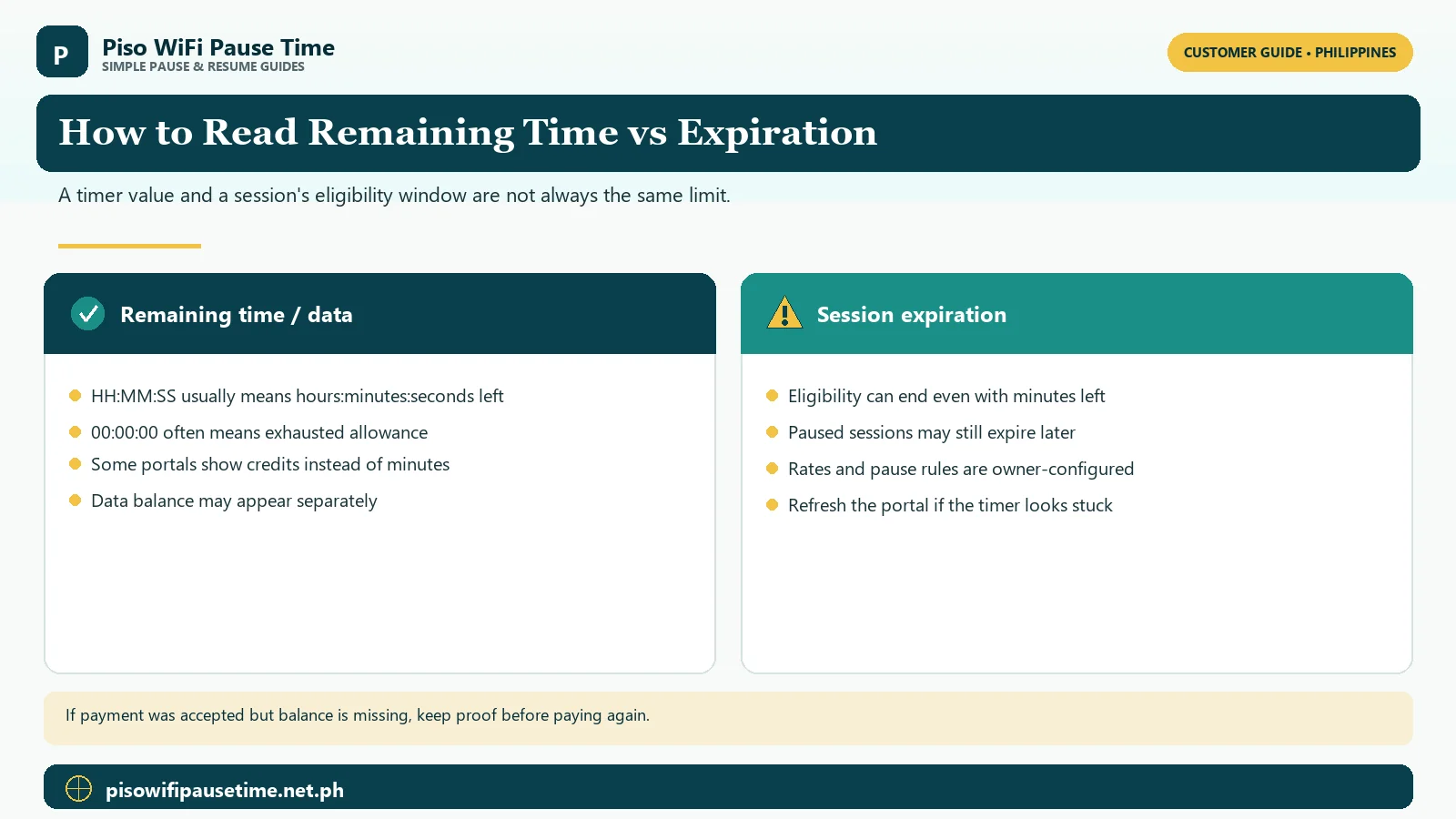
Some countdown timers display time in the format HH:MM:SS: HH represents hours, MM represents minutes and SS represents seconds. For example, 01:30:00 means one hour and thirty minutes.
How to Understand Hours, Minutes and Seconds
| Timer display | Remaining duration |
|---|---|
| 02:00:00 | 2 hours |
| 01:30:00 | 1 hour and 30 minutes |
| 00:45:20 | 45 minutes and 20 seconds |
| 00:15:00 | 15 minutes |
| 00:05:30 | 5 minutes and 30 seconds |
| 00:00:00 | Zero remaining time |
These are illustrative countdown values. Your machine may use a different display format. If you are unsure about a displayed value, enter it into the manual interpreter in our checker.
What Does 00:00:00 Mean?
A countdown showing 00:00:00 normally means that the displayed time allowance has reached zero. If this happens, check your customer portal for another available session, remaining data allowance or subscription information, if your machine supports those options.
If you believe the displayed value is incorrect, contact the operator and ask them to verify your session.
Why Can Timer Displays Differ Between Machines?
Not every Piso WiFi machine uses the same vending software or session configuration. Some installations use time-based sessions, while others can use data-based or combined time-and-data sessions.
For example, AdoPiSoft documents Time Session, Data Session, Time or Data Session and Subscription Session types. These session types do not all represent the same kind of remaining allowance.
Therefore, always check the label associated with the displayed number before interpreting it.
What Does Piso WiFi Balance Mean?
A Piso WiFi balance can represent different things depending on the machine and its session configuration. It may refer to remaining internet time, available data or monetary credits. These values are related to your service but are not interchangeable.
HH:MM:SSUnused duration in a time-based session.
MB / GBUnused data allowance in a data-based session.
What Is Piso WiFi Remaining Balance?
The remaining balance is the unused allowance associated with your session. For a time-based session, it represents the time you have left. For a data-based session, it represents the amount of data you can still consume.
Always check the label and unit displayed beside the value.
Remaining Time vs Data Balance
| Remaining time | Data balance |
|---|---|
| Measures unused session duration | Measures unused data allowance |
| Usually displayed in hours, minutes or seconds | Usually displayed in MB or another data unit |
| Consumed as the session timer runs | Consumed as data is transferred |
| Used in time-based sessions | Used in data-based sessions |
Some vending systems also support sessions that end when either the time allowance or data allowance is consumed. AdoPiSoft documents this as a Time or Data Session.
Time Credits vs Money Credits
Time credits and money credits should not be confused. Money credits represent the payment value recognized by the machine. Time credits represent the internet duration allocated to a session.
The amount of time received from a payment depends on the machine's configured rates. A payment of ₱5 does not automatically mean that every Piso WiFi machine provides the same number of minutes.
Remaining Balance vs Session Expiration
Remaining time and session expiration are also different. Remaining time is the unused duration in a time-based session. Session expiration is the date or time when the session becomes invalid according to its configured validity rules.
The unused duration in a time-based session.
The date or time when the session becomes invalid according to its configured validity rules.
A session may have unused time but still be subject to an expiration condition. AdoPiSoft's documentation identifies expiration date and time as configurable session settings. The expiration setting can also be disabled by the administrator.
Why Does My Portal Show Credits Instead of Minutes?
Your customer portal may display a payment credit, data allowance or another session value rather than a countdown. This can happen because different vending systems and session types organize customer information differently.
- Read the label beside the value.
- Check whether the unit is minutes, seconds, MB or pesos.
- Look for an active session or session details.
- Ask the operator if the value is unclear.
Do not assume that every number displayed in the portal represents remaining internet time.
How Long Does Piso WiFi Last?
The duration of a Piso WiFi session depends on the rate configured by the vending machine operator and the type of session purchased. There is no single duration that applies to every Piso WiFi machine in the Philippines.
How Many Minutes Can You Get for ₱1?
The number of minutes you receive for ₱1 depends on the machine's pricing settings. One operator may offer five minutes for ₱1, while another may use a different rate. Always check the price and duration displayed on the actual vending machine before making a payment.
How Much Time Can ₱5 or ₱10 Buy?
Here is a hypothetical example to explain how a configured rate works. Suppose a machine offers five minutes for every ₱1:
| Payment | Example duration |
|---|---|
| ₱1 | 5 minutes |
| ₱5 | 25 minutes |
| ₱10 | 50 minutes |
These are mathematical examples, not standard Philippine Piso WiFi rates. Your actual session duration may be different.
Why Do Piso WiFi Rates Differ?
Vending machine owners can configure different rates and session packages. The duration may depend on the price per session, promotional rates, time-based or data-based packages, additional session options and vending software configuration.
This is why you should check the actual rate displayed by the machine rather than relying on a rate from another location.
Can Your Session Expire With Time Remaining?
Yes, this can happen when the vending system has an expiration condition. A session's remaining time and its validity period are separate attributes.
For example, a machine may provide an allocated duration that must be used within a configured validity period. If the validity period ends first, the session may become invalid even when some allowance remains. The exact behavior depends on the machine's software and configuration.
How to Save Your Piso WiFi Remaining Time With Pause and Resume
Some Piso WiFi machines provide a Pause Time feature that allows eligible customers to suspend a session and continue using the remaining allowance later. However, pausing is not available on every machine, and the feature may have limits.
What Is the Difference Between Remaining Time and Pause Time?
Remaining time
Remaining time is the unused duration in your session.
Pause Time
Pause Time is a control that may temporarily suspend an eligible session. If your machine supports pausing, you may be able to pause a session instead of allowing its countdown to continue.
The exact behavior depends on the vending software and operator settings.
How to Pause an Active Piso WiFi Session
Open the original Piso WiFi customer portal.
Locate your active session.
Check the remaining-time value.
Select Pause if the option is available.
Wait for the portal to confirm the session state.
Check whether the session is marked as paused.
Do not assume that closing the browser or disconnecting WiFi performs the same action.
How to Resume Your Saved Time
Reconnect to the relevant Piso WiFi network.
Open the customer portal.
Locate your paused session.
Select Resume if available.
Wait for confirmation.
Check the displayed remaining balance.
If the Resume option is unavailable, the session may have expired or the machine may not support that feature.
Does Disconnecting WiFi Stop the Countdown?
Disconnecting from WiFi does not automatically mean that your Piso WiFi session has been paused. The machine may continue applying its session rules even when your phone is no longer connected.
If you want to preserve unused time, use the actual Pause control when your machine provides one.
Can You Check Remaining Time After Pausing?
If the platform keeps the paused session available, you may be able to reopen the customer portal and view its session information. Check for paused status, remaining time, session expiry and resume availability. Some systems may display the paused session differently from an active session.
Can a Paused Session Expire?
A paused session can still be subject to expiration or pause limits, depending on the platform configuration. Do not assume that pausing gives unlimited validity to unused time.
Why Is My Piso WiFi Timer Stuck or Not Updating?
If your Piso WiFi countdown is not changing, the displayed page may be outdated or the session may have a different status than you expect. A frozen timer does not automatically prove that the machine has stopped counting your remaining time.
A frozen timer on screen does not automatically prove the machine stopped counting. Refresh the portal and check whether the session is active or paused.
Why Is the Remaining-Time Countdown Not Changing?
Possible explanations include an outdated browser display, a customer portal that has not refreshed, a paused session, a temporary network connection problem or a change in session status.
How to Refresh an Outdated Timer Display
- Refresh the customer portal.
- Check that your phone is still connected to the original WiFi network.
- Reopen the session information.
- Check whether the session is active or paused.
- Compare the newly displayed value with the previous value.
Refreshing the page only updates the information displayed by the browser. It does not automatically change the machine's session balance.
Is My Session Paused or Is the Timer Frozen?
A paused session is one that the vending system has marked as suspended through a supported session-control feature.
A frozen timer may simply be an outdated webpage or a display problem.
A paused session is one that the vending system has marked as suspended through a supported session-control feature. A frozen timer may simply be an outdated webpage or a display problem. Check the session status before assuming that your time has been preserved.
What Should I Check Before Contacting the Operator?
If the displayed balance continues to look incorrect, ask the machine operator to check the actual session record.
Why Did My Piso WiFi Remaining Time Disappear?
Your previous Piso WiFi balance may disappear from the customer portal for several reasons. The session may no longer be recognized, the network may have changed, the session may have expired or the payment may not have been credited correctly.
Reconnect to the original network and reopen the portal. Keep your payment reference before making another purchase.
Why Does the Portal Return to Insert Coin?
If the portal returns to an Insert Coin screen, it does not necessarily mean that your previous payment has disappeared. Possible explanations include a session that has ended, a session that is not being recognized, a connection to a different vending machine or a portal that has not loaded the previous session information.
- Session endedA session that has ended.
- Not recognizedA session that is not being recognized.
- Wrong machineA connection to a different vending machine.
- Portal not loadedA portal that has not loaded the previous session information.
Reconnect to the original network and check whether your previous session is still available.
Why Is My Previous Session Not Showing?
A previous session may not appear if the machine no longer recognizes it or if the session has expired. Different vending platforms may also identify and manage customer sessions differently.
Try reopening the original customer portal before purchasing another session. If your balance is still missing, contact the operator and ask them to verify the session.
What If My Payment Was Accepted but No Time Was Added?
- Check whether you received a payment confirmation.
- Keep the transaction reference.
- Refresh the customer portal.
- Check whether a new session appeared.
- Contact the machine operator if the time was not credited.
Do not immediately make another payment without checking the first transaction.
Can You Recover Missing Piso WiFi Time?
Recovery depends on the machine's session records, payment information and the operator's ability to verify the transaction. There is no universal customer-side method that guarantees restoration of missing time.
If you believe your payment was accepted, provide the operator with the transaction details and ask them to check the machine's records.
What Information Should You Give the Machine Operator?
| Information | Why it helps |
|---|---|
| Network or machine name | Identifies the vending machine |
| Payment amount | Helps locate the transaction |
| Payment method | Identifies the payment channel |
| Transaction reference | Helps verify the payment |
| Approximate payment time | Helps locate the relevant record |
| Last known remaining balance | Helps explain the problem |
| Error message | Helps identify the issue |
Keep your transaction information private and share it only with the relevant operator or payment provider through an appropriate support channel.
Can You Add More Time Before Your Piso WiFi Session Ends?
Some Piso WiFi machines allow customers to make additional purchases while another session is active. However, the way additional time is handled depends on the vending software and session configuration.
Can You Buy More Time During an Active Session?
This depends on the payment and session options provided by the machine. Some installations may allow another transaction while an earlier session is still available. Others may handle additional payments as separate sessions.
Check the customer portal and the instructions displayed by the vending machine.
Does Additional Payment Extend Your Existing Session?
Not necessarily. AdoPiSoft documentation explains that Time Session transactions have separately allocated time rather than automatically combining every new transaction with the previous session. Its documentation also explains that a device can have multiple sessions, with another available session becoming active after the previous one is consumed.
This is a platform-specific example, not a universal rule for every Piso WiFi machine.
What Should You Check Before Paying Again?
- Check your existing remaining time.
- Look for an active or pending session.
- Check whether the portal recognizes your previous payment.
- Read the machine's additional-purchase instructions.
- Ask the operator if you are unsure whether a new payment will extend or create a separate session.
This can help prevent unnecessary duplicate payments.
How Does Remaining Time Differ Across Piso WiFi Platforms?
Piso WiFi machines can use different vending software, customer portals and session-management settings. This is why two machines may display remaining time differently even when both provide prepaid WiFi access.
How LPB Piso WiFi Handles Remaining Time
LPB advertises a feature called Cloud Session Time. According to its official website, customer session time is stored in the LPB Cloud and synchronized across participating LPB machines. This allows customers to access their remaining time across supported machines.
LPB also advertises customer pause and resume functionality through its cloud-connected system. These are LPB-specific advertised features. They should not be assumed to work on every independent Piso WiFi machine.
Official reference: LPB Piso WiFi.
How AdoPiSoft Handles Time and Data Sessions
AdoPiSoft documents several session types:
- Time Session: A traditional session based on allocated time. The system tracks remaining time in seconds.
- Data Session: A session based on data consumption, measured in megabytes.
- Time or Data Session: The session becomes invalid when either its allocated time or data allowance is consumed.
- Subscription Session: A different session arrangement without an allocated time or data allowance in the same way as the other session types.
AdoPiSoft also documents configurable session expiration, pause permissions and remaining-time adjustments. These differences help explain why one customer may see a countdown while another sees a data balance or different session information.
Official reference: AdoPiSoft documentation – Session Types and Administration.
How Other Piso WiFi Platforms Can Differ
Other vending platforms, including JuanFi and PisoFi installations, may use different customer interfaces and session settings. Do not assume that all platforms have the same customer dashboard, remaining-time labels, session types, pause and resume options, expiration rules or payment behavior.
Why Does Your Piso WiFi Portal Look Different?
Your portal may look different because of vending software, software version, customized customer interface, machine configuration, available session types or operator settings.
The important thing is to find your actual customer session and identify which value represents the remaining allowance.
Frequently Asked Questions About Piso WiFi Remaining Time
How Do I Know How Many Minutes Are Left in Piso WiFi?
Connect to the original Piso WiFi network and open its customer portal. Find your active session and look for Remaining Time, Time Left or a similar label. If the portal displays hours, minutes and seconds, you can enter that value into our checker to understand the total duration.
How Long Does Piso WiFi Last?
Piso WiFi duration depends on the price and session package configured by the vending machine operator. Different machines can offer different rates. Check the displayed price and time allocation before purchasing a session.
Can I Get Infinite Time in Piso WiFi?
You can use unlimited access only when the operator provides an authorized unlimited or subscription package. Otherwise, your access depends on the purchased session, available allowance and machine rules. There is no legitimate universal method for obtaining unlimited time from a regular prepaid session.
What Is 10.0 0.1 in Chrome?
The phrase is likely a formatting variation of 10.0.0.1, a private IPv4 address that can serve as a local gateway. If your Piso WiFi machine uses this address, enter http://10.0.0.1 in Chrome's address bar while connected to its network.
Can I Check Piso WiFi Remaining Time Without an App?
Yes. If the vending machine provides a browser-based customer portal, you can check your session through Chrome, Safari or another supported browser. You do not necessarily need a separate application.
Does Closing Chrome Stop the Piso WiFi Timer?
No. Closing Chrome does not automatically pause your machine's session. The countdown may continue according to the machine's configuration. Use the actual Pause option if the machine supports it and you want to suspend an eligible session.
Can I Check My Balance After Disconnecting?
You may be able to check it again after reconnecting to the original vending network, provided the session remains available. Open the customer portal and look for your previous session. Availability depends on how the machine identifies and manages customer sessions.
Why Does My Piso WiFi Timer Show Zero?
A timer showing 00:00:00 normally means that the displayed time allowance has been consumed. Check whether another session, data allowance or subscription is available. If you believe the value is incorrect, ask the machine operator to verify your session.
Official References and Further Reading
Platform documentation describes features that may depend on software version and operator configuration. It does not establish that every Piso WiFi installation behaves identically.