Piso WiFi Not Working? How to Fix Pause Time and Connection Problems
START HERE
Quick Piso WiFi Troubleshooting: Find Your Problem
If the Piso WiFi login page does not appear, check your connection and gateway before changing advanced phone settings.
How to Access the Piso WiFi Customer Portal
- Open your phone's WiFi settings.
- Connect to the correct Piso WiFi or vendo network.
- Temporarily turn off mobile data.
- Open Chrome, Safari or another browser.
- Enter the local gateway address in the address bar.
- Wait for the login or customer portal.
http://10.0.0.1
Works only on the network that uses this address.
If you do not know the correct gateway, check the connected network's details. You can also try visiting a normal website to trigger the captive portal sign-in page.
The 10.0.0.1 address is commonly used as a local gateway in Piso WiFi environments. However, it will only work when your device is connected to the network that uses that address.
If your Piso WiFi Pause Time is not working, first check that you are connected to the correct network, open the customer portal, and verify that your session is active. If the Pause button does not appear or respond, the feature may be unavailable or the machine may not have processed your request.
1. Piso WiFi Pause Time Not Working? How to Fix It
Before trying advanced fixes, reconnect to the correct Piso WiFi network and check whether your internet session is active.
First, check whether the customer portal opens normally. If it does not, follow the portal troubleshooting section below.
Piso WiFi Pause Button Is Not Responding
If the Pause button is visible but nothing happens after tapping it, try these steps:
Make sure your phone is connected to the original Piso WiFi network.
Open the customer portal again.
Check whether your session is still active.
Wait for the page to finish loading.
Tap Pause once and wait for a response.
Refresh the portal if it remains unresponsive.
Try another browser if the problem continues.
Look for a confirmation message or a changed session status. If the portal still shows an active countdown, the pause may not have been completed.
If the button continues to fail, ask the machine owner to check whether Pause Time is enabled and whether your session is eligible.
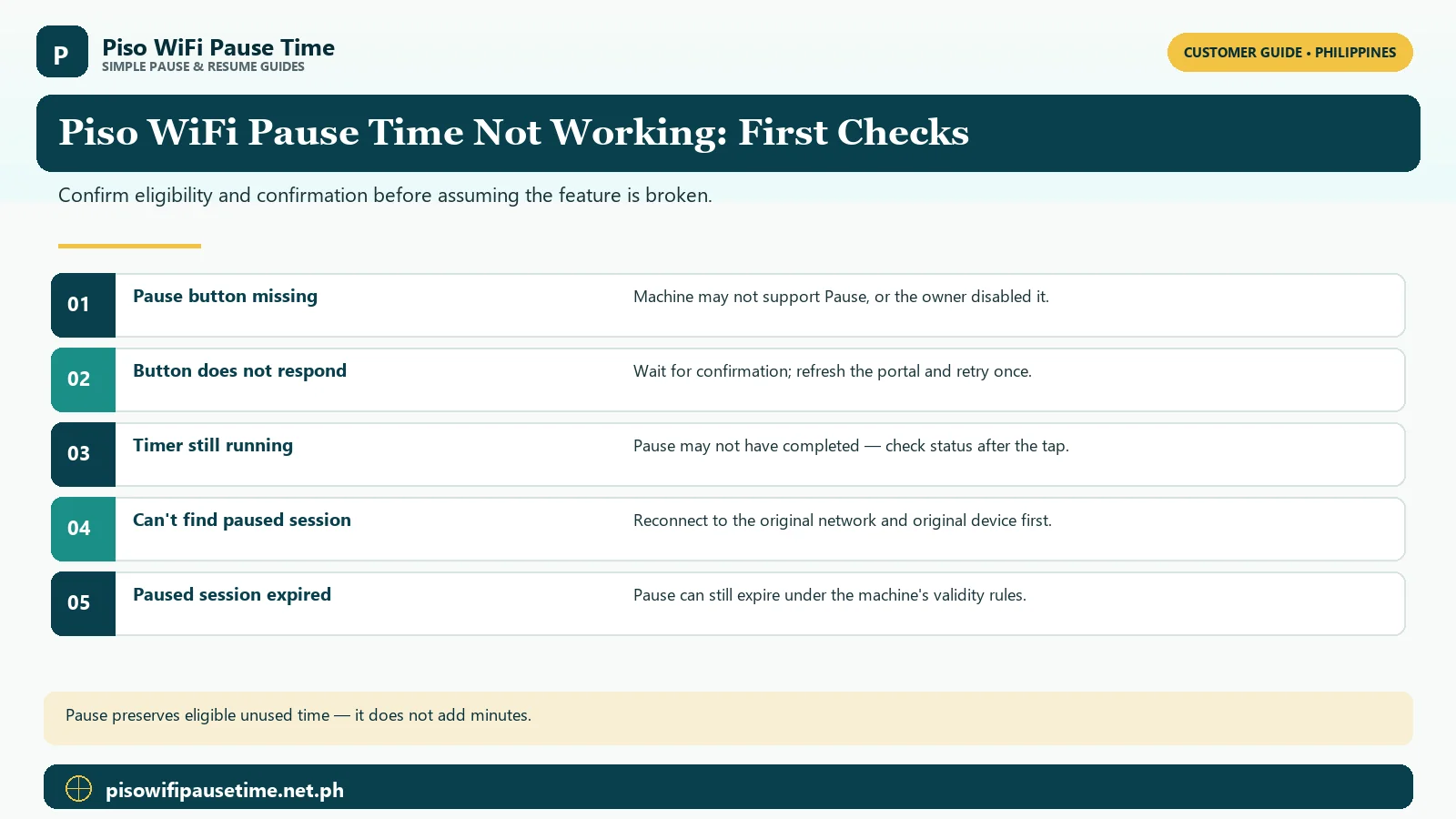
Piso WiFi Pause Time may stop working when the customer portal cannot process the pause request, the session is not eligible, or the machine has disabled the feature. It can also happen when the timer continues running even after you press Pause.
Why Is Piso WiFi Pause Time Not Working?
There is no single cause for every Pause Time problem. The reason depends on the machine's software, session settings and the problem you see.
- Incorrect gateway: You are opening the wrong local portal address.
- Inactive session: Your paid internet session has not started or is no longer active.
- Pause feature unavailable: The machine does not support the feature or the operator has disabled it.
- Session restrictions: Your session may have reached its pause limit or expiration time.
- Browser problem: The portal has not loaded correctly.
- Unprocessed request: The Pause button was pressed, but the machine did not confirm the action.
Timer Keeps Running After Pressing Pause
If your Piso WiFi timer continues counting down after pressing Pause, the system may not have successfully processed the request. A button press alone does not confirm that your session has been paused.
- Return to the original customer portal.
- Check the displayed session status.
- Look for a Pause confirmation.
- Check whether the countdown is still decreasing.
- If there is no confirmation, contact the operator before assuming that your remaining minutes are protected.
Do not leave the machine assuming your session is paused if the timer continues running.
Piso WiFi Pause Time Is Not Saving Remaining Minutes
A paused session and a disconnected WiFi connection are not necessarily the same thing.
When a supported system successfully pauses a session, its remaining time may be preserved according to the machine's configuration. Simply turning off WiFi or leaving the portal does not guarantee the same result.
Check these things:
- Did the portal confirm the Pause action?
- Is the remaining time still displayed?
- Does the session show a paused status?
- Has the allowed pause period expired?
- Are you using the same device and hotspot?
Some systems have session expiration rules even when a session is paused. The operator may need to check the session record if your remaining time cannot be recovered.
10.0.0.1 Piso WiFi Pause Time Not Showing
If you cannot find the Pause Time option, first determine whether you are opening the correct customer portal.
- Connect to the correct Piso WiFi network.
- Open your phone's WiFi settings.
- Check the network's gateway address.
- Enter the gateway in your browser's address bar.
- Open the customer portal.
- Check whether your session is active and whether a Pause option is available.
Remember that 10.0.0.1 is a common example, not a universal address for every Piso WiFi machine.
If the portal opens but the Pause button is still missing, the issue may be related to feature availability or session eligibility rather than the gateway.
Why Can't I Pause My Piso WiFi?
You may be unable to pause your Piso WiFi session for several reasons:
- The machine does not support Pause Time.
- The operator has disabled the feature.
- Your current session is not eligible.
- Your allowed pause attempts have been used.
- The session has expired.
- The portal is not responding correctly.
For example, AdoPiSoft documentation describes configurable pause limits and session expiration settings. It also documents automatic session pausing and resuming under certain configurations. These settings are examples of how one platform works; they should not be assumed to apply to every Piso WiFi machine.
If you cannot find a Pause option after opening the correct portal, ask the operator whether your particular machine and session support it.
How to Confirm That Your Piso WiFi Session Is Paused
- The Pause button accepted your request.
- The portal displayed a confirmation or paused status.
- The countdown stopped decreasing.
- Your remaining time was still displayed or otherwise confirmed.
- You understand the machine's pause and expiration rules.
Not every Piso WiFi portal displays all these indicators. If you cannot confirm that the session is paused, contact the owner rather than assuming your time has been saved.
2. Piso WiFi Pause Time App Not Working? Android and Chrome Fixes
If your Piso WiFi Pause Time app is not working, first check whether you are using the correct portal or an independent application.
Many Piso WiFi systems allow customers to access Pause Time through a local customer portal in a web browser. This means you may not need to install a separate application to pause or resume your session.
Do You Need an App to Pause Piso WiFi Time?
Not necessarily. Some Piso WiFi systems provide Pause Time through their browser-based customer portal. You connect to the vendo network, open the local gateway and use the available session controls.
A separate app is only necessary when the particular service or platform requires or provides one.
| Access method | Purpose |
|---|---|
| Customer portal | Opens the machine's login and session controls |
| Mobile browser | Allows you to access the portal from your phone |
| Home-screen shortcut | Provides quicker access to a saved portal address |
| Third-party application | May offer additional functionality, depending on compatibility |
Avoid downloading unknown APK files that promise to unlock Pause Time. An application cannot automatically enable a feature that the machine itself does not support.
10001 Piso WiFi Pause Time Not Working on Android
Android 10001 Pause Time
- 1Open Settings and select WiFi or Internet.
- 2Connect to the correct Piso WiFi network.
- 3Temporarily turn off mobile data.
- 4Check for a network sign-in notification.
- 5Open Chrome or another browser.
- 6Enter the correct local gateway.
- 7Check whether the customer portal displays your active session.
Samsung Chrome portal
- 1Open Samsung Settings.
- 2Select Connections and WiFi.
- 3Confirm that you are connected to the correct Piso WiFi network.
- 4Temporarily disable mobile data.
- 5Open Chrome.
- 6Enter the gateway directly in the address bar.
- 7Try a new Incognito tab if the previous page remains stuck.
If you are using an Android phone and cannot access Pause Time, try the following:
- Open Settings and select WiFi or Internet.
- Connect to the correct Piso WiFi network.
- Temporarily turn off mobile data.
- Check for a network sign-in notification.
- Open Chrome or another browser.
- Enter the correct local gateway.
- Check whether the customer portal displays your active session.
If the portal works but the Pause button does not, follow the Pause Time troubleshooting steps in the previous section.
The keyword 10001 Piso WiFi Pause Time Android not working also deserves an important distinction: the number in a search query does not establish that every machine using that name has identical software or settings.
Chrome Piso WiFi Pause Time Not Working on Samsung
If you use Google Chrome on a Samsung phone and the Piso WiFi portal does not open, try these steps:
- Open Samsung Settings.
- Select Connections and WiFi.
- Confirm that you are connected to the correct Piso WiFi network.
- Temporarily disable mobile data.
- Open Chrome.
- Enter the gateway directly in the address bar.
- Try a new Incognito tab if the previous page remains stuck.
Some Samsung devices also provide network-switching or WiFi assistance options. Their names and availability depend on the phone model and software version.
If your phone keeps switching to mobile data, check the relevant connection settings and temporarily prevent automatic switching while opening the portal.
How to Open the Pause Time Portal Without Installing an App
You can often access a supported Pause Time feature directly through your browser.
- Connect to the correct Piso WiFi network.
- Find the network's actual gateway address.
- Open Chrome, Safari or another browser.
- Type the gateway in the address bar.
- Wait for the customer portal.
- Open your session and check the available Pause or Resume controls.
If you use the portal regularly, you may be able to bookmark its address or add a shortcut to your phone's home screen. This shortcut does not create Pause Time functionality. It only makes an existing portal easier to open.
What If a Third-Party Pause Time App Does Not Work?
- Check whether the application is intended for your particular Piso WiFi platform.
- Confirm that the local customer portal is accessible.
- Check whether the application requires an internet connection or local network access.
- Avoid entering administrator passwords into unknown applications.
- Contact the machine owner if the application cannot recognize your session.
The safest approach is to use the official customer portal or an application specifically recommended by the machine provider.
3. Piso WiFi 10.0.0.1 Portal Not Opening? How to Access It
10.0.0.1 Not Opening on Your Phone
| Possible problem | What to do |
|---|---|
| Wrong WiFi network | Connect to the correct vendo SSID |
| Mobile data still active | Temporarily disable cellular data |
| Incorrect gateway | Check the actual gateway in network details |
| Address entered in Google search | Enter it directly in the browser address bar |
| VPN or proxy interference | Temporarily disconnect and test |
| Browser problem | Try another browser or private tab |
| Machine or portal unavailable | Ask the operator to check the system |
Common 10.0.0.1 and 10.0.0.0.1 Typing Mistakes
A small typing error can prevent the portal from opening.
10.0.0.1 — four number groups10.0.0.0.1 — five number groups| Incorrect entry | Correct example |
|---|---|
10.0.0.0.1 | 10.0.0.1 |
10.0.0.l | 10.0.0.1 |
10.0.o.1 | 10.0.0.1 |
| 10.0.0.1 entered in Google search | Enter the gateway in the address bar |
The address 10.0.0.0.1 contains five number groups separated by dots. A standard IPv4 address contains four groups. The correct address for your particular machine may still be different from 10.0.0.1.
How to Find the Correct Piso WiFi Gateway Address
On Android
- 1Open Settings.
- 2Go to Network and Internet or Connections.
- 3Open WiFi or Internet.
- 4Select the connected Piso WiFi network.
- 5Open its network details.
- 6Look for Gateway, Router or IP settings.
The exact menu names differ between Android manufacturers.
On iPhone
- 1Open Settings.
- 2Tap WiFi.
- 3Find the connected Piso WiFi network.
- 4Tap the information icon beside its name.
- 5Look for the Router field.
Enter the displayed gateway address into your browser. Do not use an administrator address from another machine simply because it works on a different Piso WiFi network.
Piso WiFi Portal Keeps Loading, Showing a Blank Page or Redirecting
Portal reload checklist
- Close the existing portal tab.
- Disconnect from the Piso WiFi network.
- Turn WiFi off and back on.
- Reconnect to the original network.
- Open a new browser tab.
- Visit a normal website to trigger the sign-in page.
- Try another browser if the problem continues.
If the portal still displays an old page, a private browsing window may help you test whether cached browser data is involved.
Avoid repeatedly submitting a voucher or payment request while the previous request is still processing.
Browser Cache, VPN and Private DNS Problems
A browser or network privacy setting may sometimes interfere with local portal access.
- VPN: Temporarily disconnect a VPN.
- Proxy: Check whether a proxy is configured.
- Private tab: Open the portal in an Incognito or private browsing window.
- Another browser: Try another browser.
- Site data: Clear the relevant site data if an old portal page keeps appearing.
- Private DNS: Check Private DNS settings only if there is evidence of a DNS-related problem.
Restore your usual privacy settings after testing. Do not permanently disable security or privacy features just to access a Piso WiFi portal.
4. Can't Connect to Piso WiFi or Stuck on Obtaining IP Address?
If your phone cannot connect to Piso WiFi or remains stuck on Obtaining IP Address, the problem may occur before the login portal even opens.
How to Reconnect to the Piso WiFi Network
Turn WiFi off on your phone.
Wait several seconds.
Turn WiFi back on.
Find the correct Piso WiFi network.
Connect again.
Wait for the connection to complete.
If the problem remains, forget the saved network and reconnect if the hotspot's connection requirements allow it. You can also move closer to the vending machine or wireless access point to improve signal strength.
Your phone needs a working WiFi connection and network settings before it can communicate with the vendo system.
Why Is Piso WiFi Stuck on Obtaining IP Address?
When a device connects to WiFi, it normally receives network settings such as an IP address and gateway. DHCP is the network service commonly responsible for assigning these settings.
If your phone remains stuck on Obtaining IP Address, possible causes include:
- Temporary WiFi connection problems.
- Weak wireless signal.
- Incorrect or unstable network connection.
- Router or access-point problems.
- DHCP service not responding.
- A device-specific network issue.
Piso WiFi Keeps Disconnecting
If your phone connects but repeatedly disconnects, check:
- Whether the WiFi signal is weak.
- Whether you are moving outside the access point's coverage area.
- Whether other nearby devices have the same problem.
- Whether your phone is automatically switching to another network.
- Whether the hotspot is unstable.
If the problem only happens on your phone, check its WiFi settings. If several customers disconnect at the same time, report the issue to the machine owner.
When the Router or DHCP Service May Be the Problem
If several devices remain stuck on Obtaining IP Address while connected to the same hotspot, the problem may involve the machine's network configuration or DHCP service.
Customers generally cannot fix these settings themselves. Contact the operator and explain that multiple devices are unable to obtain an IP address.
5. Connected to Piso WiFi but No Internet? How to Fix It
Seeing the WiFi icon on your phone does not always mean you have internet access.
Your device may be connected to the local hotspot but still need to complete a payment, voucher or session authorization step. The vendo machine may also have lost its upstream internet connection.
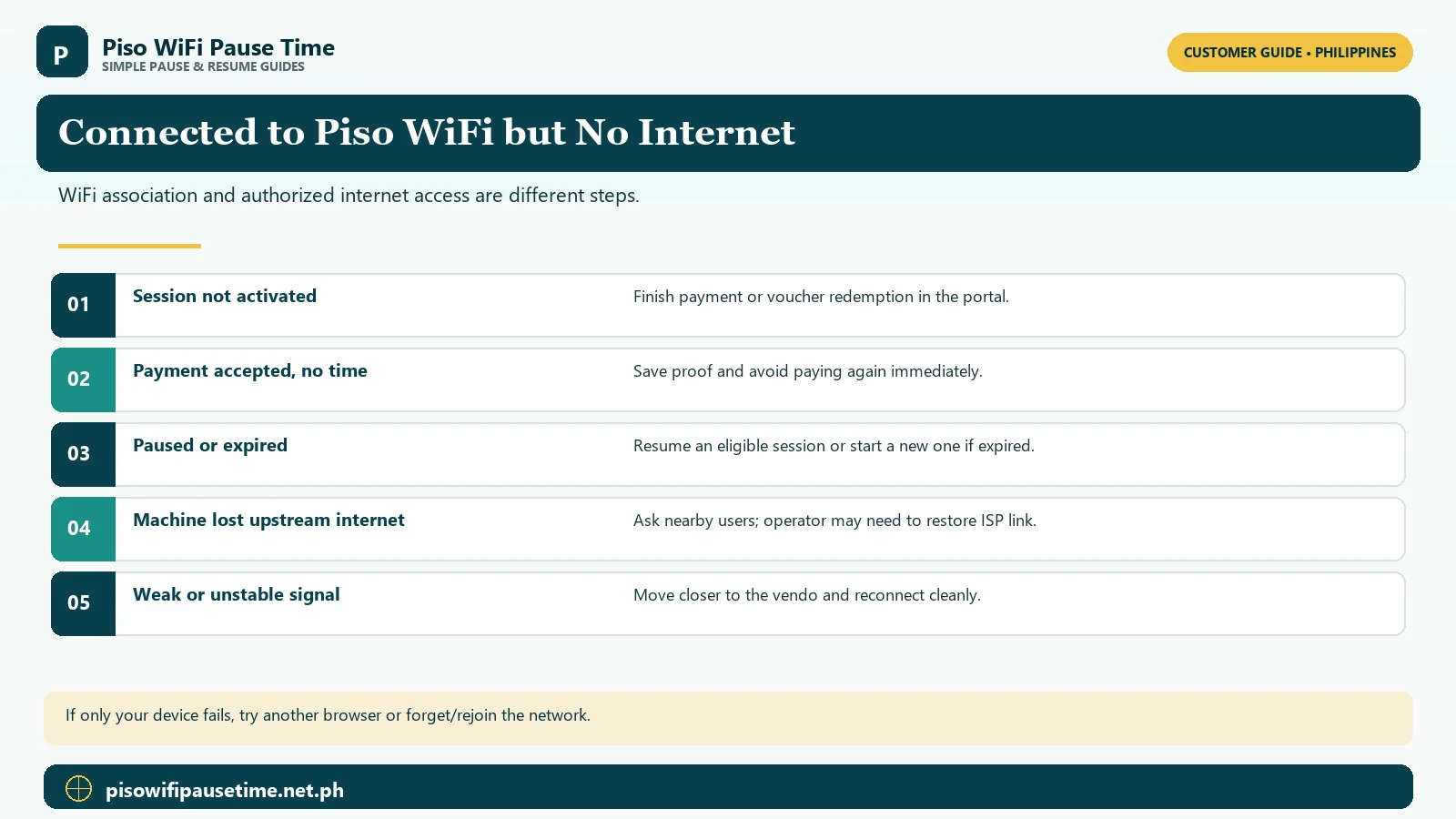
Connected to Piso WiFi but Have Not Started a Session
Open the customer portal and check whether it asks you to:
- Insert a coin.
- Enter a voucher.
- Complete a payment.
- Start an internet session.
- Resume an existing session.
If the portal still asks you to complete one of these steps, your device may be connected to WiFi without an authorized internet session. Follow the displayed instructions before assuming the machine is broken.
Portal Opens but Websites Will Not Load
Browse-fail checks
- Check whether you completed the required payment or voucher step.
- Check whether the portal shows an active session.
- Check whether the remaining time is visible.
- Look for a connection error in the portal.
- Test another device on the same hotspot.
If you have not started an active session, complete the required customer authentication. If the session is active but browsing still fails, the issue may be with the hotspot or its internet connection.
Timer Is Running but There Is No Internet Access
Check the portal first, then test another device. If multiple customers have an active session but cannot browse, contact the operator rather than repeatedly restarting your phone.
Check Whether Other Devices Have Internet
This is one of the easiest ways to identify where the problem is.
| Test result | What it may indicate |
|---|---|
| Your phone fails, but another device works | Possible phone-specific issue |
| Both devices connect but cannot browse | Possible hotspot or session issue |
| Neither device can open the portal | Possible gateway or portal problem |
| Several customers report no internet | Possible shared network or ISP outage |
This test does not prove the exact cause, but it helps separate device problems from shared network problems.
When the Piso WiFi Internet Connection Is Down
If multiple users cannot access the internet, the machine may have an upstream connection problem.
Possible causes include:
ISP outage
Upstream provider interruption.
Router or access-point problem
Local wireless equipment issue.
DNS resolution failure
Names may not resolve correctly.
Gateway or routing issue
Path to the internet is broken.
Hotspot configuration problem
The machine owner may need to check the internet service and network equipment. There is little benefit in repeatedly clearing your browser cache when the entire hotspot has lost its internet connection.
- ISP outage.
- Router or access-point problem.
- DNS resolution failure.
- Gateway or routing issue.
- Hotspot configuration problem.
The machine owner may need to check the internet service and network equipment. There is little benefit in repeatedly clearing your browser cache when the entire hotspot has lost its internet connection.
6. Piso WiFi Voucher or Payment Not Working
If your coin was accepted or your payment was completed but no internet time appeared, do not immediately pay again.
First, check whether the transaction was received and whether the machine credited your session.
Why Is Your Piso WiFi Voucher Being Rejected?
A voucher may be rejected for several reasons:
- Incorrect characters.
- Missing digits.
- Extra spaces.
- Expired voucher.
- Previously redeemed voucher.
- Voucher associated with another session.
- Voucher not supported by the current machine.
Check the code carefully before trying again. If the portal continues rejecting a voucher that you believe is valid, contact the operator and ask them to verify its status.
Coin Accepted but No Internet Time Added
- Check whether the customer portal shows any credited minutes.
- Note the amount inserted.
- Record the approximate time of payment.
- Do not insert more coins immediately.
- Contact the machine owner.
The issue may involve the coin acceptor, vending controller or session-crediting process. These components require operator inspection.
GCash or Maya Payment Completed but No Time Received
Some Piso WiFi machines support electronic payment methods, while others do not.
If the machine supports GCash or Maya and you completed a payment but received no internet time:
- Check the payment confirmation.
- Save the transaction reference.
- Check whether the portal issued a voucher or activated a session.
- Contact the seller or machine operator.
- Ask them to verify the payment and session credit.
Never share your GCash or Maya MPIN, OTP or banking password with the machine owner. A payment confirmation does not automatically prove that the vending system successfully credited your internet session.
What to Do Before Paying Again
Use this information when reporting a payment problem:
| Information | What to provide |
|---|---|
| Machine location | Where you used the Piso WiFi |
| Payment method | Coin, voucher or supported digital payment |
| Amount | How much you paid |
| Approximate time | When the transaction occurred |
| Time credited | Whether any minutes were added |
| Portal message | What appeared on the screen |
| Transaction reference | If applicable |
This helps the operator investigate the transaction without asking you to pay again unnecessarily.
7. Piso WiFi Remaining Time Disappeared or Session Cannot Resume
If your remaining minutes disappear or the portal returns to Insert Coin, the machine may not be recognizing your previous session.
This does not automatically mean your paid time has been permanently lost.
Why Does the Portal Return to Insert Coin?
- Expired: The previous session expired.
- Not paused: The session was not successfully paused.
- Wrong network: You connected to a different Piso WiFi network.
- Device ID: The machine no longer recognizes the original device session.
- Cached portal: The browser is displaying an outdated portal state.
- Config change: The operator's session configuration has changed.
First, reconnect to the original hotspot and check the customer portal again. Do not purchase another session until you have checked whether your existing session can be recovered.
How to Resume Your Paused Piso WiFi Session
Reconnect to the original Piso WiFi network.
Open the customer portal.
Look for your existing session.
Check whether a Resume option is available.
Select Resume if the portal provides it.
Confirm that your session becomes active.
If the previous session does not appear, ask the operator to check whether it is still available.
Can You Resume Piso WiFi on Another Phone?
Not every Piso WiFi system allows users to move an existing session between phones.
Some systems associate sessions with a device identifier, so changing devices may affect session recognition. For this reason, try reconnecting with the original phone first.
If your previous session does not appear on another device, ask the operator whether that particular machine supports session transfer.
Can a Paused Piso WiFi Session Expire?
Yes, some systems allow paused sessions to expire according to their configured rules.
For example, AdoPiSoft documents session expiration settings and configurable pause limits. This means that a session can have both remaining time and an expiration rule. Having unused minutes does not necessarily mean the session remains available indefinitely.
Other Piso WiFi platforms may use different settings. Always check the rules of the machine you are using.
Does Changing a Private WiFi Address Affect Your Session?
Some phones use private or randomized WiFi addresses to improve privacy.
Certain hotspot systems may use device identification when managing existing sessions. If the device identifier changes, a session may not be recognized in the same way.
However, this does not mean every Piso WiFi session will fail because of a private WiFi address.
If your session disappears after changing device or network settings:
- Reconnect using the original phone.
- Check the original Piso WiFi network.
- Reopen the customer portal.
- Ask the operator to verify the existing session.
Do not permanently disable privacy settings unless the network provider gives a clear, platform-specific reason.
8. Is the Piso WiFi Machine or Its Internet Connection Down?
Not every Piso WiFi problem can be fixed from your phone. Sometimes the problem is with the vendo machine, wireless access point, coin acceptor, router or internet service.
How to Tell Whether One User or Multiple Users Are Affected
Check whether another customer can connect and access the internet.
| Situation | Possible problem |
|---|---|
| Only your phone has a problem | Device or browser settings |
| Several phones cannot obtain an IP address | Network or DHCP issue |
| Several customers cannot open the portal | Gateway or captive portal issue |
| Everyone has no internet | Router, machine or ISP connection |
| Coin payments are not credited | Vending hardware or controller |
These are diagnostic clues, not guaranteed diagnoses.
Piso WiFi Machine Offline or Not Responding
If the machine is offline, the customer portal may not open or the internet session may fail.
Possible signs include:
- The WiFi network is unavailable.
- Several devices cannot connect.
- The customer portal is unreachable.
- Payments are not being processed correctly.
- Existing sessions cannot be checked.
Report the problem to the machine owner.
Coin Acceptor or Vendo Hardware Problems
If the machine accepts coins incorrectly or fails to register payment, the problem may involve the coin acceptor or vending controller.
Customers should not open the machine or attempt to repair its electrical or payment components. Instead, report the payment amount and approximate time to the operator.
When Should the Operator Restart the Machine?
A normal restart may help with certain temporary router or system problems.
However, restarting the machine is an operator decision, especially when customers have active or paused sessions. The operator should check whether a restart could affect existing sessions or machine configuration.
Restarting vs Factory Resetting a Piso WiFi Machine
Turns the equipment off and back on
Returns equipment to its factory configuration and may erase customized settings
| Action | What it does |
|---|---|
| Restart | Turns the equipment off and back on |
| Factory reset | Returns equipment to its factory configuration and may erase customized settings |
A factory reset can remove network settings, voucher configuration, administrator settings and other custom options.
If your phone cannot open the customer portal, that is not a reason to factory-reset the entire machine. Customers should leave these actions to the owner or authorized technician.
9. When Should You Contact the Piso WiFi Operator?
Contact the machine owner when the problem cannot be resolved through normal customer-side troubleshooting.
You should ask for help when:
- Your payment was not credited.
- A valid voucher keeps getting rejected.
- Your remaining time disappeared.
- Your previous session cannot be resumed.
- Pause Time is unavailable or repeatedly fails.
- Several customers cannot connect.
- The machine has no internet connection.
- The customer portal remains unavailable on multiple devices.
When reporting the issue, provide the machine location, approximate time, payment details if relevant, and the error message displayed.
Do not share administrator passwords, OTPs, MPINs or unnecessary personal information.
What Information Should You Give the Piso WiFi Owner?
This helps the operator understand whether the problem involves payment, session recognition, the portal or the machine itself.
Safety Tips When Using Shared Piso WiFi
- Use the correct customer portal.
- Do not enter administrator credentials into unfamiliar pages.
- Avoid downloading unknown Pause Time applications.
- Do not share your voucher unnecessarily.
- Never provide your payment MPIN or OTP.
- Avoid accessing sensitive accounts through unfamiliar public networks.
- Do not attempt to open or reset the vending machine.
10. Frequently Asked Questions About Piso WiFi Not Working
Why is my Wi-Fi not working?
How do I reset a Piso WiFi?
Why can't I pause my Piso WiFi?
How do I access the Piso WiFi?
Why is 10.0.0.1 not opening?
Why am I connected to Piso WiFi but have no internet?
Can I recover my remaining Piso WiFi time?
Does every Piso WiFi machine support Pause Time?
Final Thoughts
When your Piso WiFi is not working, first identify whether the problem involves your WiFi connection, the 10.0.0.1 portal, internet access, payment or an existing session. If Pause Time is not working, check that the portal is accessible and that your session has actually been paused before leaving the connection.
Avoid paying again or attempting a factory reset without checking the existing problem. If several users are affected, your payment was not credited, or your remaining time cannot be recovered, contact the Piso WiFi operator for assistance.
Sources and Further Reading
The following documentation supports the general technical explanations in this guide. Specific Piso WiFi behavior can vary by machine and software configuration.
- Mozilla Support — Captive Portal Detection
- Apple Support — Use Captive Wi-Fi Networks on iPhone or iPad
- Google Android Help — Connect to Wi-Fi Networks
- AdoPiSoft — Session Settings
- AdoPiSoft Wiki — Administrator Configurations
Source qualification: AdoPiSoft's pause limits, automatic pause/resume behavior and expiration settings are platform-specific examples, not universal Piso WiFi rules. Always follow the settings of the particular machine being used.