10.0.0.1 Piso WiFi: Login, Remaining Time, Pause and Troubleshooting
Quick access
How to access the 10.0.0.1 Piso WiFi portal
http://10.0.0.1- Connect your phone or computer to the correct Piso WiFi network.
- Open Chrome, Safari, or another browser.
- Enter http://10.0.0.1 in the address bar.
- Follow the portal's payment or voucher instructions.
- Check that your session is active and review the remaining time.
This address works only when the particular machine is configured to use it. Some Piso WiFi installations use a different local gateway or portal address.
How to Login to 10.0.0.1 Piso WiFi
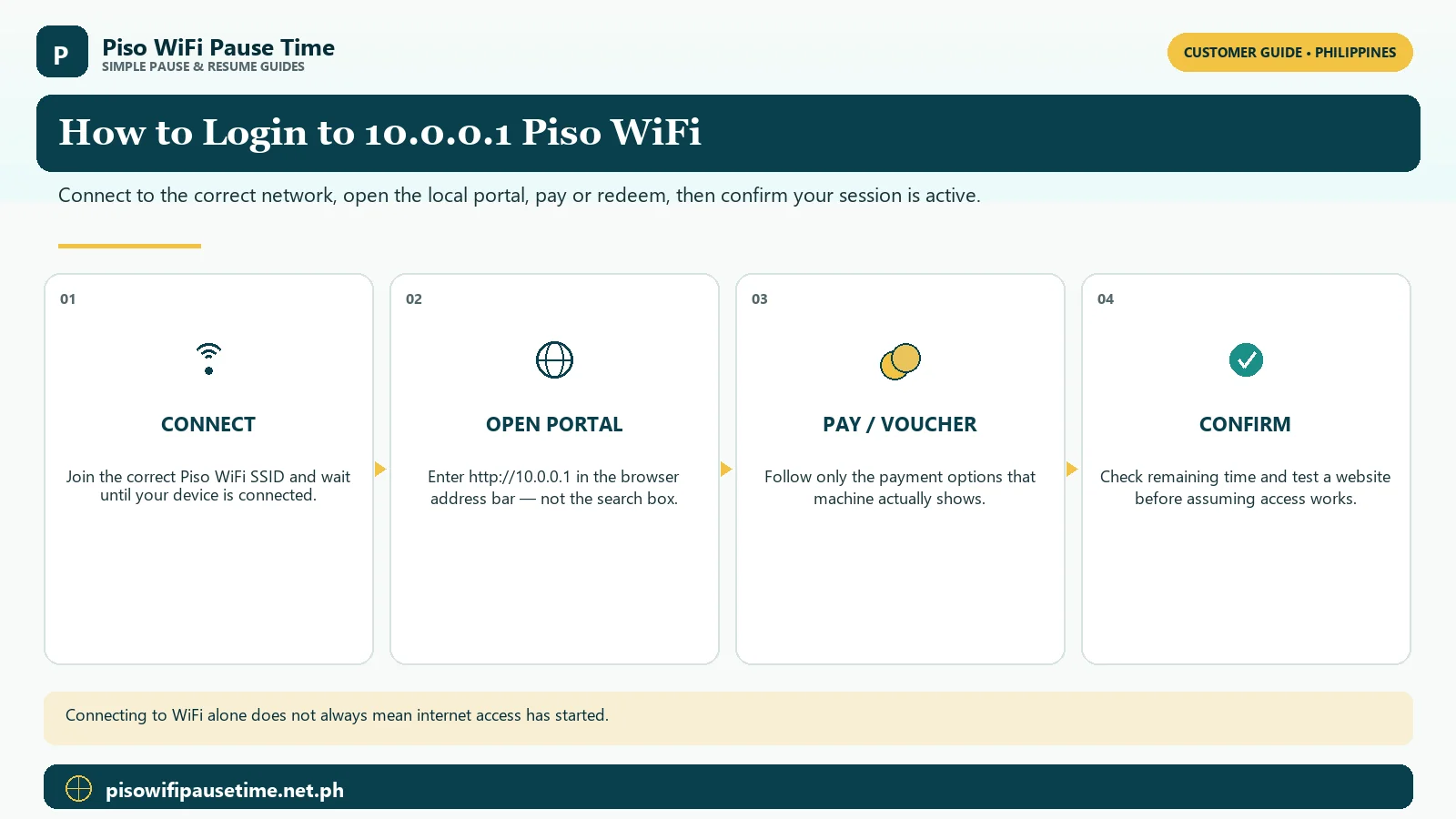
Follow these steps to open the Piso WiFi customer portal and start using an internet session.
Turn on WiFi on your phone, tablet, laptop, or computer. Look for the network name (SSID) of the Piso WiFi machine you want to use. Select it and wait until your device shows that it is connected.
Make sure you connect to the correct machine. If several Piso WiFi networks are nearby, another machine may open a different portal or may not recognize your existing session.
- Open Google Chrome, Safari, Firefox, or another browser.
- Tap or click the browser's address bar.
- Enter
http://10.0.0.1. - Press Enter or Go and wait for the portal to load.
Enter the address in the browser's address bar, not in the Google search box. It is a local network address, not an ordinary website search query.
Depending on the machine and its software, the portal may show options such as Insert Coin, Enter Voucher, Buy Time, Buy Data, Login, or Connect.
Use only the payment methods displayed by that machine. Some installations accept coins or vouchers; others may support electronic payments such as GCash or Maya. Do not assume every machine offers the same choices.
Connecting to WiFi does not always mean you already have internet access. Check whether the portal confirms your payment or session, look for the remaining-time display, and open a website to test the connection.
If payment was accepted but no time was added, avoid paying again immediately. Keep your payment details and follow the recovery steps in this guide.
What If the Login Page Does Not Open Automatically?
Some phones automatically display a captive-portal sign-in screen after connecting to WiFi. Other devices may not show it. Open a browser and manually enter the machine's local portal address.
On an iPhone or iPad, open Settings, select WiFi, tap the relevant network, and look for its sign-in screen. Automatic redirection depends on the device and network configuration.
What Is 10.0.0.1 in Piso WiFi?
10.0.0.1 is an IPv4 address that can be used as a local gateway address on a private network. In a Piso WiFi installation, it may be configured as the address customers use to reach the machine's local customer portal.
http://10.0.0.1
Private network only — connect to the vendo WiFi first.
Is 10.0.0.1 a Private IP Address?
Yes. It belongs to the private IPv4 range 10.0.0.0 to 10.255.255.255, reserved for private networks under RFC 1918. Private addresses are used in home, business, router, and local WiFi networks. They are not ordinary public internet addresses, and different private networks can reuse the same address.
Read the RFC 1918 private address specification.
How Does 10.0.0.1 Work as a Local Gateway?
A gateway helps devices communicate with other networks. A Piso WiFi machine may provide a local wireless network. Devices that join it receive network information, including an IP address and gateway, through services such as DHCP.
If the machine is configured with 10.0.0.1 as its gateway, customers may use that address to reach a local portal. The actual configuration depends on the machine's software and network settings. The subnet mask, not simply the position of the dots, determines network boundaries.
Customer Portal vs Administrator Dashboard
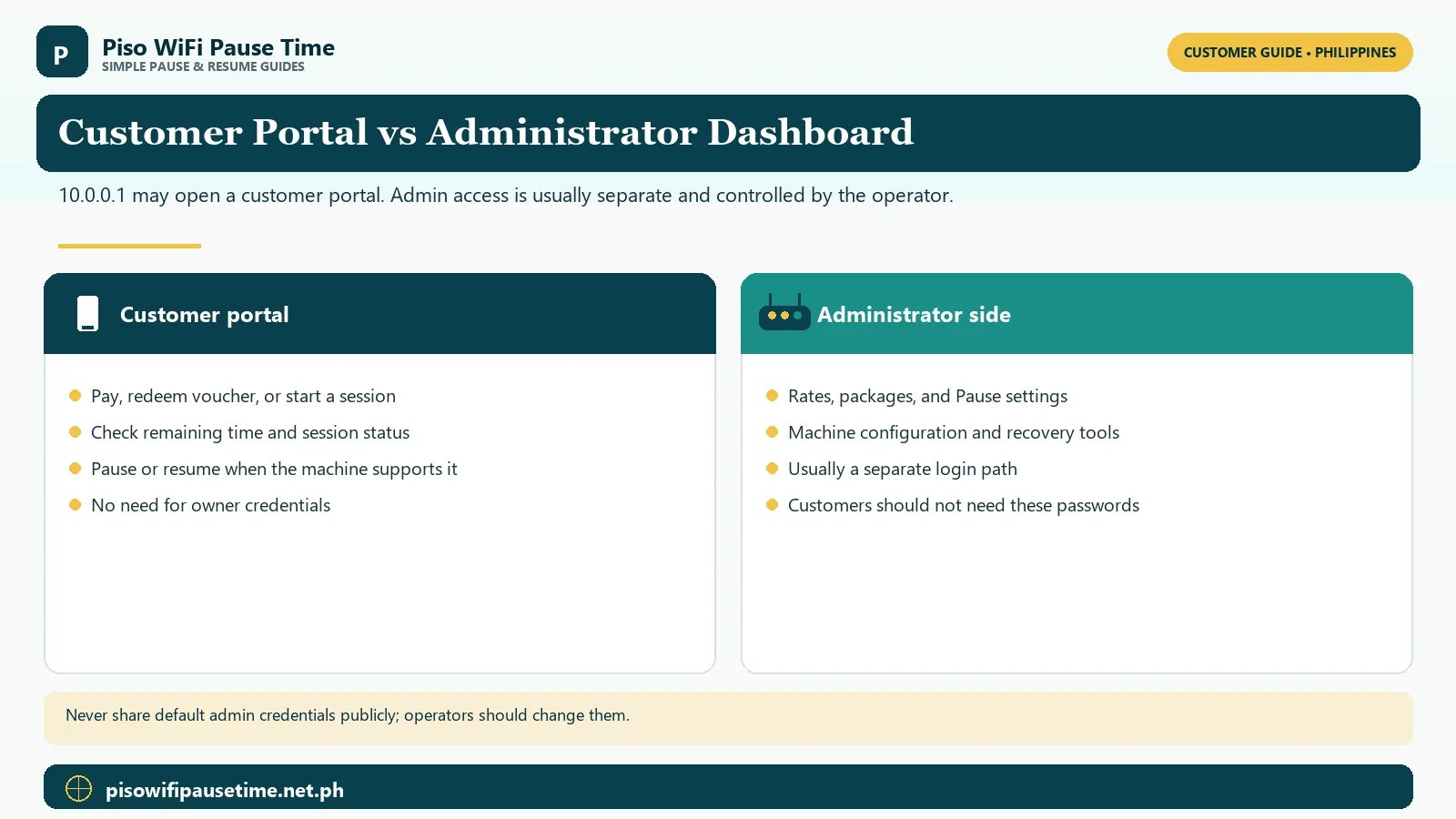
10.0.0.1Designed for customers. Displays payment options. Allows voucher entry where supported. Shows session information. May offer Pause and Resume.
/admin (varies)Designed for authorized owners. Manages machine settings. Manages voucher configuration. Manages customer sessions. Controls features and permissions.
| Customer portal | Administrator dashboard |
|---|---|
| Designed for customers | Designed for authorized owners |
| Displays payment options | Manages machine settings |
| Allows voucher entry where supported | Manages voucher configuration |
| Shows session information | Manages customer sessions |
| May offer Pause and Resume | Controls features and permissions |
Some installations use a separate administrator path, such as /admin, but this is not a universal URL. Ordinary customers do not need administrator access to use the customer portal.
Does Every Piso WiFi Machine Use 10.0.0.1?
No. The gateway depends on the network configuration and software. AdoPiSoft's published version 4.0.0 setup guide uses 10.0.0.1 as an example of a static LAN address, but that does not mean every machine must use it.
If the address does not work, check the machine's instructions or find the default gateway shown in your connected WiFi details.
How to Check Your Piso WiFi Remaining Time
After activating your session, you may want to check how many minutes or how much data you have left. The remaining-time display helps you understand how much of your purchased internet access is still available.
Where Can You See Your Remaining Piso WiFi Time?
- Connect to the Piso WiFi network associated with your session.
- Open your browser.
- Enter
http://10.0.0.1, if this is the machine's portal address. - Wait for the customer portal to open.
- Look for the remaining-time, session, or balance information.
The exact location and wording depend on the platform and portal design. If you cannot see your balance, check that you are on the original network and that your session is still valid.
What Do Active, Paused, Expired and Exhausted Mean?
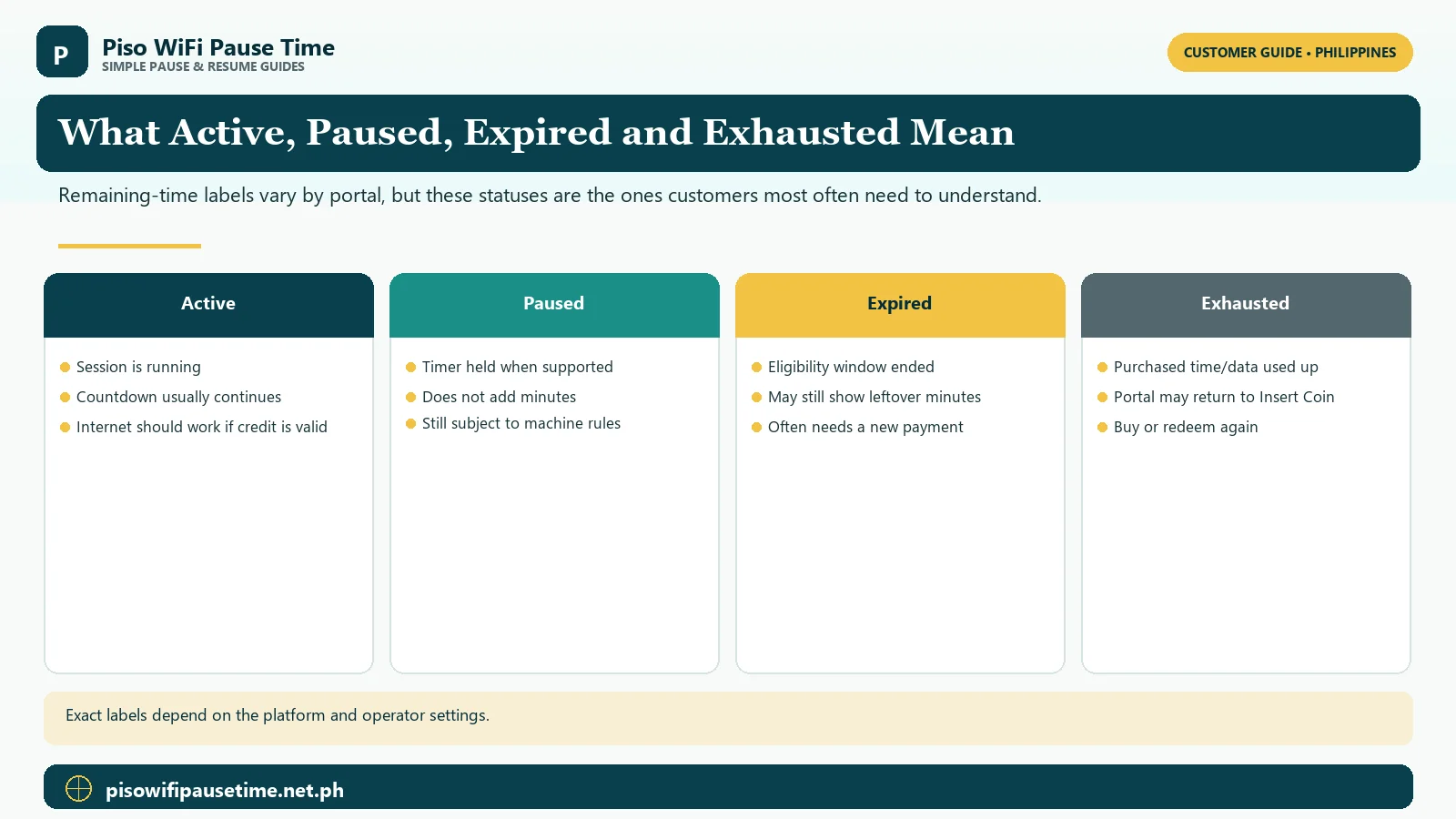
Active — Your internet session is currently running.
Paused — Your session has been temporarily stopped, if supported.
Expired — The configured session validity period has ended.
Exhausted — Your allocated time or data has been used.
Not found — The portal cannot currently identify or display your session.
| Session status | Meaning |
|---|---|
| Active | Your internet session is currently running. |
| Paused | Your session has been temporarily stopped, if supported. |
| Expired | The configured session validity period has ended. |
| Exhausted | Your allocated time or data has been used. |
| Not found | The portal cannot currently identify or display your session. |
Remaining Time vs Session Expiration
Remaining time is the unused internet time available in your session. Session expiration is the deadline after which a session becomes invalid under its configured rules.
For example, suppose you purchase 60 minutes and use 20 minutes. You may have 40 minutes remaining. However, a separate expiration rule may still make the session invalid even if some time remains. Data-based sessions may also stop when their data allowance is consumed.
Remaining minutes and session validity are different attributes. Check both when the portal displays them.
Why Is My Piso WiFi Remaining Time Missing?
- Wrong WiFi network: You may be connected to a different machine.
- Expired session: Your previous session may no longer be valid.
- Device identification issue: The machine may not recognize the device associated with the session.
- Portal problem: The page may not display session information correctly.
- Machine restart or synchronization issue: The machine may need operator investigation.
Reconnect to the original network and reopen the portal. If the balance is still missing, keep your payment proof and contact the machine operator.
What Is Piso WiFi Pause Time and How Does It Work?
Piso WiFi Pause Time is a feature that lets an eligible customer temporarily stop an internet session. On a supported machine, pausing can stop the session countdown while the customer is away. The exact behavior depends on the platform, session settings, and machine owner's configuration.
What Happens When You Pause a Piso WiFi Session?
- The session changes to a paused state.
- Internet access for that session may be suspended.
- Unused time may be preserved according to the platform's rules.
- The session may still be subject to expiration or pause limits.
Does Pause Time Save Your Remaining Minutes?
When the feature works as intended, it is designed to preserve unused session time. For example, if you purchase 60 minutes and use 20 minutes, 40 minutes may remain when the session is successfully paused.
| Activity | Example balance |
|---|---|
| Purchase internet access | 60 minutes |
| Use internet for 20 minutes | 40 minutes left |
| Successfully pause | 40 minutes preserved, subject to rules |
| Resume the session | Continue with available balance |
Is Pause Time Available on Every Piso WiFi Machine?
No. Availability may depend on software support, owner permission, session type, payment method, and software version. If the Pause Time button does not appear, the feature may be disabled or your session may not be eligible.
Pause Duration, Pause Attempts and Session Expiration
| Setting | What it controls |
|---|---|
| Pause duration | How long a session may remain paused, if the platform applies this limit. |
| Pause attempts | How many times a customer may pause, if limited. |
| Session expiration | When the overall session becomes invalid. |
AdoPiSoft documents session-level options such as Allow/Disable Pause and Expiration Date/Time. These are configurable settings, not universal limits for every Piso WiFi machine.
How to Pause Your Piso WiFi Time
If your machine supports Pause Time and your current session is eligible, follow these steps.
Use the same WiFi network associated with your internet session. This helps the portal identify the correct machine and session.
Open your browser and enter the machine's portal address. For a machine using this gateway, enter http://10.0.0.1.
Look for Pause Time, Pause, or a similar option. The exact label depends on the portal. If it is missing, the machine may not support the feature, the owner may have disabled it, or your session may not be eligible.
Tap the button and follow any confirmation instructions. Wait for the operation to complete. Do not assume your time has been saved just because you tapped the button.
Check the session status or remaining-time display. If the portal confirms that the session is paused, follow the machine's rules before leaving. If the countdown continues, the pause may not have succeeded.
- Record the remaining minutes displayed on the portal.
- Keep your payment receipt or transaction reference.
- Check whether the session status changed to Paused.
- Read any expiration or pause-limit message.
- Keep the original phone or device available.
- Note the network name of the machine you used.
How to Resume Your Piso WiFi Time
After pausing your internet session, you can try to resume it when you want to continue browsing. The process depends on the machine and its session-management system.
Turn on WiFi and reconnect to the machine associated with your session. Returning to the original machine and device is a sensible first step for a local session.
Open your browser and enter the correct portal address. For a machine using 10.0.0.1, enter http://10.0.0.1.
Look for the session status and remaining-time information. If the portal recognizes your session, it may display your balance and a Resume Time button.
Tap Resume Time or the equivalent button and follow the portal's confirmation instructions.
Check that the session is active, the remaining-time display is visible, the countdown is running, and internet access is available.
Can You Resume Your Piso WiFi Session on Another Phone?
This depends on the platform. Some systems use device information such as an IP address, MAC address, or session identifiers. Other systems offer cloud synchronization.
AdoPiSoft documentation describes WiFi user records with device information and individual sessions. LPB advertises Cloud Session Time, which stores customer session time in the LPB Cloud and can synchronize remaining time across LPB machines.
It is therefore incorrect to say that every Piso WiFi system always supports—or never supports—changing devices. Try the original phone and network first. If the portal cannot find your session, contact the operator before purchasing another session.
Why Is 10.0.0.1 Piso WiFi Not Opening?
If the portal does not open, the problem may be related to the address, network connection, browser, or machine. Try these checks in order.
http://10.0.0.1.You Entered an Incorrect or Invalid IP Address
10.0.0.1 is the correct format for the intended address.10.0.0.0.1 has five numeric components and is not valid standard IPv4 notation.| Address | Explanation |
|---|---|
10.0.0.1 | Correct format for the intended address. |
10.0.0.0.1 | Invalid IPv4 dotted-decimal format: five numeric components. |
10.0 0.1 | Incorrectly formatted; use the dotted address. |
10.10.0.1 | A different, syntactically valid IPv4 address. |
An IPv4 address contains four numeric parts separated by three dots. For the address discussed in this guide, enter 10.0.0.1. Do not add an extra zero or change the dot positions.
You Are Connected to the Wrong WiFi Network
Make sure you are connected to the Piso WiFi network you want to use. If you are connected to another machine or regular home WiFi, its gateway may be different. Disconnect from the wrong network and connect to the correct SSID.
You Entered the Address in the Search Box
Typing the address into a search box may produce search results instead of opening the local portal. Tap the browser's actual address bar and enter http://10.0.0.1.
Mobile Data, VPN or Network Settings Are Interfering
Interference checklist
- Temporarily turn off mobile data while testing the Piso WiFi connection.
- Temporarily disconnect an active VPN.
- Confirm that WiFi remains connected.
- Reopen the browser and enter the local address again.
Some devices switch between mobile data and WiFi or use network settings that affect local access. Do not permanently change security settings just to open the portal.
The Captive Portal Redirect Is Not Appearing
A captive portal is a web-based access page used by a network to request payment, authentication, or acceptance of its conditions before providing full internet access. If automatic redirection does not appear, open a browser and manually enter the machine's local portal address.
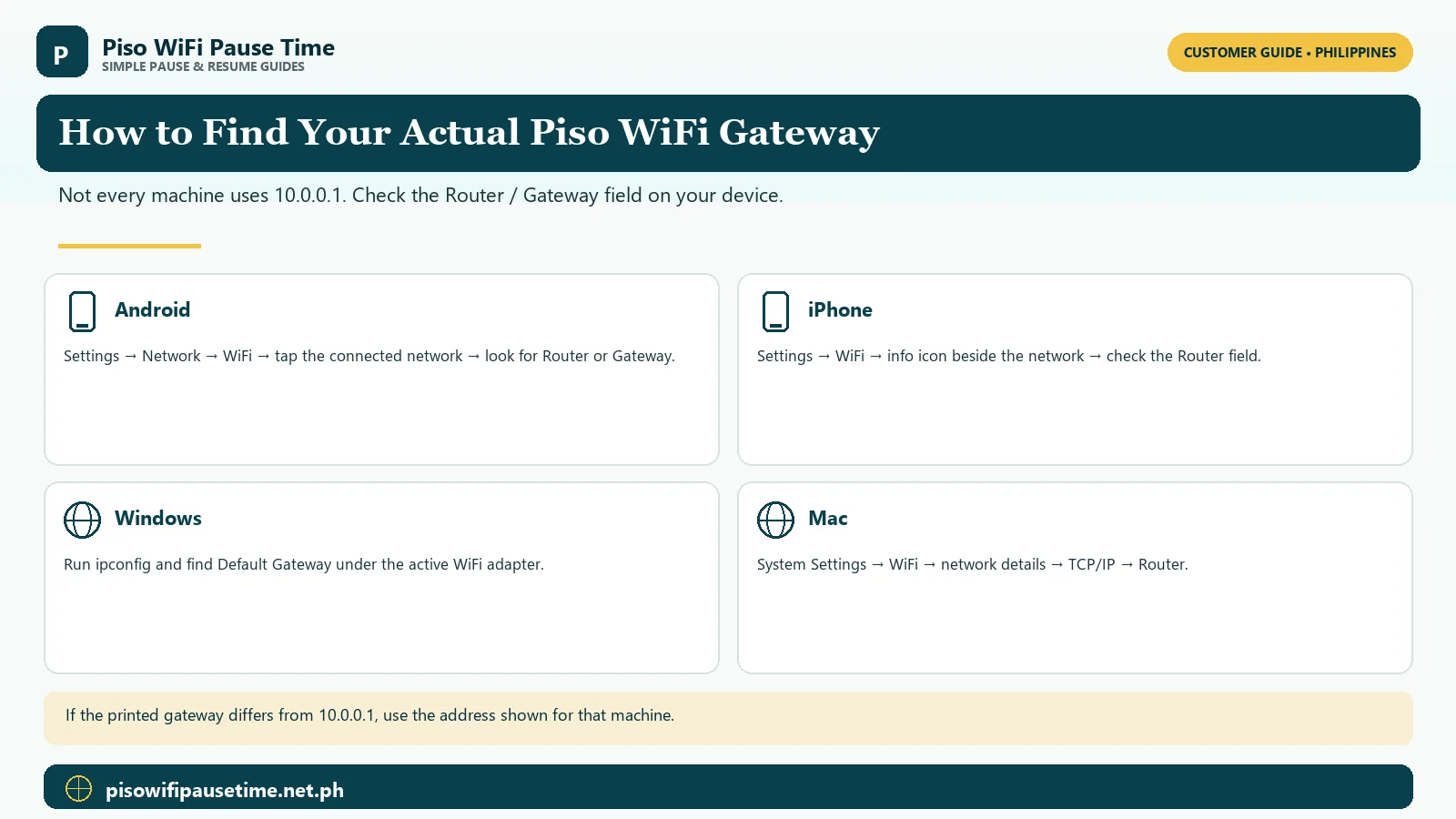
How to Find Your Actual Piso WiFi Gateway Address
The default gateway is the address your device uses to reach another network. It may also host the customer portal, but this is not guaranteed.
On Android
- 1Open Settings.
- 2Go to Network & Internet or Connections.
- 3Select WiFi and tap the connected network.
- 4Open network details and look for Router or Gateway.
Menu names depend on your phone manufacturer and Android version.
On iPhone
- 1Open Settings and tap WiFi.
- 2Find the connected Piso WiFi network.
- 3Tap the information icon beside it.
- 4Look for the Router field.
On Windows
- 1Press Windows + R.
- 2Type cmd and press Enter.
- 3Type ipconfig.
- 4Find the active WiFi adapter and look for Default Gateway.
On Mac
- 1Open System Settings.
- 2Select WiFi and open the connected network's details.
- 3Find the TCP/IP section.
- 4Look for Router.
Use the machine's instructions or ask its operator to confirm the customer portal address. Do not assume the gateway and portal application address are always identical.
The Piso WiFi Machine May Be Offline
Your device may connect to the machine's wireless network even when the portal or internet service is unavailable. These are separate parts of the connection:
A problem with any one of these parts can prevent normal access. If several customers experience the same issue, the machine or its upstream internet connection may need attention from the operator.
Why Is My Piso WiFi Pause Time Not Working?
If the Pause Time button is missing or your session does not pause correctly, the issue may be related to the machine's settings or session status.
Why Is the Pause Time Button Missing?
- The machine owner has disabled Pause Time.
- Your current session does not allow pausing.
- The payment method or voucher session is not eligible.
- The platform does not support the feature.
- The customer portal is not displaying correctly.
AdoPiSoft documentation lists Allow/Disable Pause as a session option. This shows why Pause Time can depend on individual session settings rather than being available to every customer.
Why Does the Pause Button Not Respond?
- Wait briefly for the portal to respond.
- Check whether your WiFi connection is still active.
- Reload the customer portal if it appears frozen.
- Check whether the session status changed.
- Try again only if the portal still shows an active session.
If the problem continues, the machine operator may need to inspect the session.
Why Is My Timer Still Running After I Press Pause?
The pause operation may not have completed. A button tap does not always mean the session state has changed. Return to the portal and check whether it displays Paused or another confirmation. If the countdown continues, contact the operator.
Why Can't I Find My Paused Session?
- You connected to a different machine.
- You are using a different device.
- The session expired.
- The machine cannot identify the original session.
- The platform has not synchronized the session information.
- A machine-side problem affected the session record.
Try the original device and network first. If the session remains missing, provide the operator with your payment information and the last balance you remember seeing.
Does a Paused Piso WiFi Session Expire?
It can, depending on the machine and platform settings. Pausing does not mean a session remains available forever. AdoPiSoft documents an Expiration Date/Time option separately from its pause permission. The actual rule depends on the machine's configuration.
What Should You Do If Your Remaining Time Disappears?
- Do not immediately make another payment.
- Return to the original network.
- Check the original session in the portal.
- Record the last visible balance.
- Keep payment evidence.
- Contact the operator with the approximate payment time and session details.
The operator may be able to inspect session records, depending on the platform. A missing balance does not guarantee that time can be restored, but payment evidence helps the operator investigate.
Connected to Piso WiFi but No Internet? Here's What to Check
Your phone may show that it is connected to Piso WiFi even when you cannot open websites. Check the customer session and internet connection separately.
Your Customer Session Has Not Been Activated
Connecting to WiFi is only the first step. You may still need to open the portal, insert coins, enter a voucher, complete payment, and confirm the session. Check the portal to see whether your session is active.
Your Session Is Paused or Expired
A device can remain connected to WiFi even when its internet session is paused or no longer valid. Open the customer portal and check the current status. If it is paused, use Resume if available. If it is expired or exhausted, follow the machine's instructions or contact the operator.
The Piso WiFi Machine Has Lost Its Internet Connection
The machine may still provide a local WiFi signal while its connection to the wider internet is unavailable. AdoPiSoft documents an Online Status Checking setting that can affect coin insertion and active sessions when internet connectivity is lost, if configured by the owner. This is not a guaranteed behavior across all Piso WiFi systems.
Your WiFi Signal Is Weak or Unstable
Move closer to the Piso WiFi machine. Avoid thick walls and physical obstructions. Disconnect and reconnect to WiFi. Wait briefly if the machine is experiencing heavy usage.
Your Payment Was Accepted but No Time Was Credited
Payment credited check
- Check the payment confirmation.
- Reload the customer portal once.
- Look for the session balance.
- Save the transaction reference or payment receipt.
- Contact the operator if no time appears.
The issue may involve payment processing, voucher validation, credit allocation, or the machine's session service. If you inserted coins, tell the operator the amount and approximate payment time. If you used electronic payment, keep the transaction reference.
Is the Problem With Your Phone or the Piso WiFi Machine?
| What you notice | What to check |
|---|---|
| Only your phone has a problem | Phone WiFi and browser settings |
| Several customers have the same problem | Machine or network |
| Portal opens but payment fails | Payment or transaction process |
| Payment succeeds but no time appears | Session activation |
| Session is active but internet does not work | Machine's internet connection |
| Local portal does not open | Network, gateway or portal service |
When Should You Contact the Machine Operator?
Contact the operator when basic checks do not resolve the issue. Provide the WiFi network name, payment amount and method, approximate payment time, transaction reference, last remaining-time balance, and exact error message.
How Do LPB, AdoPiSoft and Other Piso WiFi Systems Differ?
Not every Piso WiFi machine uses the same software or session-management system. Payment options, portal layouts, Pause Time, Resume Time, and remaining-time displays can vary between platforms and individual installations.
How Does LPB Piso WiFi Handle Customer Sessions?
LPB advertises Cloud Session Time. According to its official website, customer session time is stored in LPB Cloud and remaining time can be synchronized across LPB Piso WiFi machines. LPB describes this as allowing customers to pause and resume sessions across locations in the Philippines.
This is an LPB-specific advertised feature. Do not assume every other Piso WiFi system provides the same cloud synchronization.
How Does AdoPiSoft Handle Session Settings?
AdoPiSoft documents several session types and settings such as download and upload limits, Allow/Disable Pause, Expiration Date/Time, and remaining time or data adjustments. These settings help explain why two customers on different machines may experience different session behavior.
What About JuanFi and Other Piso WiFi Systems?
JuanFi and other Piso WiFi implementations may have different portal layouts, payment options, and session-management features. Do not assume that the customer portal, gateway address, or Pause Time behavior is identical across systems. Follow the instructions displayed by the actual machine.
Why Does My Piso WiFi Portal Look Different?
Your portal may look different because of the software platform, installed version, portal template, owner configuration, payment methods, session type, or enabled customer features. One machine may display a Pause Time button while another does not. That difference does not automatically mean either machine is broken.
How Does AdoPiSoft Handle Session Settings?
AdoPiSoft documents several session types:
- Time session: Provides a specific amount of internet time.
- Data session: Is based on the amount of data a customer can use.
- Time with Data Capping: Combines a time allowance with a data cap; the configured limits determine when access ends.
- Subscription session: Uses subscription-based access rather than a simple fixed time or data balance.
AdoPiSoft also documents settings such as download and upload limits, Allow/Disable Pause, Expiration Date/Time, and remaining time or data adjustments. These settings help explain why two customers on different machines may experience different session behavior.
LPB vs AdoPiSoft: What Is the Difference for Customers?
| Feature | LPB Piso WiFi | AdoPiSoft |
|---|---|---|
| Customer access | Customer portal | Captive portal |
| Coin-based access | Advertised | Documented coin-slot integrations |
| Voucher support | Advertised | Documented |
| Cloud session synchronization | Advertised through Cloud Session Time | Do not assume equivalent functionality |
| Time-based sessions | Advertised | Documented |
| Data-based sessions | Advertised | Documented |
| Pause functionality | Subject to machine configuration | Individual session pause permission documented |
| Session expiration | Check the configured system rules | Expiration setting documented |
This is a comparison of published platform information, not a guarantee that every installation has every feature enabled.
Who Can Enable or Disable Piso WiFi Pause Time?
The machine owner or authorized administrator generally controls the available customer features. Depending on the platform, the owner may manage session permissions, expiration settings, and access options.
Customers cannot normally enable a disabled administrator feature from the customer portal. If Pause Time is unavailable, ask the operator whether the machine supports it and whether it is enabled for your session.
Frequently Asked Questions About 10.0.0.1 Piso WiFi
What Is the Correct 10.0.0.1 Piso WiFi Login Address?
http://10.0.0.1. Connect to the relevant Piso WiFi network before opening it.How Do I Open the Piso WiFi Portal?
http://10.0.0.1.Why Does 10.0.0.0.1 Not Work?
Does Every Piso WiFi Machine Use 10.0.0.1?
Is 10.0.0.1 the Customer Portal or Admin Login?
How Do I Check My Remaining Piso WiFi Time?
Can I Pause My Piso WiFi Time?
Why Is the Pause Time Button Missing?
Can the Machine Owner Disable Pause Time?
Does Piso WiFi Time Expire While Paused?
Can I Resume My Session on Another Phone?
What Happens If I Disconnect From the Piso WiFi Network?
Why Am I Connected to Piso WiFi but Have No Internet?
What Should I Do If My Payment Was Accepted but No Time Was Added?
What If I Forgot My Piso WiFi Administrator Password?
Is LPB the Same as LBP or LBS Piso WiFi?
Do I Need an App to Access 10.0.0.1?
Final Tips for Using 10.0.0.1 Piso WiFi
- Use the correct network: Connect to the Piso WiFi machine you intend to use.
- Enter the address carefully: Use 10.0.0.1 only when that is the machine's configured gateway.
- Use the browser address bar: Do not enter the local address as an ordinary search query.
- Check your remaining time: Review your balance before leaving a session.
- Verify Pause Time: Make sure the portal confirms that your session is paused.
- Keep payment evidence: Save transaction details if your purchased time does not appear.
- Understand session expiration: Paused time may still be subject to validity limits.
- Ask the operator about machine-side problems: Customers cannot fix every portal, payment, or network issue themselves.
Sources and Further Reading
- IETF RFC 1918 – Address Allocation for Private Internets — Private IPv4 address ranges, including 10.0.0.0/8.
- IETF RFC 8952 – Captive Portal Architecture — Captive portal architecture and purpose.
- Apple Support – Use Captive WiFi Networks on iPhone or iPad — Joining networks that require a login.
- AdoPiSoft Wiki – Administrator Configurations — Device information, session types, pause permissions, and expiration settings.
- AdoPiSoft Wiki – Version 4.0.0 — Installation, LAN configuration, captive portal setup, and an example 10.0.0.1 gateway.
- LPB Piso WiFi – Official Website — Cloud Session Time, synchronization, payment methods, vouchers, and platform features.
Disclaimer: This is an independent informational guide. It does not operate, control, or provide direct access to any Piso WiFi machine. Actual portal addresses, payment options, session rules, and Pause Time availability depend on the machine owner and installed platform.