1Click Piso WiFi: Login, Portal Address, Pause Time and Admin Guide
The commonly reported customer portal address for a default 1Click setup is:
This is a local network address. You generally need to connect to the specific Piso WiFi machine first. The portal is then available through that machine's local network.
Quick answer: Connect to the Piso WiFi network and open http://10.0.0.1 to try the customer portal. Insert coins or enter a voucher if those options are available. To pause your time, select Pause Time during an active session if the owner has enabled it.
- Customer portal: commonly
http://10.0.0.1 - Owner Admin Portal: reviewed manual documents
http://10.0.0.1:8080 - Pause availability: depends on the machine owner's settings
Piso WiFi Guide · Philippines
If you are using a 1Click Piso WiFi machine, you may want to open its login portal, buy internet time, pause your remaining minutes, or resume a session. This guide explains the customer steps first, then covers common problems and owner information.
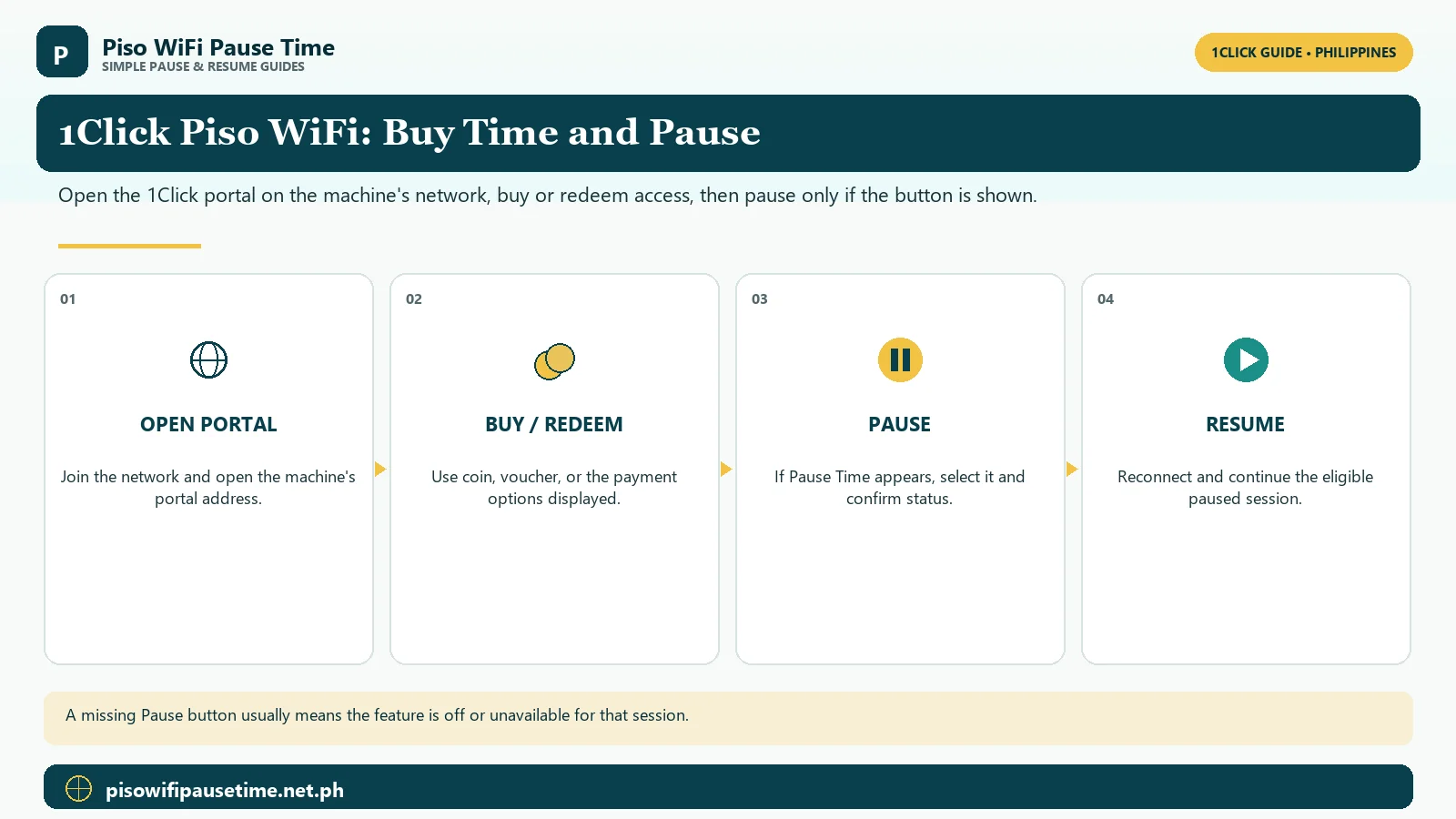
How to Open 1Click Piso WiFi Login and Buy Internet Time
The 1Click Piso WiFi login page is the customer portal where you can access the available internet service. It is not the same as the owner's admin panel. You normally do not need an admin username or password to buy internet time.
Steps to open the 1Click customer portal
- 1
Open the WiFi settings on your phone, tablet, or laptop.
- 2
Find the Piso WiFi network name provided by the machine owner.
- 3
Connect to that network.
- 4
Turn off mobile data temporarily if your phone keeps using its mobile connection.
- 5
Open Chrome, Safari, or another web browser.
- 6
Type http://10.0.0.1 into the browser's address bar.
- 7
Wait for the 1Click portal to appear.
Make sure you type the address into the address bar, not the Google search box.
How to buy internet time
Option 1: Insert coins
- Check the rates displayed on the portal.
- Find the coin slot on the Piso WiFi machine.
- Insert the accepted coin amount.
- Wait for the portal to register your payment.
- Check whether your remaining internet time has increased.
Option 2: Use a voucher
- Find the voucher or voucher-code field on the portal.
- Enter the code supplied by the seller.
- Submit the code and wait for the system to process it.
- Check whether your internet time has been credited.
Key tip: Check the displayed rate before inserting coins. Not every Piso WiFi machine gives the same number of minutes for the same amount.
What Is the 1Click Piso WiFi Portal Address?
1Click customer portal vs owner admin address
Address · Customer
http://10.0.0.1
Purpose: Common customer portal address
Who should use it? Customers
Address · Admin
http://10.0.0.1:8080
Purpose: Admin Portal address documented in the reviewed 1Click manual
Who should use it? Owners or authorized administrators
The reviewed 1Click system manual documents port 8080 for accessing the Admin Portal. Do not assume that a generic address such as http://10.0.0.1/admin is the correct 1Click owner login address. Different Piso WiFi systems use different admin paths.
What if 10.0.0.1 does not open?
Your machine may use a different local gateway. Instead of trying random addresses, check the gateway shown by your device.
On Android
- Open Settings and select WiFi or Network & Internet.
- Tap the connected Piso WiFi network.
- Open its network details and look for Gateway, Router, or IP settings.
- Use the gateway address shown by your phone in your browser.
On iPhone
- Open Settings and select WiFi.
- Tap the information icon beside the connected Piso WiFi network.
- Find the Router field.
- Use the displayed address in Safari.
On Windows
- Connect your laptop to the Piso WiFi network.
- Open Command Prompt.
- Type
ipconfigand press Enter. - Find the active WiFi adapter and look for Default Gateway.
- Enter that address in your browser.
Key tip: The gateway shown for your connected Piso WiFi network is a better starting point than assuming every machine uses the same address.
Is 10.0.0.0.1 the correct address?
No. 10.0.0.0.1 is not the same as 10.0.0.1. The common address contains four number groups separated by three dots. Do not add an extra zero.
10.0.0.1has four groups.
10.0.0.0.1has five groups.
What Is 1Click Piso WiFi and How Does the System Work?
Software-based Piso WiFi vending system
1Click Piso WiFi is a software-based system used in coin-operated and voucher-based WiFi vending installations. It helps a machine provide paid internet access through a customer portal. Customers connect to the machine's WiFi, open the portal, pay for access, and receive a timed internet session.
A 1Click installation is not simply a browser page or an IP address. It is a system that works with the machine's network and vending hardware.
Main parts of a 1Click Piso WiFi installation
- WiFi access point: Provides the wireless network customers connect to.
- Router or network equipment: Connects the local WiFi network to the internet source.
- Controller hardware: Runs the system software and manages the vending operation.
- Coin slot: Receives physical payments where coin payment is enabled.
- Customer portal: Displays payment options and session information.
- Software system: Handles internet access, time tracking, and customer sessions.
- Internet connection: Supplies the connection customers use.
The exact hardware combination can differ between installations.
How does the customer session work?
How can you identify a 1Click machine?
Do not identify a machine only by its IP address. Several Piso WiFi systems can use similar local addresses. Look for the 1Click name or branding on the customer portal, machine label, or information provided by the operator. If the portal displays a different platform name, check that platform's guide.
How to Redeem a 1Click Piso WiFi Voucher Code
A voucher code gives you internet access without inserting coins directly into the machine, provided that the operator has enabled voucher payments. The voucher usually contains a code that the customer enters into the portal.
Steps to redeem a voucher
- 1
Connect your phone or laptop to the 1Click Piso WiFi network.
- 2
Open the customer portal.
- 3
Find the voucher input field.
- 4
Carefully enter the code supplied by the seller.
- 5
Submit the code and wait for the portal to process it.
- 6
Check your remaining time or session status.
If the voucher is accepted, the system should credit the time associated with that voucher.
Why is your voucher code not working?
- Typing error: One or more characters may have been entered incorrectly.
- Already activated: The voucher may have been used before.
- Wrong machine: The voucher may belong to another machine or system.
- Expired or invalid code: The operator may have issued a code that is no longer valid.
- Portal problem: The customer portal may not be communicating correctly with the system.
Check the code carefully and contact the seller if it continues to fail.
Key tip: Do not share an unused voucher code publicly. Treat it like a prepaid internet access code.
What Is 1Click Piso WiFi Pause Time?
1Click Piso WiFi Pause Time is a session feature that allows a customer to temporarily stop an active internet session when the machine's settings permit it.
For example, imagine that you have purchased internet time but need to leave for a short period. If the Pause Time feature is available, you may be able to pause your session and return later. The purpose is to prevent your remaining paid time from being used while the session is paused.
However, the exact pause behavior depends on the system configuration. The owner can control whether the feature is available and how its rules work.
How does Pause Time work?
Your paid internet session is running and the remaining-time countdown is active.
The system records the paused session according to its configured rules.
The session becomes active again if it is still eligible for resumption.
| Session state | What happens |
|---|---|
| Active | Your paid internet session is running and the remaining-time countdown is active. |
| Paused | The system records the paused session according to its configured rules. |
| Resumed | The session becomes active again if it is still eligible for resumption. |
A pause is different from simply turning off your phone's WiFi. Disconnecting from the network does not automatically mean that the system has paused your paid session. If you want to preserve your remaining time, use the Pause button when it is available.
Is Pause Time available on every 1Click machine?
No. The machine owner controls the relevant settings. Some installations may have Pause Time enabled, while others may have it disabled or configured with restrictions. If you cannot see the button, it does not automatically mean that your phone is broken.
How to Pause and Resume 1Click Piso WiFi Time
If your 1Click machine supports Pause Time and the owner has enabled it, follow these steps.
How to pause your remaining time
- 1
Connect to the vendo WiFi and open the 1Click portal.
- 2
Check that your paid session is active.
- 3
Look for the Pause or Pause Time button.
- 4
Tap it and follow any confirmation message shown by the portal.
- 5
Check the session status to confirm that it has been paused.
If the portal confirms that the session is paused, you can leave the network and return later, subject to the machine's pause rules.
How to resume your 1Click session
- 1
Return to the same Piso WiFi machine.
- 2
Connect to its WiFi network again.
- 3
Open the customer portal.
- 4
Look for the Resume or Resume Time option.
- 5
Tap the option and check whether your internet session becomes active again.
If the session is still valid, the system should restore access according to its configured rules.
Should you use the same phone to resume?
Yes. Using the same phone or laptop is the safest approach. A Piso WiFi system may associate a session with information about the connected device, such as its device identifier or MAC address. The reviewed 1Click manual includes device-level information in its Client Management section. However, the available manual does not establish that every installation supports transferring a paused session to another device.
Key tip: Before leaving the machine, check that the portal has actually confirmed the paused status. Do not rely only on closing the browser or disconnecting from WiFi.
Why Is the 1Click Piso WiFi Pause Time Button Missing?
If the Pause Time button does not appear, there are several possible explanations.
1. The owner has disabled Pause Time
The machine owner may have turned off the pause feature. Customers cannot enable an owner-controlled feature from the customer portal. Ask the machine owner whether Pause Time is enabled.
2. Your paid session is not active
Some systems show session controls only after a customer has purchased internet access. Open the portal and check whether your payment was accepted and whether your remaining time is displayed.
3. Your remaining time does not meet the pause rule
The 1Click manual describes an example in which the owner sets an Allow Pause threshold of 240 minutes. Under that example, customers with more than four hours remaining cannot pause. The Pause button appears when their remaining time drops below four hours. This is a configurable example, not a universal four-hour requirement.
4. You are not connected to the correct machine
If you have connected to another WiFi network, you may be opening a different portal. Check the WiFi name and reconnect to the correct Piso WiFi machine.
5. The portal has not refreshed
Refresh the portal, close and reopen the browser, reconnect to the Piso WiFi network, or open the portal in a private or incognito browser tab. If the button remains missing, the owner should check the machine's configuration.
How Long Can 1Click Piso WiFi Time Stay Paused?
There is no single pause duration that applies to every 1Click Piso WiFi installation. The owner can configure operational rules that affect when customers can pause and whether paused sessions automatically resume after a set period.
What does the 240-minute Allow Pause setting mean?
The manual gives an example where Allow Pause is set to 240 minutes (four hours). In that example, a customer with more than four hours remaining cannot pause. When the remaining time drops below four hours, the Pause button appears, provided the other conditions are met.
This setting is an eligibility threshold. It should not be described as the maximum amount of time that a session can remain paused.
What does the 60-minute auto-resume setting mean?
The same manual describes an example where Auto-resume after is set to 60 minutes. Under that example, paused sessions automatically resume after one hour. This is a separate setting from the Allow Pause threshold.
Allow Pause: 240 minutes
Controls when the Pause button becomes available based on remaining time.
Auto-resume after: 60 minutes
Automatically resumes paused sessions after one hour.
| Setting | Meaning in the manual's example |
|---|---|
| Allow Pause: 240 minutes | Controls when the Pause button becomes available based on remaining time. |
| Auto-resume after: 60 minutes | Automatically resumes paused sessions after one hour. |
Important: These values are examples shown in the reviewed manual. Your machine may use different settings. Check the portal's status and any message displayed after pausing. Do not assume your remaining time will stay paused indefinitely.
1Click Piso WiFi Pause Time Not Working? Troubleshooting Guide
If you cannot pause or resume your internet time, first identify which part of the process is failing. The customer portal, WiFi connection, session status, and owner settings can all affect the result.
Problem 1: The 1Click portal will not open
Possible reasons: Your phone is connected to the wrong WiFi network, mobile data is being used, the portal address is incorrect, the machine uses a different gateway, or the local network is temporarily unavailable.
What to try: Confirm the WiFi network, turn off mobile data temporarily, enter http://10.0.0.1 directly, check your device's gateway if it fails, and reconnect to WiFi.
Problem 2: The Pause button is not showing
Possible reasons: The owner disabled Pause Time, your session is not active, your remaining time does not meet the configured threshold, or the portal has not refreshed.
What to try: Check that your session has been credited, refresh the portal, check the remaining-time display, and ask the owner whether the pause feature is enabled.
Problem 3: You tapped Pause, but the session is still active
Wait for the portal to respond. Look for a confirmation message or paused status. Refresh the portal if it appears stuck, then check whether your remaining time is still counting down. Avoid repeatedly tapping the button if the portal is not responding.
Problem 4: Your session will not resume
The configured auto-resume period may have passed, the session may no longer be valid, you may be using a different device or machine, or the portal may not identify the original session. Return to the same machine, use the same device, reconnect, and check whether the session still shows as paused.
Problem 5: Your remaining time disappeared
Check whether the portal shows an active, paused, or expired session. If the time has disappeared, contact the operator before purchasing another session. The owner may be able to inspect the session information and determine what happened.
Problem 6: The machine stopped working after a power interruption
A power interruption or unexpected shutdown can affect an active session. The 1Click manual describes an operational rule that can automatically pause connected users' remaining time after an unexpected shutdown, such as a brownout. It also describes an automatic-resume setting. These are configurable features, so do not assume every machine has them enabled.
Wait for the machine to become available, reconnect to its WiFi, and check your session status. If your remaining time is missing, ask the operator to check the machine.
Quick troubleshooting table
| Problem | First thing to check |
|---|---|
| Portal does not open | WiFi connection and gateway address |
| Pause button missing | Owner settings and active session |
| Pause does not respond | Portal confirmation and session status |
| Resume does not work | Same device, same machine, and pause expiry |
| Voucher rejected | Code accuracy and voucher validity |
| Remaining time missing | Session status and owner-side records |
| Machine restarted | Reconnect and ask the owner to check the session |
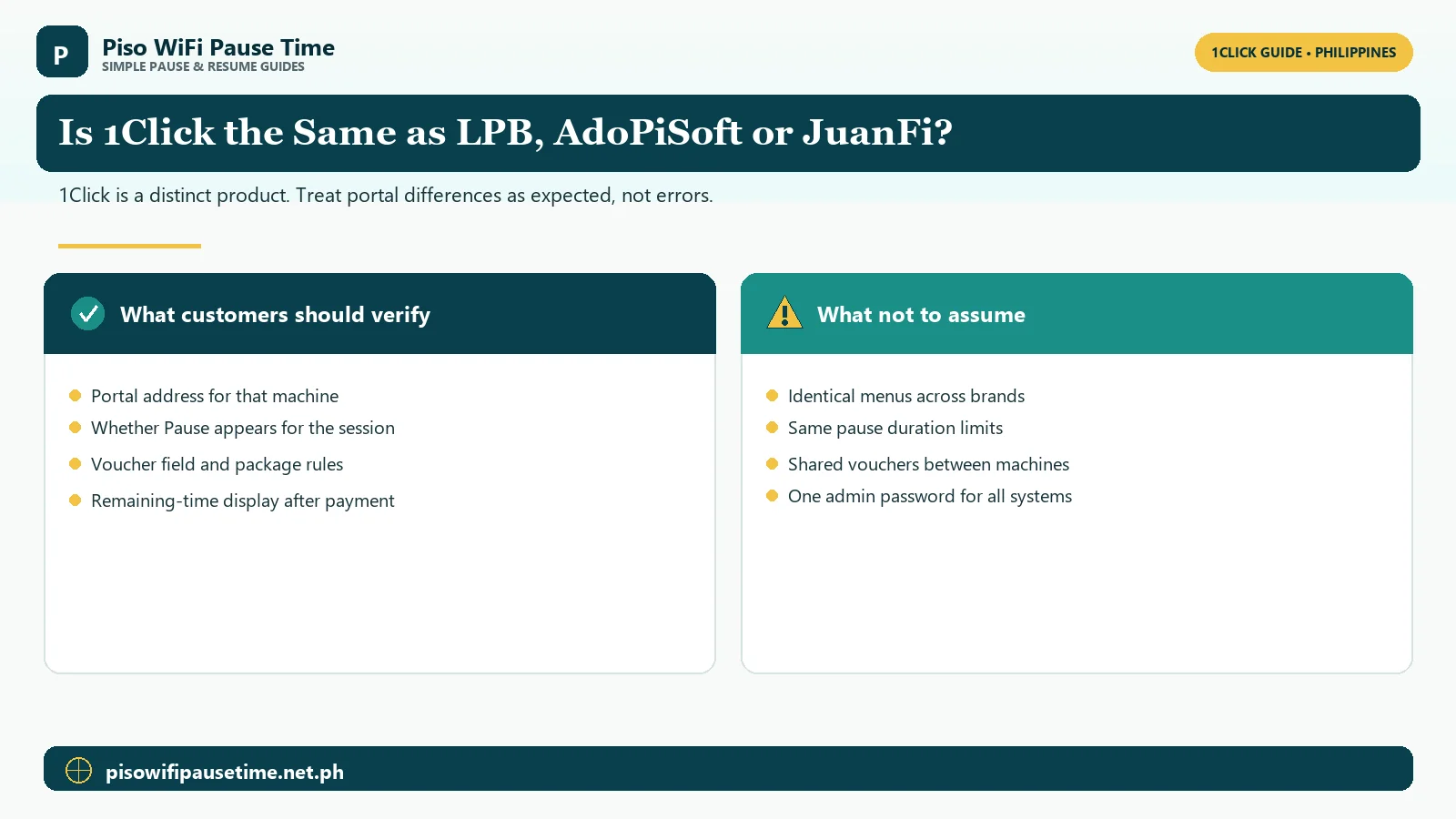
Is 1Click Piso WiFi the Same as LPB, AdoPiSoft, JuanFi or PisoFi?
No. 1Click, LPB, AdoPiSoft, JuanFi, and other Piso WiFi platforms are separate systems. They may provide similar customer functions, such as coin payments, voucher access, timed internet sessions, and pause controls. However, their software, admin panels, settings, and hardware arrangements are not necessarily the same.
| Platform | General description | Important point |
|---|---|---|
| 1Click Piso WiFi | Piso WiFi vending system with a customer portal and owner management features | Its reviewed manual documents an Admin Portal on port 8080. |
| LPB Piso WiFi | A separate Piso WiFi platform | Its admin instructions should not automatically be applied to 1Click. |
| AdoPiSoft | A separate coin-operated WiFi vending platform | Its portal and admin instructions are platform-specific. |
| JuanFi | Another Piso WiFi system | Its setup and management process differs from 1Click. |
| PisoFi | A separate platform name used in the Piso WiFi market | Confirm the installed system before following instructions. |
How can you identify which system you are using?
- 1
Look at the name displayed on the customer portal.
- 2
Check the machine label or information provided by the operator.
- 3
Look at the portal layout and available options.
- 4
Ask the owner or installer if the system name is unclear.
Key tip: Always identify the platform before trying an admin address or password guide. An address or login instruction for another Piso WiFi system may not work on 1Click.
1Click Piso WiFi Admin Login and Password: Owner Guide
What is the 1Click admin panel address?
The reviewed 1Click system manual documents this address:
http://10.0.0.1:8080
The address uses port 8080 to access the Admin Portal. This is different from the commonly reported customer portal address, http://10.0.0.1. The machine's configured network address may differ, so owners should check their installation details if the documented address does not work.
How to open the 1Click Admin Portal
- 1
Connect to the machine's own network or the network from which its admin interface is accessible.
- 2
Open a web browser.
- 3
Enter the documented admin address,
http://10.0.0.1:8080, if it matches your installation. - 4
Wait for the admin login prompt.
- 5
Enter the password configured for your machine.
- 6
Select Login.
What is the default 1Click admin password?
There is no safe universal password that every owner should rely on. The password may depend on the installation and may have been changed by the owner or installer. Publicly shared passwords should not be treated as guaranteed login details.
- Check the setup information provided by your installer.
- Use the password configured for your installation.
- Change any password that is still using an insecure or publicly shared value.
- Keep the new password private.
- Use the documented recovery process if you have lost access.
Security tip: Never share your owner password in a public Facebook post, comment, or customer support group. If you are a customer, use the customer portal instead.
What Can Owners Manage in the 1Click Admin Panel?
The 1Click Admin Panel provides controls for managing the vending system. The reviewed manual describes several management sections, although exact options may depend on the installed version and configuration. This is an overview for machine owners, not a step-by-step installation guide.
1. Dashboard and machine information
The Dashboard section described in the manual includes currently connected users, online and offline device records, daily, weekly and monthly income, income trends, CPU usage, RAM usage, SD card or disk usage, CPU temperature, device information, and installed software version. These details can help an owner monitor machine activity and basic system condition.
2. Portal UI and customer-facing settings
The Portal UI section lets an owner control some of the information and options shown on the customer portal. The reviewed manual describes settings for the vendo name, voucher input field visibility, Insert Coin button visibility, and rates table visibility.
3. Bulletin Board and portal appearance
The manual describes a Bulletin Board section containing HTML used to control the appearance of the Client Portal. Only make changes if you understand the configuration and have a backup. An incorrect edit may affect how the portal appears or works.
4. Operational Rules and Pause Time
The Operational Rules section includes controls related to the coin slot and pause behavior. The manual's examples include an Allow Pause threshold, automatic pause behavior after an unexpected shutdown, and automatic resumption after a configured period. The 240-minute and 60-minute values are examples, not universal recommended settings.
5. Coin Rates
The Coin Rates section lets owners configure the relationship between payment amounts and internet time. The manual describes adding or editing coin rates, setting amount and duration, showing or hiding a rate on the Client Portal, and saving the configured rate.
Owner tip: Check the displayed rates after making a change. A rate saved incorrectly can confuse customers and lead to payment complaints.
6. Voucher Management
The Vouchers section is used to create and manage voucher codes. The reviewed manual describes setting an amount and time duration, adding an identifier, generating vouchers in batches, viewing voucher information, exporting selected vouchers to CSV, and managing unused and activated vouchers. Be careful when deleting activated vouchers because customers may already have purchased them.
7. Sales Reports
The Sales Report section helps owners review income from different payment types. The manual describes sales summaries, coin income, voucher income, date-range filters, and itemized sales records. Review reports before clearing or resetting records.
8. Client Management
The Client Management section contains information about connected and previously connected devices. The reviewed manual describes device ID, remaining time, total time, IP address, MAC address, blocking and unblocking devices, editing a client's remaining time, bandwidth profiles, and device names. These are owner-side controls. Customers should contact the machine operator if their session needs to be checked or corrected.
9. Network Settings
The Network Settings section manages how the 1Click system connects to its internet source and local network. The manual describes DHCP, Static IP, PPPoE, DNS, VLAN, and WiFi tethering prevention. These settings can affect whether the machine can reach the internet and whether some system functions work correctly.
Owner tip: Do not change DNS, IP, or VLAN settings without understanding the existing network setup. Incorrect network settings can disconnect the machine.
10. Bandwidth Management
The manual describes global bandwidth limits and individual client bandwidth profiles. These controls help owners manage how available bandwidth is distributed between connected devices. Actual bandwidth depends on the internet connection, hardware, configuration, and number of connected users.
11. Hardware Settings
The Hardware Settings section contains controls related to the vending hardware. The manual describes options for coin slot input, JST/Relay, and relay trigger type. These settings must match the hardware being used.
12. Backup and Restore
The manual describes a Backup & Restore section. Owners can use this area to create a backup of system settings and configurations and load a backup file when needed.
Owner tip: Create a backup before making major configuration changes or applying updates. Keep a copy somewhere safe rather than relying only on the machine's storage.
1Click Piso WiFi License, Versions, Patches and Software Updates
The reviewed 1Click manual includes separate sections for license activation and software updates. These are owner-side functions. Customers do not need to activate a license or install a system update to use the customer portal.
1Click license activation
The manual describes a License Activation Panel with status indicators:
The license key has been validated.
The key is being checked by the server.
The key may be invalid, inactive, or already activated on another device.
The manual also states that the machine needs an internet connection for online activation. It includes a troubleshooting note about DNS configuration for certain upstream connections, including SIM-based, point-to-point, and cable internet setups. This is an owner or installer task, not a customer-side fix.
1Click software updates
The manual describes full system updates, hotfixes, and patches. It also describes Stable, Beta, and Developer update channels. These names indicate different update channels, but the available manual does not establish which channel is best for every installation.
Tips before updating 1Click
- 1
Read the update information before applying it.
- 2
Check the installed version.
- 3
Create a backup of important settings.
- 4
Use update files intended for the correct system.
- 5
Avoid interrupting the machine during an update.
- 6
Check the portal and payment functions after the update.
- 7
Keep a record of the update applied.
The manual copy reviewed for this guide contains an older version screenshot. That screenshot should not be treated as proof of the latest available 1Click version. Check the installed system and current vendor information for version details.
Frequently Asked Questions About 1Click Piso WiFi
1. What is 1Click Piso WiFi?
1Click Piso WiFi is a vending system used to provide paid internet access through a Piso WiFi machine. It supports a customer portal and owner-side management features.
2. How do I open 1Click Piso WiFi login?
Connect to the machine's WiFi network and open http://10.0.0.1 in your browser. If that address does not work, check the gateway assigned to your connected device.
3. What is the 1Click Piso WiFi portal address?
The commonly reported customer portal address is http://10.0.0.1. The address can differ if the machine uses a custom network configuration.
4. How do I pause 1Click Piso WiFi time?
Open the customer portal while your paid session is active. If the owner has enabled the feature and your session meets its rules, select Pause Time.
5. How do I resume my 1Click Piso WiFi time?
Reconnect to the same machine, open the portal, and select Resume if the paused session is still available.
6. Why is the Pause Time button missing?
The owner may have disabled the feature, your session may not be active, or your remaining time may not meet the configured pause rule.
7. Does disconnecting from WiFi pause my time?
No. Simply turning off WiFi or leaving the network should not be treated as a confirmed pause. Use the Pause button and check that the portal confirms the paused status.
8. How long can 1Click Piso WiFi stay paused?
There is no single duration for every machine. The owner can configure pause-related rules, including automatic resumption. The reviewed manual includes a 60-minute auto-resume example, but that value is not universal.
9. Can I resume my 1Click session on another phone?
Do not assume that you can. The system may associate the session with device information. Using the same phone or laptop is the safest option.
10. What is the 1Click Piso WiFi admin address?
The reviewed 1Click manual documents http://10.0.0.1:8080 for the Admin Portal. This is intended for authorized owners and administrators.
11. What is the default 1Click admin password?
There is no safe universal password to rely on. Owners should use the password configured for their own installation and follow the installer or vendor's recovery instructions if access is lost.
12. Is 1Click Piso WiFi the same as AdoPiSoft or LPB?
No. They are separate Piso WiFi systems. Their customer functions may be similar, but their software, admin pages, and settings are not interchangeable.
13. Can I use 1Click Piso WiFi without inserting coins?
It depends on the payment options enabled by the operator. If the portal provides a voucher field, you may be able to redeem a valid voucher instead of inserting coins.
14. Why does 10.0.0.1 not open on my phone?
You may be connected to the wrong network, using mobile data, or entering the wrong address. Check the gateway shown in your phone's connected WiFi details.
15. What should I do if my 1Click Piso WiFi time disappears?
Reconnect to the same machine and check your portal status. If the remaining time is missing, contact the owner and ask them to check your session records.
Sources and Editorial Note
- 1Click Piso WiFi System Manual: A 23-page manual copy reviewed through Scribd. It describes the Admin Portal, dashboard, license activation, software updates, Portal UI, Operational Rules, vouchers, sales reports, client management, network settings, hardware settings, and backup functions. The provenance of the Scribd copy has not been independently verified.
- 100001.net — 1Click Pisowifi System: A third-party research page covering the customer portal, admin address, and 1Click system behavior. It is not presented here as official vendor documentation.
- 10001admin.net.ph — 1Click Piso WiFi: A competitor guide used to understand common customer questions and search intent. Its credential examples have not been copied.
Portal addresses, pause rules, software versions, and available features can vary between installations. Always check the portal and machine information provided by the operator. If a detail on your machine differs from this guide, follow the documentation for that specific installation.