LPB Piso WiFi: 10.0.0.1 Login, Pause Time and Resume Guide
Customer Open WiFi settings and join the vending machine's network. Type http://10.0.0.1 in the browser address bar. Select Insert Money or the available payment option. Enter a voucher code. Complete the payment process if prompted. Wait for the internet session to become active.
Pause Open a browser and visit http://10.0.0.1. Look for the Pause Time or Pause control. Select Resume or Resume Time. If you are unsure, return with the same device you used to start the session.
Owner For owners and authorized operators, a commonly documented LPB administration path is http://10.0.0.1/admin.
If this address does not open, find the gateway assigned to your connected network. The machine owner may configure Pause Time differently for coin payments, voucher sessions, or other session types.
Access the LPB customer portal, pause your internet session, resume your remaining time, and fix common login problems. Follow the steps below using the WiFi network of the LPB vending machine.
LPB Piso WiFi guide · Philippines
LPB Piso WiFi Login: Quick Steps
- 1Connect to the LPB network
Open WiFi settings and join the vending machine's network.
- 2Open a web browser
Use Chrome, Safari, or another browser on your phone or computer.
- 3Enter the local address
Type
http://10.0.0.1in the browser address bar, not the search box. - 4Open your customer session
Use an available payment method or find your existing session.
- 5Pause or resume when available
Use the portal's session controls and check the displayed status.
Connect to the correct LPB Piso WiFi network, then try http://10.0.0.1 in your browser. The actual gateway can vary by installation. The address and available controls can differ between LPB installations. If this address does not open, find the gateway assigned to your connected network.
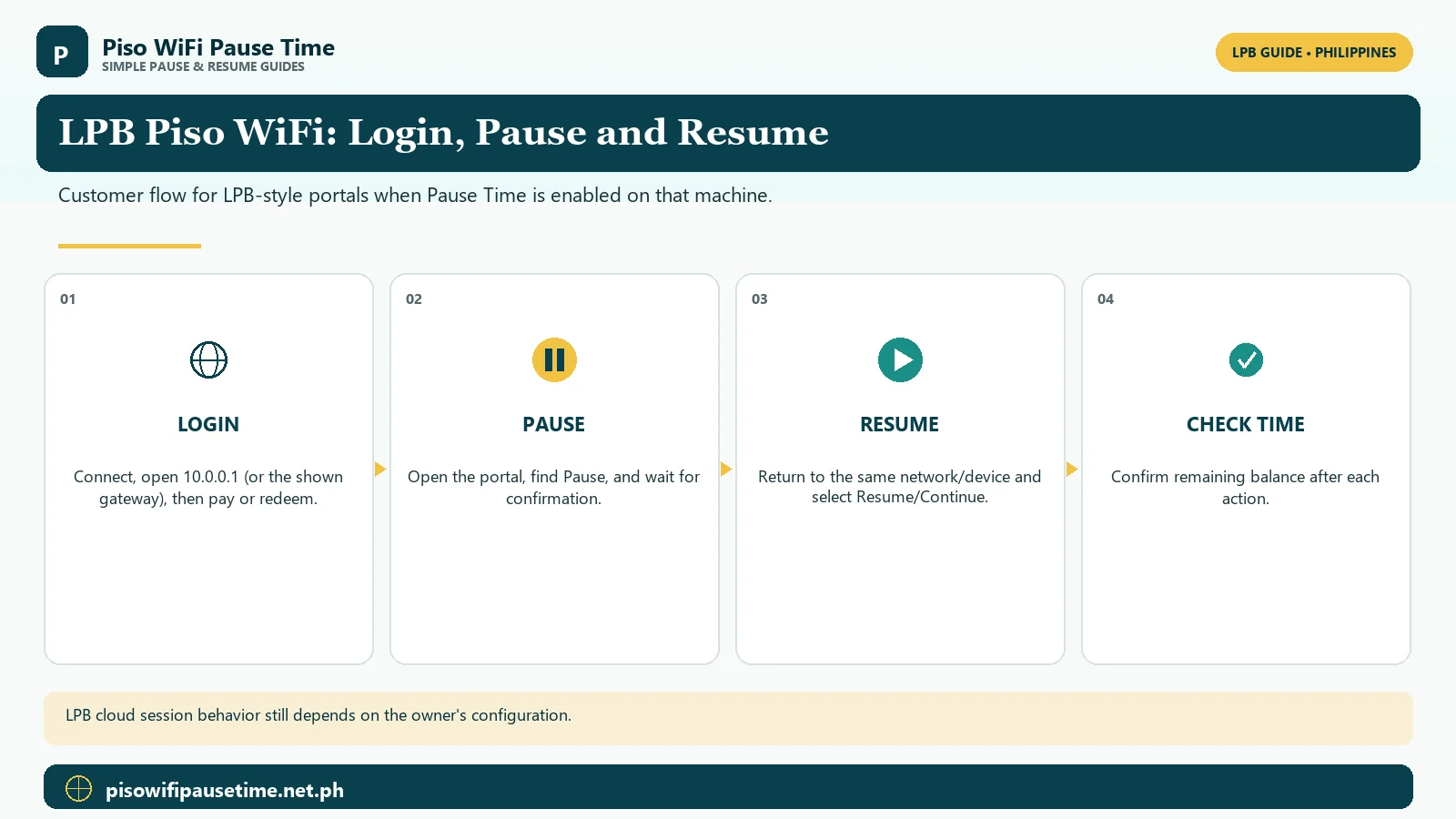
How to Login to LPB Piso WiFi at 10.0.0.1
The commonly used LPB Piso WiFi customer login address is 10.0.0.1. It is a local IP address that opens the vending machine's customer portal when your device is connected to its network.
What Is the LPB Piso WiFi Login Address?
http://10.0.0.1
This is a private network address, not a public website. Connect to the relevant LPB vending WiFi network before opening it. If the machine uses another gateway, the operator or your device's network details can confirm the correct address.
Steps to Open the LPB Piso WiFi Login Page
- 1
Open WiFi settings on your phone, tablet, or laptop.
- 2
Find the LPB Piso WiFi network and connect to it.
- 3
Open Chrome, Safari, or another browser.
- 4
Tap the browser's address bar.
- 5
Type
http://10.0.0.1and press Enter or Go. - 6
Wait for the LPB customer portal to appear.
Enter the address directly in the browser address bar. Do not type it into Google search.
What Can You Do on the LPB Customer Portal?
Depending on the machine's software and configuration, the customer portal may let you:
- Insert coins or select an available payment method.
- Enter a voucher code.
- View your active session and remaining time.
- Pause or resume an eligible session.
- Check payment or session information shown by the machine.
Customer Portal vs. LPB Admin Login
Customer portal
- Used by customers
- Starts and manages customer sessions
- Shows available payment options and remaining time
- Provides Pause/Resume when enabled
Admin dashboard
- Used by authorized owners or operators
- Manages machine configuration
- May manage rates, vouchers and network settings
- May control feature availability
| Customer portal | Admin dashboard |
|---|---|
| Used by customers | Used by authorized owners or operators |
| Starts and manages customer sessions | Manages machine configuration |
| Shows available payment options and remaining time | May manage rates, vouchers and network settings |
| Provides Pause/Resume when enabled | May control feature availability |
Customers normally do not need administrator access to pause or resume their own internet session.
How to Pause LPB Piso WiFi Time
LPB Piso WiFi Pause Time lets a customer temporarily stop an eligible internet session. When the feature works as configured, the remaining paid time is preserved while the session is paused.
- 1
Connect your device to the LPB Piso WiFi network.
- 2
Open a browser and visit
http://10.0.0.1, or the gateway used by that machine. - 3
Find your active internet session.
- 4
Look for the Pause Time or Pause control.
- 5
Select it and wait for the portal to confirm the paused state.
- 6
Check that the remaining-time countdown has stopped before leaving.
How to Confirm That Your LPB Session Is Paused
Do not assume the session was saved just because you tapped the button. Look for a paused status, a remaining-time balance that is no longer decreasing, or a Resume control. Labels and indicators can differ between LPB versions and customized portals.
Illustrative example only. It shows the intended pause behavior, not a guaranteed portal design or timer display.
Why Should You Pause Before Disconnecting?
Closing your browser or turning off WiFi is not the same as using the Pause Time control. If you leave without successfully pausing, your paid session may continue counting down. Use the pause control and check its confirmation first.
Does LPB Pause Time Work for Every Payment Method?
Not necessarily. The machine owner may configure Pause Time differently for coin payments, voucher sessions, or other session types. If the button is missing, ask the operator whether the feature is enabled for your type of session.
How to Resume LPB Piso WiFi Time
To resume LPB Piso WiFi, reconnect to a supported vending network, open the customer portal, find your paused session, and select Resume or the equivalent control. The session can continue according to the machine's rules.
- 1
Reconnect to the relevant LPB Piso WiFi network.
- 2
Open your browser and visit the customer portal.
- 3
Locate your existing paused session.
- 4
Select Resume or Resume Time.
- 5
Check that internet access returns and the remaining-time countdown starts again.
Can You Resume LPB Piso WiFi on Another Phone?
It depends on how the installation identifies and manages sessions. Some local systems may associate a session with device or network information, such as an IP address or MAC address. In those cases, changing devices can prevent the machine from recognizing the original session. If you are unsure, return with the same device you used to start the session.
Can You Resume Your Session on Another LPB Piso WiFi Machine?
LPB's official product information describes Cloud Session Time, which stores customer session time in LPB Cloud and synchronizes remaining time across participating LPB machines. This is different from installations that rely only on local session recognition. Cross-machine continuation depends on the participating machines and cloud service supporting the feature.
What Happens When a Paused LPB Session Expires?
A machine may apply a maximum pause duration or session-expiry rule. The limit depends on its software and owner configuration. Do not assume every LPB machine uses the same expiry period. Check the portal's rules or ask the operator if you need to leave a session paused for a long time.
How to Check LPB Piso WiFi Remaining Time
Connect to the LPB vending network and open the customer portal to check your remaining time or data balance, if the machine displays it.
Where to See Your Remaining LPB Internet Time
- 1
Connect to the correct LPB WiFi network.
- 2
Open the customer portal in your browser.
- 3
Find your current or previously paused session.
- 4
Check the remaining-time or balance display.
- 5
Check the session status before selecting Resume.
How to Check Whether Your Session Is Active or Paused
Your session is running and paid time may be deducted.
Your session has been temporarily stopped.
Your session is running again.
The previous session is no longer available for continuation.
Your device lost network access; this does not prove the session is paused.
| Session status | What it means |
|---|---|
| Active | Your session is running and paid time may be deducted. |
| Paused | Your session has been temporarily stopped. |
| Resumed | Your session is running again. |
| Expired | The previous session is no longer available for continuation. |
| Disconnected | Your device lost network access; this does not prove the session is paused. |
Why Is My LPB Remaining Time Not Showing?
- Your device may be connected to the wrong WiFi network.
- The portal may not have refreshed.
- The session may have expired.
- The machine may not recognize the previous session.
- A temporary network or cloud synchronization issue may be affecting the display.
Reconnect and reopen the portal. If payment was accepted but time is missing, keep your payment details and contact the operator before paying again.
What Is LPB Piso WiFi and How Does It Work?
What Does LPB Mean in Piso WiFi?
LPB Piso WiFi is a software platform used to operate prepaid and coin-operated WiFi vending systems. It connects vending equipment, a wireless network, a customer portal, payment options, and session-management features.
LPB refers to the LPB Piso WiFi platform. It is different from the general term Piso WiFi, which describes prepaid internet access commonly sold through vending machines. LPB, AdoPiSoft, and JuanFi are separate software platforms, even though they may offer some similar customer and owner features.
How Does an LPB Piso WiFi Vending Machine Work?
A typical setup may include a coin acceptor, supported router or hardware, wireless access point, customer portal, and administrator dashboard. The exact hardware depends on the installation.
What Is the Difference Between LPB 2.0 and Older LPB Installations?
LPB 2.0 advertises cloud-connected capabilities, including Cloud Session Time and remote monitoring. Older installations may use different software, hardware, and session-management behavior. A feature or menu shown in one machine may not appear in another.
How LPB Cloud Session Time Works
LPB Cloud Session Time is an LPB 2.0 feature that stores customer session time in LPB Cloud and synchronizes remaining time across participating LPB machines. It is designed to let customers continue using eligible paid time through another supported machine.
What Is LPB Cloud Session Time?
With local session management, recovery can depend on the individual machine and its session-recognition settings. LPB Cloud Session Time adds cloud-based storage and synchronization for supported sessions.
- 1
A customer purchases an eligible internet session.
- 2
The LPB cloud-connected system stores the session time.
- 3
Remaining time is synchronized through LPB Cloud.
- 4
The customer can continue using eligible time through another participating LPB machine.
This is a high-level explanation of the advertised feature, not a description of LPB's internal database or network protocols.
Can You Pause and Resume on Different LPB Machines?
LPB advertises cross-machine Pause and Resume for Cloud Session Time. The participating machines and relevant cloud service must support the feature. If another machine does not recognize your session, ask the operator whether Cloud Session Time is available and working on that installation.
Local Session vs. LPB Cloud Session Time
Local session behavior
- Depends on the local installation.
- Session recognition may depend on the local device or machine.
- Cross-machine continuation cannot be assumed.
LPB Cloud Session Time
- Remaining time is stored in LPB Cloud.
- Synchronization supports participating LPB machines.
- Cross-machine continuation is an advertised capability.
| Local session behavior | LPB Cloud Session Time |
|---|---|
| Depends on the local installation. | Remaining time is stored in LPB Cloud. |
| Session recognition may depend on the local device or machine. | Synchronization supports participating LPB machines. |
| Cross-machine continuation cannot be assumed. | Cross-machine continuation is an advertised capability. |
How to Access LPB Piso WiFi on Android, iPhone and Chrome
You can normally access the LPB customer portal using a phone, tablet, or computer browser. A separate Pause Time application is not normally required for the browser-based customer portal.
How to Open LPB Piso WiFi on Android
- Open Settings and select WiFi, Internet, or Connections.
- Connect to the LPB Piso WiFi network.
- Open Google Chrome.
- Enter
http://10.0.0.1in the address bar. - Wait for the customer portal.
If the portal does not open, check that the phone is still connected to the vending network. Some phones may switch to mobile data when WiFi has no normal internet access. Temporarily turning off mobile data can help test the local connection.
How to Open LPB Piso WiFi on iPhone
- Open Settings and tap WiFi.
- Connect to the LPB Piso WiFi network.
- Open Safari.
- Enter
http://10.0.0.1in the address bar. - Wait for the portal to load.
To inspect network details, tap the information icon beside the connected WiFi network. The Router field can help identify the gateway address.
How to Open LPB Piso WiFi Using Chrome
Connect to the vending WiFi, open Chrome, tap the address bar, enter http://10.0.0.1, and press Enter or Go. Enter the address directly instead of searching for it.
Why Doesn't the Login Page Open Automatically?
Some WiFi networks automatically redirect connected devices to a captive portal. Others require you to open the gateway manually. If automatic redirection does not happen, enter the local gateway address, check your WiFi connection, and temporarily disconnect a VPN if it interferes with local access.
Do You Need an LPB Piso WiFi Pause Time App?
A browser is normally enough to access the local customer portal. Avoid unofficial APK files or applications that claim to unlock administrator features or recover sessions. Use official LPB resources for platform and software information.
LPB Piso WiFi Payment, Coins and Voucher Access
LPB machines can offer different ways to purchase internet access. Available payment methods depend on the machine's software version and the operator's configuration.
How to Insert Coins and Activate an LPB Session
- Connect to the LPB WiFi network.
- Open the customer portal.
- Select Insert Money or the available payment option.
- Insert accepted coins into the vending machine.
- Check the credited amount or time.
- Complete the payment process if prompted.
- Wait for the internet session to become active.
The internet time you receive depends on rates configured by the machine owner. Different machines may offer different rates.
How to Use an LPB Piso WiFi Voucher Code
- Connect to the relevant LPB vending network.
- Open the customer portal.
- Find the voucher-code field.
- Enter your code carefully and submit it.
- Wait for confirmation and check your credited time or data.
If the code is rejected, check for typing errors, expiry, or previous redemption. Contact the voucher issuer if the problem continues.
Does LPB Piso WiFi Support GCash and Maya?
LPB 2.0's official product information advertises e-payment support, including GCash and Maya. This does not mean every machine offers both methods. Check the payment options displayed on the actual customer portal.
What if Coins Are Accepted but No Internet Time Appears?
- Recheck the customer portal and credited balance.
- Do not insert more coins immediately.
- Keep any transaction confirmation or payment evidence.
- Note the machine location, amount, and approximate payment time.
- Contact the machine operator and ask them to check the transaction and session.
Why Is LPB Piso WiFi 10.0.0.1 Not Opening?
If 10.0.0.1 does not open, check your WiFi connection, the address you entered, and the gateway configured for the machine.
Check Whether You Are Connected to the Correct LPB WiFi Network
Open your device's WiFi settings and confirm that you are connected to the vending machine you want to use. If you are connected to home WiFi or another network, the LPB local gateway may not be reachable.
Enter the IP Address in the Browser Address Bar
Enter http://10.0.0.1 directly in the browser address bar. Do not enter it into a search engine. Use the local address provided for the machine rather than assuming a public website exists.
How to Find Your Actual LPB Piso WiFi Gateway
Open WiFi network details in Settings. Look for Gateway, Router, or IP information. The label depends on the phone and Android version.
Open Settings → WiFi → tap the information icon beside the connected network → check the Router field.
Connect to the vending WiFi, open Command Prompt, enter ipconfig, and find Default Gateway under the connected wireless adapter.
Open System Settings → WiFi → network details → TCP/IP, then find the Router address.
If you cannot identify the gateway, ask the machine operator for the correct portal address.
10.0.0.1 vs. 10.0.0.0.1: Which Is Correct?
10.0.0.1is correctly formatted as an IPv4 address.
10.0.0.0.1is not a valid IPv4 address because it contains five numerical sections. IPv4 addresses use four numerical sections separated by three dots.
Common LPB Piso WiFi Typos and Misspellings
| Search variation | Explanation |
|---|---|
10.0.0.0.1 | Invalid IPv4 format |
10.0 0.1 | Incorrect spacing |
10.10 0.1 | Address typo |
| LBP Piso WiFi | Letter-order variation |
| LBS Piso WiFi | Brand-name variation |
| LPB Piso Wife / Wlfi | Typing or character substitution |
These variations do not represent different official LPB login addresses. Use the gateway configured on the vending network.
Check Mobile Data, VPN and Private DNS Settings
- Temporarily turn off mobile data to test the vending WiFi connection.
- Temporarily disconnect a VPN if it blocks local network access.
- Check whether Private DNS settings interfere with the connection.
- Reconnect to the vending network and try again.
Avoid changing advanced network settings unnecessarily. Ask the operator to check the machine if the portal still does not open.
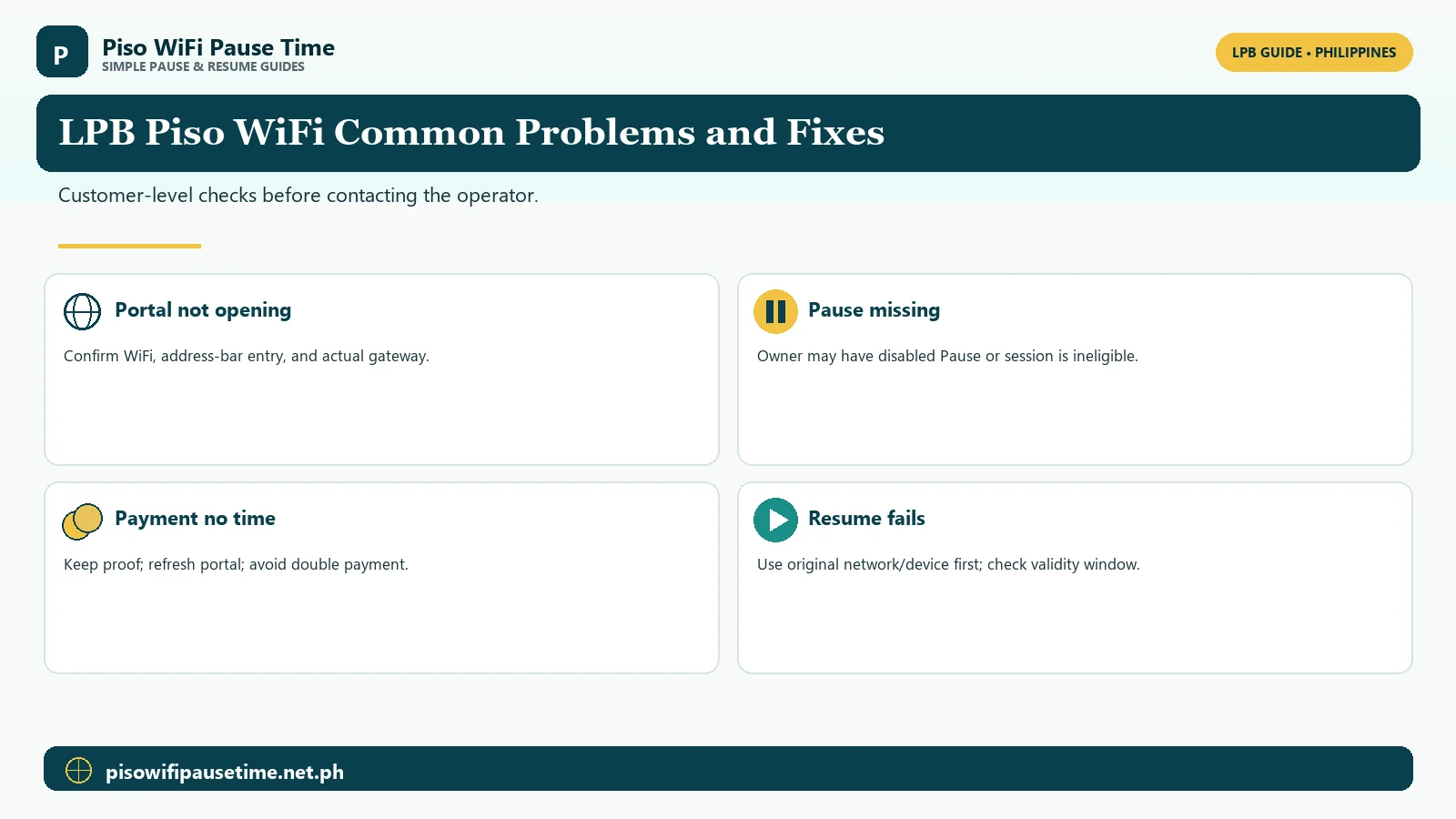
LPB Piso WiFi Pause Time Not Working? Common Problems and Fixes
If the portal opens but Pause Time or Resume does not work, the cause may be session settings, the browser, the network, or the machine's configuration.
Why Is the LPB Pause Time Button Missing?
- The owner may have disabled Pause Time.
- Your payment or session type may not be eligible.
- The installed version may have different controls.
- The portal may not have loaded correctly.
Reload the portal and check again. If the button remains missing, ask the operator whether Pause Time is enabled for your session type.
Why Does the Pause Time Button Not Respond?
- Check that your session is active.
- Reload the customer portal.
- Reconnect to the correct WiFi network.
- Try another browser or a private browsing tab.
- Ask the operator to check the machine if it still fails.
Why Is My LPB Session Not Resuming?
Possible causes include an expired session, the wrong vending network, local session-recognition problems, or a cloud synchronization issue where applicable. Reconnect to the original network and check the portal. For Cloud Session Time, ask the operator to verify the cloud-connected session.
Why Did My LPB Remaining Time Disappear?
The session may have expired, failed to save, or become unavailable to the machine you are using. Keep your payment details and ask the operator to check the session record. Do not assume the payment has been lost before it is checked.
Why Is My LPB Session Timer Incorrect?
Refresh the customer portal, check whether the session is active or paused, and reconnect to the vending network. If the displayed balance still looks wrong, report it to the operator.
What Should I Do If LPB Disconnects After Pausing?
Reconnect to the correct WiFi network and open the customer portal again. Look for your existing session before making another payment. If the session cannot be found, ask the operator whether it is still available or has expired.
LPB Piso WiFi Troubleshooting Table
| Problem | Possible reason | What to do |
|---|---|---|
| Pause button missing | Feature disabled or unsupported | Ask the operator |
| Pause button not responding | Portal or browser issue | Reload and retry |
| Resume not working | Session recognition or expiry | Check session status |
| Remaining time missing | Session or synchronization issue | Ask the operator to inspect it |
| Timer looks incorrect | Portal refresh or system issue | Reconnect and verify |
| Portal freezing | Weak signal or connectivity issue | Move closer and retry |
| Login page not opening | Wrong network or gateway | Check WiFi and gateway |
| Voucher rejected | Invalid, expired, or redeemed code | Verify with the voucher issuer |
LPB Piso WiFi Admin Login, Password and Settings
How to Access the LPB Admin Dashboard
A commonly documented LPB administration path is http://10.0.0.1/admin. The actual address and login process can differ between installations.
- Connect to the machine's management network.
- Open a browser and enter the administration address.
- Enter your installation-specific administrator credentials.
- Open the management settings available for your version.
What Is the LPB Piso WiFi Admin Password?
Do not assume there is one universal password for every LPB installation. The owner or installer may have configured or changed the administrator credentials. Check installation documents or contact the authorized supplier if you cannot log in. The administrator password is different from the customer WiFi password.
How to Enable or Disable LPB Pause Time
Authorized owners can manage the availability of session features. A menu path reported in third-party LPB guides is Portal Settings → Insert Coin Mode → Pause/Resume Time. Labels and settings may differ by software version.
- Open the admin dashboard.
- Locate Portal Settings.
- Find the relevant payment or session settings.
- Check the Pause/Resume Time option, if available.
- Review any session restrictions and save changes if required.
- Test the customer portal with a normal customer session.
How to Generate LPB Piso WiFi Voucher Codes
Depending on the installed platform, owner-side voucher tools may allow the operator to set a price, allocate time or data, set validity, generate codes, and review redemption. Test a voucher after creating it. Customers should redeem codes through the customer portal, not the administration interface.
How to Configure LPB Timer Rates and Payment Options
The owner may configure how much internet time or data a customer receives for a payment amount. Rates are set by the operator. Payment features depend on the software version and machine configuration.
What to Do If You Forgot Your LPB Admin Password
- Check the original installation documents.
- Contact the installer or authorized distributor.
- Ask about the supported recovery process for your version.
- Consider a reset only after other recovery options have been checked.
When Should You Factory Reset an LPB Piso WiFi Machine?
A factory reset should be a last resort. Depending on the hardware and software, it can remove WiFi settings, internet configuration, timer rates, voucher settings, administrator details, and other custom options. Back up or document the required configuration before following an authorized reset procedure. Customers should never reset a vending machine to fix a Pause Time problem.
LPB Piso WiFi Tips for Customers and Owners
Tips for LPB Piso WiFi Customers
- Bookmark the verified customer portal address after it works.
- Confirm that Pause Time has worked before leaving.
- Keep the same device when using an installation that relies on local device-based session recognition.
- Check the session's expiry rules.
- Keep payment evidence if a transaction fails.
- Avoid unofficial applications that claim to unlock LPB features.
Tips for LPB Piso WiFi Owners
- Keep administrator credentials secure.
- Test Pause Time after changing portal settings.
- Check customer portal access regularly.
- Maintain stable network connectivity.
- Keep software and configuration information documented.
- Check voucher and payment functionality.
- Make session rules clear to customers.
- Consult official LPB documentation for version-specific features.
Frequently Asked Questions About LPB Piso WiFi
What is LPB Piso WiFi?
LPB Piso WiFi is a software platform used to operate prepaid and coin-operated WiFi vending systems. It provides customer access, session management, payment handling, and machine administration features.
What is the correct LPB Piso WiFi login address?
The commonly used customer portal address is http://10.0.0.1. Connect to the correct vending network first. Some installations may use a different gateway.
How do I pause LPB Piso WiFi time?
Connect to the vending network, open the customer portal, locate your active session, and select Pause Time if the feature is enabled. Check that the portal confirms the paused state.
How do I resume LPB Piso WiFi?
Reconnect to a supported vending network, open the customer portal, find your paused session, and select Resume or the available equivalent.
How do I check my remaining LPB internet time?
Connect to the LPB network and open the customer portal. Find your active or paused session and check the remaining-time display.
Does every LPB Piso WiFi machine have Pause Time?
Not necessarily. Availability can depend on the installed version, machine configuration, payment type, and owner settings.
Does LPB Pause Time expire?
A machine may have a maximum pause duration or session-expiry setting. The exact limit depends on its configuration. Ask the operator for the applicable rule.
Can I resume my LPB session on another phone?
It depends on the session system. Local device-based installations may require the original device, while LPB Cloud Session Time supports cross-machine synchronization on participating installations.
Can I resume LPB Cloud Session Time on another machine?
LPB advertises cross-machine synchronization through LPB Cloud. The feature is intended for participating LPB machines that support the cloud-connected session system.
Why is 10.0.0.0.1 not working?
10.0.0.0.1 is not a valid IPv4 address because it has five numerical sections. The commonly documented LPB address is 10.0.0.1, but check the actual gateway if it does not work.
Why is my LPB Pause button missing?
The owner may have disabled Pause Time, the session type may not support it, or the portal may not have loaded correctly. Refresh the portal and ask the operator whether the feature is enabled.
Do customers need an LPB admin password?
No. Customers normally use the customer portal to purchase and manage sessions. The admin password is intended for authorized machine owners and operators.
Does LPB Piso WiFi support GCash and Maya?
LPB 2.0 advertises GCash and Maya payment support. Actual availability depends on the vending machine and its payment configuration.
Is LPB Piso WiFi the same as AdoPiSoft or JuanFi?
No. LPB, AdoPiSoft, and JuanFi are different Piso WiFi software platforms. They may offer similar features, but their portals, settings, and administration processes can differ.
Final Thoughts
LPB Piso WiFi lets customers purchase and manage prepaid internet access through a local customer portal. To access a commonly configured portal, connect to the vending network and open http://10.0.0.1. You can then start an eligible session, check remaining time, and use Pause Time or Resume when the machine supports these features.
Remember that gateway addresses, payment methods, session limits, and available controls can vary between installations. LPB 2.0 also advertises Cloud Session Time for synchronization across participating machines.
If you cannot access the portal or recover your remaining session, check your network connection first. Contact the machine operator when the issue requires access to machine settings or session records.
Sources and Further Reading
- Official LPB Piso WiFi 2.0 — Product features, Cloud Session Time, remote monitoring, coin integration, e-payments, and platform capabilities.
- TP-Link Philippines: Piso WiFi Pause Time — General Pause/Resume mechanics, customer instructions, and reported configuration information.
- TP-Link Philippines: 10.0.0.1 Piso WiFi Login Guide — Local gateway access and general Piso WiFi administration.
- Google Android Help — Android network and Private DNS settings.
- Apple Support: Manage WiFi Settings on iPhone — Connecting to and managing WiFi networks.
- Official LPB website — Further product and platform information.
This is an independent informational guide, not an official LPB support page. Features, gateway addresses, and administrator settings can vary by installation. Verify machine-specific instructions with the operator or official LPB documentation.