Grace Piso WiFi: Login, 10.0.0.1 and Pause Time
Many Grace Piso WiFi guides report http://10.0.0.1 as the customer portal address. After connecting to the correct WiFi network, enter this address in your browser's address bar. If the portal opens, follow the payment, voucher or session instructions displayed on the page.
Important:10.0.0.1 is a private local IP address, not a normal public website. It commonly appears in Grace-focused guides, but the address and available features may differ between machines. If it does not open, check the machine's instructions or ask its owner to confirm the correct address.
Start here if you just want to connect.
- 1
Turn on WiFi on your phone, tablet or computer.
- 2
Connect to the WiFi network shown by the Grace Piso WiFi machine.
- 3
Open Chrome, Safari or another web browser.
- 4
Type
http://10.0.0.1in the browser's address bar. - 5
Follow the instructions displayed on the customer portal.
Grace Piso WiFi is a platform associated with some coin-operated WiFi vending machines in the Philippines. If you want to use one of these machines, connect your phone or computer to its WiFi network and open the customer portal.
PISO WIFI PLATFORM GUIDE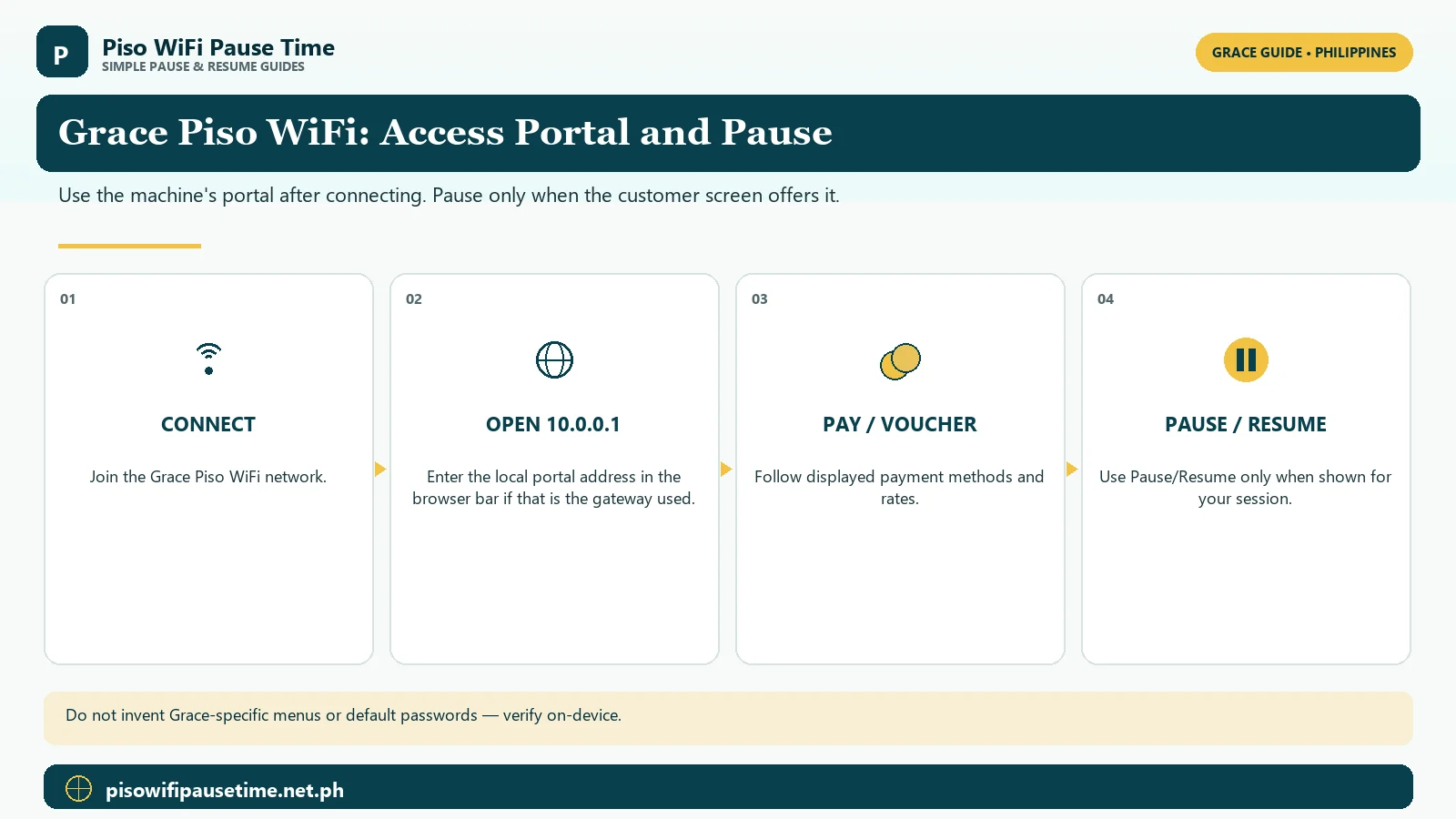
How to Access Grace Piso WiFi at 10.0.0.1
What Is the Grace Piso WiFi Login Address?
The address commonly mentioned in Grace Piso WiFi guides is http://10.0.0.1. This address can open a local customer portal when your device is connected to the network that uses it.
This is not a public website like Google or Facebook. It belongs to the private IPv4 address range 10.0.0.0 to 10.255.255.255, which is reserved for private networks. Your phone or computer normally needs to be connected to the relevant Piso WiFi network to reach its local portal.
Not every machine should be assumed to use the same address. If 10.0.0.1 does not work, check the machine's instructions or ask the operator for the correct portal address.
How to Connect to the Grace Piso WiFi Network
Before opening the login page, make sure your device is connected to the correct wireless network.
- 1
Open Settings on your phone or computer.
- 2
Select WiFi or Wireless Networks.
- 3
Turn WiFi on if it is disabled.
- 4
Look for the network name displayed by the Piso WiFi machine.
- 5
Select the correct network.
- 6
Wait until your device shows that it is connected.
Your phone may show that it is connected to WiFi even when you do not have internet access yet. This can be normal for a pay-per-use hotspot because you may still need to open the customer portal and activate a session.
How to Open the 10.0.0.1 Customer Portal
After connecting to the correct network:
- 1
Open Chrome, Safari or another web browser.
- 2
Tap the browser's address bar at the top.
- 3
Enter
http://10.0.0.1. - 4
Press Go or Enter.
- 5
Wait for the customer portal to load.
- 6
Follow the payment, voucher or session instructions displayed.
Enter the address directly into the browser's address bar. Do not type it into Google or another search engine's search box. Some devices may display a sign-in notification or captive-portal window after joining a public WiFi network. If it does not appear, open the browser and enter the local address manually.
Why Is the Grace Piso WiFi Login Page Not Opening?
If the portal does not open, try these checks before changing advanced network settings.
| Possible problem | What to do |
|---|---|
| Connected to another WiFi network | Return to WiFi settings and connect to the network shown by the machine. |
| Mobile data is still active | Temporarily turn mobile data off while testing the local portal. |
| Address entered incorrectly | Enter http://10.0.0.1 in the browser's address bar. |
| VPN is interfering | Temporarily disconnect the VPN and try again. |
| Captive portal did not appear | Open a full browser and enter the local address manually. |
| Browser is not responding | Close and reopen the browser or try another browser. |
| Machine uses another address | Ask the owner to confirm the correct portal address. |
| Machine or network is unavailable | Contact the machine owner. |
If the page still does not open on several devices connected to the same machine, the issue may be with the machine or its network rather than your phone.
What Is Grace Piso WiFi and How Does It Work?
What Is Grace Piso WiFi?
Grace Piso WiFi is described by independent guides as one of the software platforms used to operate coin-operated WiFi vending machines. Grace is a platform name associated with some installations. The software can be part of the system that provides the customer portal and manages customer sessions. The exact hardware, software version, payment options and available features can depend on the operator's installation. There is no reason to assume that every machine described as Grace Piso WiFi has an identical setup.
How Does the Grace Piso WiFi System Work?
A typical customer experience follows this process:
- 1
The machine provides a WiFi network that customers can find on their devices.
- 2
The customer connects to the network.
- 3
The customer opens the local portal.
- 4
The portal displays the available payment or access method.
- 5
The system processes the payment or voucher request.
- 6
A customer session is activated when access is successfully assigned.
- 7
The customer uses the internet for the time or access granted.
- 8
If supported and enabled, the customer may use Pause or Resume controls.
What Is the Difference Between Grace, the Vendo Machine and the Customer Portal?
| Term | What it means |
|---|---|
| Grace | The platform or software name associated with some Piso WiFi installations. |
| Piso WiFi vendo machine | The physical equipment used to provide the service. |
| WiFi network | The wireless network customers connect to. |
| Customer portal | The local page used for customer-facing access and session actions. |
| Internet connection | The upstream internet service supplied to the machine. |
| Machine owner or operator | The person responsible for the local machine, settings and customer support. |
How Is Grace Piso WiFi Different from Regular Home WiFi?
| Feature | Grace Piso WiFi | Regular home WiFi |
|---|---|---|
| Access | Usually pay-per-use | Usually part of a household internet subscription |
| Payment | Depends on the machine's available payment methods | Usually paid through an internet service provider |
| Internet time | May be controlled by a prepaid session | Depends on the subscriber's plan |
| Customer portal | May provide a local access and session page | Usually not needed for normal household browsing |
| Pause Time | May be available if the machine supports it | Depends on the internet service and equipment |
| Management | Usually handled by the machine owner | Usually handled by the subscriber or network administrator. |
Piso WiFi can be useful when someone needs temporary internet access without paying for a full household subscription.
Which Features May Be Available on a Grace Piso WiFi Machine?
| Feature | What customers should know |
|---|---|
| Customer portal | Used to view available access and session options. |
| Coin payment | May be available; accepted denominations can vary. |
| Voucher redemption | Available only when the portal provides a voucher option. |
| Remaining-time display | May appear after a session has been activated. |
| Pause Time | Requires support and activation on the machine. |
| GCash or other e-wallets | Use only when the machine displays the payment option. |
| Admin panel | Intended for the owner or authorised administrator. |
| LED indicators | Depend on the installed hardware. |
| Receipt or voucher printer | May be included on some machines, but is not universal. |
Do not assume a feature is available just because another Grace Piso WiFi machine offers it. Check the actual portal or ask the owner.
What Can You Do on the Grace Piso WiFi Customer Portal?
The Grace Piso WiFi customer portal is the page customers use to follow the machine's access instructions. Depending on the setup, it may display payment options, voucher entry, remaining time and session controls.
How to Check Your Remaining Internet Time
If the portal provides a remaining-time display, you may be able to check how much internet time is left in your active session. Connect to the same machine's WiFi network, open the local customer portal, and look for active-session or remaining-time information. Check whether the session is active or paused, if the portal displays that status. The exact position and wording of the timer can vary. If you cannot find your session, ask the machine owner to check it.
Where to Find Payment and Voucher Options
Payment and voucher options should be shown on the customer portal or in the machine's instructions. Depending on the installation, you may see coin payment instructions, a voucher-code field, a QR code or digital payment option, or instructions for starting an internet session. Only use payment methods that are actually displayed by the machine. Do not assume that every Grace Piso WiFi installation accepts GCash, Maya or vouchers.
Where to Find Pause and Resume Controls
If Pause Time is supported and enabled, the customer portal may show a Pause, Pause Time, Resume or similar session control. The option may not appear on every machine. If you cannot find the Pause button, ask the owner whether the feature is supported and enabled on that machine.
What Is the Difference Between the Customer Portal and Admin Panel?
| Customer portal | Admin panel |
|---|---|
| Used by customers | Used by the owner or authorised administrator |
| Provides customer-facing access options | Provides machine-management options |
| May show payment and voucher instructions | May contain configuration and management settings |
| May display remaining time | May provide access to session or rate settings |
| May provide Pause and Resume controls | May control which features are available |
If you want to purchase internet time, redeem a voucher or pause your session, use the customer-facing portal options. You do not need the machine owner's administrator password for ordinary customer access.
Grace Piso WiFi Password: Which Password or Code Do You Need?
A WiFi password, voucher code and administrator password are three different things. Knowing which one you need can prevent confusion when accessing a Grace Piso WiFi machine.
Do You Need a Password to Open 10.0.0.1?
Opening a local portal address and connecting to a WiFi network are separate actions. The machine may allow you to join its WiFi network without entering a conventional WiFi password, or it may display access instructions that require additional information. Follow the instructions shown by the machine. Entering 10.0.0.1 does not automatically provide internet access. You may still need to complete the payment or voucher process shown on the portal.
What Is the Difference Between a WiFi Password and a Voucher Code?
| Access detail | Purpose |
|---|---|
| WiFi password | Allows a device to join a password-protected wireless network. |
| Voucher code | May provide prepaid internet access or time when accepted by the portal. |
| Admin password | Allows an authorised person to access machine-management functions. |
What Is the Grace Piso WiFi Admin Password?
The admin password belongs to the machine owner or an authorised administrator. There is no verified universal Grace Piso WiFi administrator username, password or admin address established by the sources reviewed for this guide. Do not rely on password combinations copied from unrelated Piso WiFi platforms or router guides. If you own the machine and cannot access its management area, check the documentation supplied with your installation or contact the original supplier.
What Should You Do If You Have Forgotten Your Access Details?
- Customer WiFi access: Check the instructions displayed by the machine or ask its owner.
- Voucher code: Check the code exactly as issued and contact the seller or operator if it is not accepted.
- Admin credentials: The owner should use the authorised recovery process for the specific installation.
- Unknown portal address: Ask the operator to confirm the local address used by that machine.
Never share an administrator password with other customers or enter credentials from an unrelated machine.
Grace Piso WiFi Payment Methods, Rates and Voucher Codes
Grace Piso WiFi payment options and rates depend on the machine owner. There is no verified universal Grace price or fixed number of minutes for every peso.
How Much Does Grace Piso WiFi Cost?
The price depends on the rate set by the machine's operator. One machine may offer a different amount of internet time for the same payment than another machine. The operator may also provide different payment options. Before paying, check the displayed price, amount of internet time, accepted payment method and any conditions shown by the machine. If the price or time allocation is unclear, ask the owner before inserting coins or purchasing a voucher.
How Many Minutes Do You Get for ₱1?
There is no verified standard Grace Piso WiFi rate that guarantees a particular number of minutes for ₱1. The operator sets the rate table for the machine. The amount of time you receive may therefore differ between locations. Check the machine's displayed rates before paying.
Does Grace Piso WiFi Accept ₱5 or ₱10 Coins?
That depends on the installed coin acceptor and the operator's configuration. Some machines may accept particular peso denominations, while others may have different payment instructions. Read the payment instructions, confirm which denominations are accepted, insert only an accepted coin, and check whether credit was assigned. If a coin is not recognised, do not force it into the slot. Contact the owner if the problem continues.
Can You Pay Using GCash or Another E-Wallet?
Some Piso WiFi machines may offer digital payment options, but this is not guaranteed for every Grace installation. If the machine displays GCash, Maya, a QR code or another e-wallet option, follow the payment instructions shown. If no digital payment option is displayed, do not assume that the machine accepts it. Confirm the amount and payment destination before completing a digital transaction. Keep the payment confirmation in case the machine does not assign your internet time.
How to Redeem a Grace Piso WiFi Voucher Code
- 1
Connect to the correct Grace Piso WiFi network.
- 2
Open the customer portal using the address confirmed for the machine.
- 3
Look for a voucher or code-entry option.
- 4
Enter the voucher code exactly as supplied.
- 5
Follow the portal's instructions.
- 6
Wait for a confirmation message.
- 7
Check whether your session or remaining time has been credited.
If the portal does not show a voucher option, the machine may not support voucher redemption or may use another access method. Ask the owner before purchasing a code.
Why Is Your Grace Piso WiFi Voucher Code Invalid?
| Possible reason | What to check |
|---|---|
| Typing error | Re-enter the code carefully. |
| Wrong code | Compare it with the code supplied by the seller. |
| Expired voucher | Check the validity information provided with the voucher. |
| Already-used voucher | Ask the seller or owner to check its status. |
| Wrong machine or system | Confirm that the voucher is intended for that machine. |
| Portal problem | Reload the portal and try again. |
| Code not activated | Contact the voucher seller or machine owner. |
What If Payment Is Accepted but No Internet Time Appears?
Payment acceptance does not always mean that your internet session has started successfully. Check these four separate stages:
The machine or payment page appears to accept your coin, voucher or digital payment.
The system should allocate the access or time associated with the payment.
The customer portal should show an active session or another confirmation, if it provides this information.
Your device can successfully open websites or use internet services.
If payment is accepted but no time appears, check the portal before making another payment. Record the amount paid and approximate payment time, keep any digital confirmation, note the error message and contact the owner.
Avoid paying again immediately when the first payment may still be processing. Ask the owner to check the transaction or machine record first.
Grace Piso WiFi Pause Time: How to Pause and Resume Your Session
Grace Piso WiFi Pause Time may allow customers to stop an active session temporarily and return to their remaining internet time later. However, the feature must be supported and enabled on the particular machine.
What Is Grace Piso WiFi Pause Time?
Pause Time is a session-control feature found on some Piso WiFi systems. When a supported machine provides a Pause option, a customer may be able to pause an active session instead of allowing the remaining time to continue counting down. The Resume option may then allow the customer to continue the session. The exact pause behaviour, available controls and time limits depend on the platform version and machine configuration. There is no verified universal Grace pause duration or expiry rule.
How to Pause Your Grace Piso WiFi Time at 10.0.0.1
- 1
Stay connected to the machine's WiFi network.
- 2
Open the browser on the device using your session.
- 3
Enter the confirmed local portal address, commonly reported as http://10.0.0.1.
- 4
Find the active session or remaining-time information.
- 5
Look for Pause, Pause Time or a similar option.
- 6
Select the option once.
- 7
Wait for the portal to respond.
- 8
Check whether the session status changes to paused or displays a confirmation.
Do not assume that the session has paused just because you tapped the button. Check the portal for a confirmation or changed status.
How to Check Whether Your Grace Piso WiFi Session Is Paused
After selecting Pause, look for a visible indication that the session has changed state. Depending on the portal, this may include a confirmation message, changed session status, a Resume option or a remaining-time display associated with the paused session.
- Did the portal respond after you selected Pause?
- Did the session status change?
- Does the portal show a paused state or a Resume option?
- Can you reopen the portal and still see the session?
If you cannot confirm the paused state, ask the machine owner before assuming that your remaining time is protected.
Why Is the Pause Time Button Missing?
- The machine may not support Pause Time.
- The owner may not have enabled the feature.
- The session may not be active.
- The portal may not have updated.
- The machine may have a temporary problem.
Try reopening the portal and checking your session status. If the Pause option is still missing, ask the owner whether the feature is available on that machine.
Does Disconnecting from WiFi Automatically Pause Your Time?
Do not assume that disconnecting from WiFi pauses your internet session. Turning off WiFi, closing the browser or leaving the area is not the same as selecting Pause through the customer portal. If your machine offers Pause Time, use the portal's Pause control and check for confirmation before leaving.
How Long Can a Grace Piso WiFi Session Stay Paused?
There is no verified universal Grace Piso WiFi pause duration. The amount of time a session can remain paused may depend on the platform version and the operator's configuration. Some other Piso WiFi platforms have their own pause limits and expiry rules. Those settings should not be treated as Grace rules. Ask the machine owner whether paused sessions expire and whether a maximum pause duration applies.
How to Resume Your Grace Piso WiFi Session
- 1
Return to the same machine.
- 2
Connect to its WiFi network again.
- 3
Open the browser you used for the session, if possible.
- 4
Enter the confirmed local portal address.
- 5
Look for your paused session.
- 6
Select Resume, Continue or the equivalent option if displayed.
- 7
Wait for confirmation.
- 8
Check that your session is active and review the remaining time.
Can You Resume a Paused Session on Another Phone?
This depends on how the particular machine identifies and manages customer sessions. The reviewed sources do not establish one universal Grace rule for moving a paused session between devices. As a precaution, try to resume the session using the same phone or computer that you used when starting it. If you want to use another device, ask the owner whether the machine supports it.
Why Is Your Grace Piso WiFi Session Not Resuming?
| Possible issue | What to do |
|---|---|
| Connected to another network | Reconnect to the same machine's WiFi. |
| Using a different device | Try the original phone or computer. |
| Session may have expired | Ask the owner to check the session status. |
| Portal is not updating | Reload the page and check again. |
| Session is not visible | Ask the owner whether the session can be found. |
| Machine has a problem | Report the issue to the operator. |
What Happens When a Paused Grace Piso WiFi Session Expires?
If a paused session reaches its expiry condition, the portal may no longer allow you to resume it. However, the exact expiry behaviour and time limit have not been verified for every Grace installation. Reconnect to the correct machine, open the portal, check whether the session is still displayed, record any message and ask the owner to check the session before purchasing more time.
Grace Piso WiFi Not Working? Common Problems and Solutions
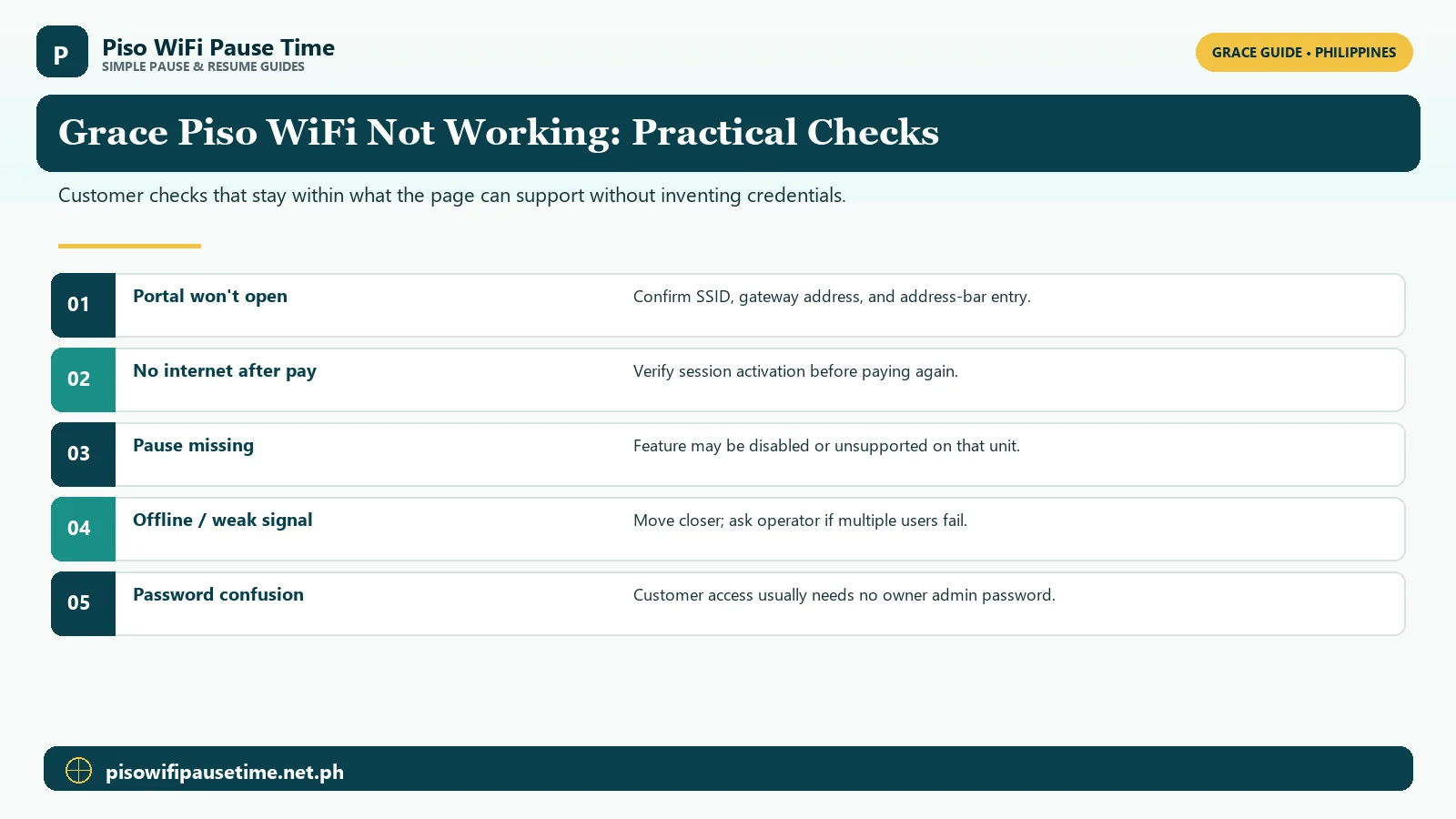
A Grace Piso WiFi problem may come from your phone, the local WiFi connection, the customer portal, payment processing, the active session or the machine itself. Start with the problem you are experiencing.
Connected to Grace Piso WiFi but No Internet
If your phone shows that it is connected to the WiFi network but websites will not open, check whether your session has been activated. Confirm that you are connected to the correct machine, open the customer portal, check whether payment or voucher access was completed, and look for an active session or remaining-time information. If the portal shows an active session but there is still no internet, contact the owner.
Grace Piso WiFi Payment Accepted but No Time Appears
Reopen the customer portal and check whether a session has been activated. Keep your payment confirmation, record the amount and approximate time, and contact the machine owner. Do not repeatedly insert coins or make another digital payment without checking the first transaction.
Grace Piso WiFi Voucher Accepted but No Internet
A voucher being accepted and internet access working are separate steps. Check whether the portal shows an active session, reconnect to the machine's WiFi network and reopen the portal. Contact the owner if the session is active but internet access is still unavailable.
Grace Piso WiFi Coin Is Not Detected
Check the payment instructions and confirm that the coin denomination is accepted. Do not force the coin into the slot. Check whether the machine displays an error and contact the owner if the problem continues. Customers should not open the equipment or attempt internal repairs.
Grace Piso WiFi Keeps Disconnecting
Frequent disconnections may be related to the wireless signal, your device or the machine's network. Move closer to the machine, check whether walls or obstacles are between you and it, turn WiFi off and on again, reconnect to the correct network and ask whether other customers have the same issue. If several customers have the same problem, the owner may need to check the equipment or internet connection. There is no verified universal Grace WiFi coverage distance or maximum customer-device limit.
Grace Piso WiFi Pause Time Is Not Working
Check that your session is active, reload the customer portal, reconnect to the same machine's WiFi network and look for a confirmation. Ask the owner whether Pause Time is supported and enabled. Do not repeatedly press the button without checking the session status.
Grace Piso WiFi Time Keeps Running Out
If your remaining time decreases when you are not actively browsing, check whether the session was actually paused. The Pause option may not have been selected, the portal may not have confirmed it, the machine may not support Pause Time, or the feature may not be enabled. Closing the browser or turning off WiFi should not be treated as confirmation that the session timer has stopped.
What to Check on Android, iPhone and Computers
| Device | What to check |
|---|---|
| Android phone | Correct WiFi network, mobile data, VPN and browser address bar. |
| iPhone | Correct WiFi network, mobile data, VPN and browser address bar. |
| Windows computer | WiFi connection, browser and selected network. |
| Mac computer | WiFi connection, browser and selected network. |
When Should You Contact the Grace Piso WiFi Machine Owner?
- Your payment was accepted but no time appeared.
- A voucher was rejected even though its details appear correct.
- Your session disappeared or will not resume.
- The portal does not display an expected feature.
- The WiFi network is unavailable.
- Several customers are experiencing the same connection problem.
- The machine appears to be offline.
- A coin was accepted but no credit was assigned.
When reporting a problem, provide the payment time, amount, payment method and exact error message if available. Never send administrator or banking passwords.
Grace Piso WiFi Offline Mode, Signal and Machine Problems
Some problems involve the machine or wireless network rather than the customer's payment or phone. Understanding the difference can help you decide what to check and when to contact the owner.
What Does Offline Mode Mean on a Grace Piso WiFi Machine?
The term Offline Mode appears in some independent Grace Piso WiFi content, but a universal official Grace definition has not been established in the sources reviewed for this guide. In general, an offline message may indicate that a machine or service is not available for normal internet access. The exact meaning depends on the system displaying it. Check whether your phone is connected to the machine's WiFi, reopen the customer portal, see whether other customers have the same problem, read the displayed message and contact the owner if the service remains unavailable. Do not assume that an Offline Mode message means your payment or voucher has been lost.
Why Is Grace Piso WiFi Slow?
- Weak WiFi signal: You may be too far from the access point or separated from it by walls and other obstacles.
- Wireless interference: Nearby wireless networks or electronic equipment may affect the connection.
- Many connected users: A shared hotspot may become slower when several customers are using it at the same time.
- Upstream internet problem: The internet connection supplied to the machine may be slow or temporarily unavailable.
- Device problem: Your phone or computer may have its own WiFi or software issue.
Try moving closer to the machine and checking whether the signal improves. If several users experience slow internet at the same time, report it to the owner.
What Affects Grace Piso WiFi Signal Strength and Coverage?
- Distance between your device and the access point.
- Walls, buildings and other physical obstacles.
- Interference from nearby wireless networks.
- The type and placement of wireless equipment.
- The number of devices using the network.
Moving closer to the machine may improve your WiFi signal, but there is no verified universal Grace coverage range.
Can Multiple Devices Use One Grace Piso WiFi Session?
Joining a WiFi network with multiple devices and sharing one paid internet session are not necessarily the same thing. The number of devices that can connect, and whether one paid session can be used on more than one device, depend on the machine's configuration and session rules. Before purchasing time for multiple phones or computers, ask the owner.
What Do Grace Piso WiFi LED Lights Mean?
Some Piso WiFi machines may have LED indicators on their equipment or payment area. These lights can provide information about the physical device, but their exact meanings depend on the installed hardware model. There is no verified universal Grace LED colour or blinking-code guide that applies to every machine. If an indicator appears unusual, take note of what you see and report it to the owner. Do not open the machine or attempt an electrical repair.
What If the Grace Piso WiFi Voucher or Receipt Printer Is Not Working?
Not every Piso WiFi machine necessarily includes a receipt or voucher printer. If the machine has one and it does not print, check whether the machine displayed a payment confirmation, keep any digital payment confirmation, note whether the machine showed an error and contact the owner if no voucher or receipt was produced. Paper loading, printer connections and internal hardware repairs are owner-side tasks. Customers should not open the machine to fix a printer.
Grace Piso WiFi Owner Access and Basic Machine Information
How Is Grace Piso WiFi Admin Access Different from Customer Login?
The customer portal is designed for people using the internet service. The admin area is intended for the machine owner or an authorised administrator. An administrator may need access to manage machine settings, payment options, rates or other features, depending on the installed system. A customer should use the customer-facing portal for ordinary tasks such as connecting to the network, following payment instructions, redeeming an available voucher, checking an active session and using Pause or Resume if provided. Do not try to use administrator credentials to perform normal customer actions.
How Can a Grace Piso WiFi Owner Find the Correct Admin Access Method?
- 1
Check the documentation supplied with the machine or software.
- 2
Confirm the installed platform and software version.
- 3
Check the setup details provided by the original supplier.
- 4
Use the authorised administrator access method for that installation.
- 5
Contact the supplier if you cannot identify the correct recovery process.
No universal Grace admin URL or default administrator password has been verified for every installation. Avoid copying administrator addresses or credentials from LPB, AdoPiSoft, JuanFi or unrelated router systems.
What Settings May a Grace Piso WiFi Owner Manage?
- Customer payment options.
- Rate or time allocation.
- Voucher availability.
- Customer sessions.
- Pause Time where supported.
- Machine and network status.
- Administrator access.
These are general categories of Piso WiFi management. They should not be treated as confirmed menu names or features on every Grace installation.
What Should an Owner Check When Customers Report Problems?
| Customer report | What the owner may need to check |
|---|---|
| Portal does not open | Correct local address, WiFi network and portal availability. |
| Payment accepted but no time appears | Payment record and credit assignment. |
| Voucher rejected | Voucher validity and activation. |
| Pause button missing | Whether Pause Time is supported and enabled. |
| Session will not resume | Session status and machine configuration. |
| Connected but no internet | Active session, machine status and upstream internet. |
| Frequent disconnections | Wireless equipment and network conditions. |
| Coin not recognised | Accepted denominations and coin acceptor. |
| Machine appears offline | Power, equipment and internet connection. |
Customers should not attempt to change administrator settings, open the machine or repair electrical components.
What Basic Maintenance Does a Piso WiFi Machine Need?
- Keep the machine in a dry and protected location.
- Check visible power and network cables.
- Keep the external coin slot and payment area clean.
- Check whether the internet connection is working.
- Test customer access and payment according to supplier instructions.
- Follow the supplier's guidance for software updates and restarts.
- Contact a qualified technician for internal electrical or hardware problems.
The correct maintenance process depends on the machine and equipment installed. Follow the supplier's documentation rather than applying instructions from another platform.
Frequently Asked Questions About Grace Piso WiFi
Is Grace Piso WiFi Free to Use?
Grace Piso WiFi is generally described as a pay-per-use internet service. Customers usually need to follow the payment or voucher instructions displayed by the machine. The price depends on the operator.
Does Every Grace Piso WiFi Machine Use 10.0.0.1?
No universal guarantee has been established. Grace-focused guides commonly mention 10.0.0.1, but the correct local portal address may depend on the machine's configuration. Check the posted instructions or ask the owner.
Does Every Grace Piso WiFi Machine Have Pause Time?
No. Pause Time depends on whether the particular machine supports the feature and whether the owner has enabled it.
Can I Use Grace Piso WiFi Without a Voucher?
That depends on the payment methods available on the machine. Some installations may provide coin payment or other options. Follow the instructions displayed on the customer portal.
Does Grace Piso WiFi Accept GCash?
Only if the particular machine or customer portal displays GCash as an available payment method. Do not assume that every Grace machine supports digital payments.
Does Grace Piso WiFi Have a Default Admin Password?
There is no verified universal Grace administrator password established in the reviewed sources. Machine owners should use the authorised access details and recovery instructions supplied for their installation.
Can I Use One Grace Piso WiFi Session on Two Phones?
The session-sharing rule has not been verified for every Grace installation. Ask the machine owner whether one paid session can be used on multiple devices.
Can I Pause Grace Piso WiFi by Turning Off WiFi?
Do not assume that turning off WiFi pauses your session. Use the Pause option on the customer portal if it is available, then check whether the portal confirms the paused status.
How Long Can I Keep My Grace Piso WiFi Time Paused?
There is no verified universal Grace pause duration. The time limit may depend on the machine's platform version and operator settings. Ask the owner before relying on a long pause.
What Should I Do If My Payment Was Accepted but I Cannot Connect?
Open the customer portal and check whether your session was activated. Keep your payment details and contact the machine owner if no internet time appears. Avoid paying again until the first transaction has been checked.
Can I Resume My Grace Piso WiFi Session on Another Phone?
This depends on how the particular machine manages sessions. Try the original device first, then ask the owner whether the session can be resumed on another device.
What Should I Do If the Grace Piso WiFi Machine Is Offline?
Check whether your device is connected to the correct network and whether other customers are experiencing the same problem. If the machine remains unavailable, contact the owner. The owner may need to check the power, equipment or upstream internet connection.
Grace Piso WiFi access depends on the machine you are using. Start by connecting to its correct WiFi network and opening the local customer portal. Check the displayed payment and session instructions, and use Pause Time only when the option is available and its status is confirmed. If payment, session activation or connectivity fails, contact the machine owner with the relevant details rather than guessing at passwords, addresses or settings.
Sources and evidence notes
The following sources support the general technical explanations and qualified Grace-specific statements in this guide:
- Piso WiFi Help — Grace Piso WiFi guide: An independent Grace-focused guide describing Grace as a platform used on some coin-operated WiFi vending machines. Read the guide.
-
IANA — Private-use IP addresses: Explains that
10.0.0.0through10.255.255.255is reserved for private network use. Read IANA's explanation. - RFC 1918 — Address Allocation for Private Internets: The technical standard documenting private IPv4 address ranges. Read RFC 1918.
- TP-Link Philippines — Piso WiFi Pause Time: General background on customer pause and resume workflows. Platform-specific menu paths and limits are not treated as Grace specifications here. Read the guide.
Editorial note: The sources reviewed do not establish a universal Grace admin address, default administrator credentials, payment rate, accepted coin denominations, voucher expiry policy, pause duration, device-sharing rule, LED code or printer specification. These details are therefore left machine-specific rather than presented as facts.