Naek Piso WiFi: Hardware Brand and Bacolod Seller
Hardware brand · seller · Bacolod City
Naek Piso WiFi refers to vending machines built using hardware supplied by Naek. The seller offers custom boards, DIY kits and complete vending equipment. The hardware is separate from the software that controls customer access.
What Is Naek and What Does It Sell?
Naek is a hardware brand and seller based in Bacolod City. Its product range includes the Universal Customboard, Custom Board MINI, Subvendo Board, DIY kits, complete vending sets and related networking equipment.
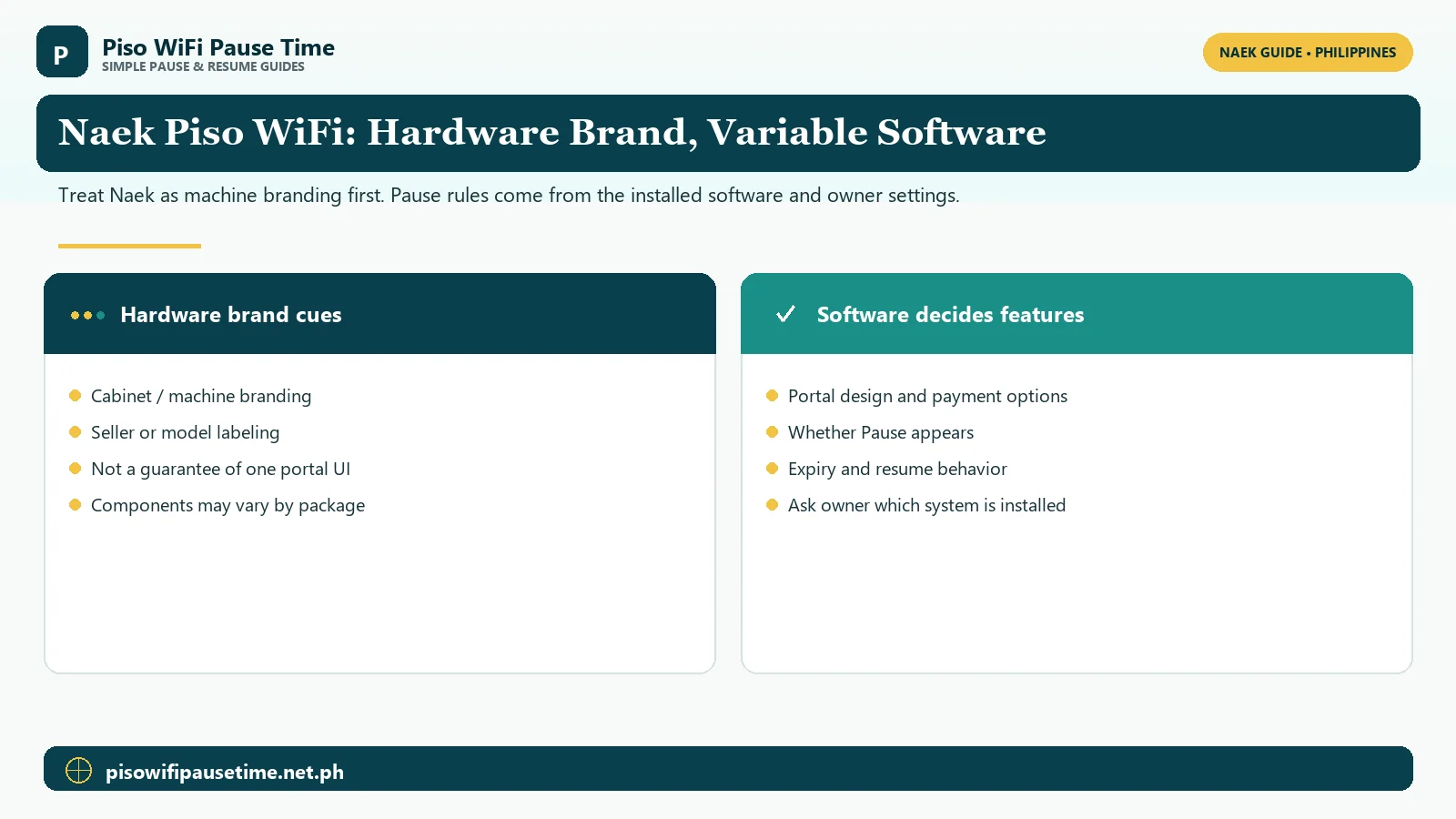
Naek Piso WiFi machines use hardware supplied by Naek, a Philippine seller of Piso WiFi boards, DIY kits and complete vending sets. These machines can work with different Piso WiFi software systems, so the customer login portal and available features may differ from one machine to another.
Login: Open the Portal, Pay, Pause and Resume Time. Connect your phone to the machine's WiFi network, then open its customer portal. The correct address depends on the installed system and network setup. 10.0.0.1 is common, but not guaranteed. Follow the portal's payment instructions. Pause and resume are available only when the installed software supports them and the owner has enabled them.
To use a Naek-built machine, connect your phone to its WiFi network and open the customer portal. If the portal does not appear automatically, check the gateway address in your phone's WiFi settings. Once the portal opens, follow the payment instructions shown by that machine.
Learn how to connect to a Naek-built machine, find its customer portal, pay for internet access and manage your session when pause time is available.
Use the machine's actual gateway
Use the options shown on the portal
Depends on software and owner settings
1. What Is Naek Piso WiFi?
Is Naek a Hardware Brand or Software Platform?
Naek is a hardware brand and seller, not one universal Piso WiFi software platform. Different third-party systems can run on compatible hardware. Those systems have their own customer portals, settings and session features.
How Does a Naek-Built Machine Work?
- 01Naek hardware
Board and vending equipment
- 02Installed software
Third-party system and settings
- 03Customer portal
Connect, pay and manage an eligible session
Which Systems Are Associated With Naek Hardware?
Naek's product listings advertise different software associations for different boards. The Universal Customboard is listed for ADO, LPB, 1Click, iWiFi, EZ WiFi and WiFi5. The Subvendo Board is associated with JuanFi and LPB. Compatibility does not mean that every system offers the same features.
Remember: Naek identifies the hardware. The installed third-party system and owner configuration determine much of the customer experience. If you are unsure which system is installed, see the Piso WiFi platform identification guide.
2. Before Connecting to a Naek Piso WiFi Machine
Before opening the portal, make sure your phone is connected to the correct machine. Joining the WiFi network does not always mean that your paid internet session has started.
How to Identify the Correct WiFi Network
Open your phone's WiFi settings and look for the network name displayed on the machine. This name is also called an SSID. If several similar networks appear, check the machine's label or ask the operator which one to use.
How to Check Whether Your Phone Is Connected
After selecting the network, wait for your phone to show that it is connected. Keep WiFi turned on, then open your browser. Your phone may say “Connected without internet” until you complete the portal's payment process.
What Should You Check Before Opening the Portal?
- The selected WiFi network belongs to the machine.
- Your phone shows that it is connected.
- WiFi is turned on and your browser works.
- The vending machine appears to be powered on.
If your phone keeps using mobile data, you can temporarily turn mobile data off while testing the local portal.
3. How to Connect to Naek Piso WiFi
You can connect using an Android phone, iPhone or laptop. The basic process is to find the machine's WiFi network, select it and wait for the connection.
How to Connect Using an Android Phone
- 1Open Settings
Go to Settings and select WiFi or Network & Internet.
- 2Find the machine's network
Make sure WiFi is on, then select the network name shown by the vending machine.
- 3Wait for connection
Wait until your phone shows that it is connected.
- 4Open your browser
Open Chrome or another browser and check whether the customer portal appears.
How to Connect Using an iPhone
- 1Open Settings
Tap WiFi and make sure it is turned on.
Tap the network name associated with the machine.
Wait until the network is connected.
Check whether the customer portal opens automatically.
How to Connect Using a Laptop
- 1
Open your laptop's WiFi settings.
- 2
Select the network displayed by the machine.
- 3
Wait until the laptop connects.
- 4
Open a browser and check for the customer portal.
You may need to complete the payment process before your laptop can access the internet.
4. How to Open the Naek Piso WiFi Login Portal
The customer portal is the page used to access the machine's internet service. It may open automatically after you connect, or you may need to enter the local gateway address manually.
How to Open the Portal Through Automatic Redirection
- 1
Connect to the machine's WiFi network.
- 2
Wait a few seconds for a sign-in notification.
- 3
Tap the notification if it appears.
- 4
Follow the instructions on the customer portal.
Some phones show a captive portal notification automatically. Other phones may require you to open a browser.
How to Open the Portal Manually
- 1
Confirm that you are connected to the correct network.
- 2
Open Chrome, Safari or another browser.
- 3
Enter the machine's actual gateway address in the address bar.
- 4
Load the page and follow the portal instructions.
What Should You See on the Customer Portal?
Depending on the installed software, the page may show coin instructions, voucher entry, electronic payment options, rates, remaining time or pause and resume controls. Not every machine displays all these options.
Why Do Different Naek Machines Show Different Login Pages?
Different third-party systems have different portal designs and features. Machine owners may also configure available options. Two Naek-built machines can therefore show different customer login pages.
Do You Need a Username or Password to Access the Customer Portal?
Customers generally use the payment or session options shown on the customer portal. You do not need administrator access to connect, pay or use an available customer pause feature. An administrator login page is intended for authorized owners.
5. Naek Piso WiFi 10.0.0.1: Find the Correct Portal Address
Many Piso WiFi users search for 10.0.0.1 when trying to open a customer portal. This address is commonly used in some setups, but it is not guaranteed for every Naek-built machine.
Important: Do not assume that every Naek machine uses 10.0.0.1. Check the gateway for the WiFi network you are actually connected to.
10.0.0.1Use only when it matches the gateway for the WiFi network you are actually connected to.
Does Naek Piso WiFi Always Use 10.0.0.1?
No. Different software systems and network configurations may use different local gateway addresses. If 10.0.0.1 does not open, find the actual gateway in your phone's WiFi details.
How to Find the Gateway Address on Android
- 1Open Settings
Go to your phone's WiFi settings.
- 2Select the connected network
Tap the Piso WiFi network or its information icon.
- 3Open network details
Look for Gateway, Router or a similar address field.
- 4Use the displayed address
Enter that address in your browser's address bar.
How to Find the Router Address on iPhone
- 1Open Settings
Tap WiFi.
- 2Open network information
Tap the information icon beside the connected Piso WiFi network.
- 3Find the Router field
Look under the IPv4 Address section.
- 4Open the address
Enter the displayed Router address in Safari.
How to Find the Default Gateway on Windows
- 1
Connect your laptop to the Piso WiFi network.
- 2
Open Command Prompt.
- 3
Type
ipconfigand press Enter. - 4
Find the connected WiFi adapter.
- 5
Look for Default Gateway and enter that address in your browser.
What Is the Difference Between 10.0.0.1 and 10.0.0.0.1?
10.0.0.1 is a valid IPv4 address. 10.0.0.0.1 is not a valid IPv4 address because it contains five number groups instead of four.
10.0.0.1Four numbers separated by three dots.
10.0.0.0.1Five number groups — not a valid IPv4 address.
What Should You Do If 10.0.0.1 Does Not Open?
- Confirm that you are connected to the correct machine.
- Check that the address is typed correctly.
- Find the actual gateway in your WiFi settings.
- Enter that gateway directly in the browser address bar.
- Temporarily turn off mobile data if your phone keeps using another connection.
Finding the actual gateway is better than guessing random IP addresses.
6. How to Open the Naek Piso WiFi Portal in Your Browser
How to Open the Portal in Google Chrome
- 1
Connect to the correct Piso WiFi network.
- 2
Open Chrome.
- 3
Tap the address bar.
- 4
Enter the actual gateway address.
- 5
Press Go or Enter.
How to Open the Portal in Safari
Connect your iPhone to the machine's WiFi, open Safari, tap the address bar, enter the gateway address and tap Go.
How to Open the Portal in Samsung Internet
Connect to the machine, open Samsung Internet, enter the correct local address in the address bar and load the page.
Why Should You Use the Address Bar Instead of Google Search?
A local gateway address is not a search phrase. Enter it directly in the browser's address bar. If you type it into Google Search, you may see search results instead of the local portal.
Can a VPN or Private DNS Prevent Portal Access?
Some VPN or DNS settings may interfere with local portal access. You can temporarily test without a VPN or custom DNS setting, then restore your normal security settings. Do not permanently disable security features just to use a portal.
What to Do If the Portal Keeps Loading or Redirecting
- Reconnect to the correct WiFi network.
- Check the gateway address again.
- Refresh the page or try another browser.
- Try a private browsing window.
- Ask the operator whether the machine is working.
7. How to Pay for Naek Piso WiFi
Payment methods depend on the particular machine. Some accept coins, while others may support vouchers or electronic payments. Follow the options displayed by the customer portal.
How to Pay Using the Coin Slot
- 1Open the customer portal
Connect to the machine and check the available rates.
- 2Follow the coin instructions
Insert only the accepted coins as instructed.
- 3Wait for confirmation
Check whether the portal confirms the payment or credits time.
- 4Check your session
Look for an active status or remaining-time display.
How to Pay Using a Piso WiFi Voucher
- 1
Connect to the machine's WiFi.
- 2
Open the customer portal.
- 3
Find the voucher entry field.
- 4
Enter your valid voucher code and submit it.
- 5
Wait for confirmation and check your session.
A voucher from another machine or system may not work. See our Piso WiFi voucher code guide for more help.
Can You Pay Using GCash or Maya?
Only if the machine supports electronic payments and displays GCash, Maya or another supported option on its portal. Not every Naek-built machine offers these methods.
How to Check Whether Your Payment Was Successful
Look for a payment confirmation, active session status or remaining-time display. If your payment was accepted but no time appeared, keep the transaction information and ask the operator to check it before paying again.
Can You Add More Internet Time to an Existing Session?
Some systems allow additional purchases during an active session. This depends on the installed platform and the options enabled by the owner. Check the portal before making another purchase.
What to Do If You Paid but Received No Internet Time
- Check the portal for payment confirmation.
- Refresh the page and check your session.
- Keep the payment or transaction details.
- Ask the operator to verify the first payment before paying again.
8. How to Check Your Naek Piso WiFi Remaining Time
Where to Find Your Remaining Time on the Customer Portal
Look for an active session, remaining-time or countdown display. Depending on the system, it may show minutes, hours, purchased time or session status.
How to Tell Whether Your Internet Session Is Active
Check the portal for an active-session message or remaining-time display. If it still shows payment options, your purchase may not have activated.
Why Is Your Remaining Time Not Showing?
Your payment may not have been credited, the session may not have started, the portal may need refreshing, or the system may display session details differently. Ask the operator to verify a successful payment before buying again.
Why Does Your Internet Timer Keep Running?
The timer may continue while a session is active. Some systems allow owners to enable or disable pause functionality. Check whether your portal has a Pause button.
9. How to Pause Naek Piso WiFi Time
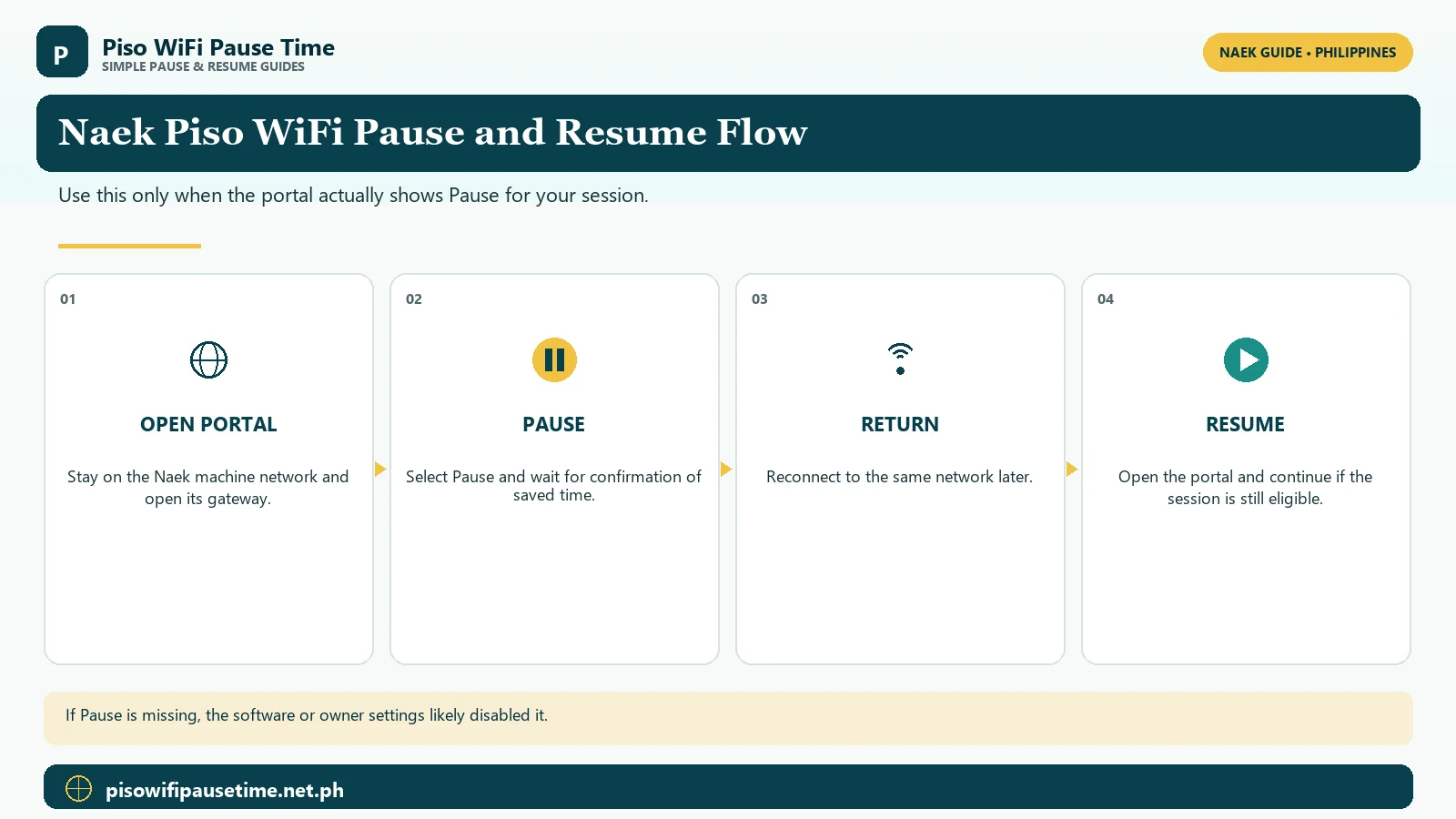
Pause time may allow customers to temporarily stop their internet session countdown. However, not every Naek-built machine provides this feature. Availability depends on the installed software and the machine owner's settings.
What Is Naek Piso WiFi Pause Time?
It is a session feature that may let an eligible customer stop the countdown temporarily and use the remaining time later, if the system allows it.
Does Every Naek Piso WiFi Machine Support Pause Time?
No. Support can depend on the software, version, session type and owner configuration. Even when the software supports pause, the owner may have disabled it.
How to Check Whether the Pause Button Is Available
- 1
Connect to the machine.
- 2
Open the customer portal.
- 3
Check that you have an active session.
- 4
Look for Pause or Pause Time.
How to Pause Your Active Internet Session
- 1Open the customer portal
Find your active session.
- 2Select Pause
Tap Pause or Pause Time if the option is available.
- 3Wait for a response
Do not close the page before it responds.
- 4Confirm the status
Check whether the session is shown as paused.
How to Confirm That Your Session Has Paused
Look for a confirmation or changed session status. The portal may show a paused message or a Resume button. If the timer continues or an error appears, ask the operator to check the session.
Should You Keep the Same Phone for Resuming Your Session?
Keeping the same phone is a sensible precaution. Some systems use device or browser information to identify sessions, while others may offer different recovery options. Check the machine's instructions before leaving.
10. How to Resume Naek Piso WiFi Time
How to Find Your Paused Session Again
Reconnect to the appropriate machine, open your browser and visit the customer portal. Look for your previous session.
How to Reconnect to the Same Machine
If possible, select the same WiFi network you used when starting the session. If several similar networks appear, check with the operator.
How to Use the Resume or Continue Button
- 1
Find your paused session.
- 2
Check the remaining time.
- 3
Tap Resume or Continue if displayed.
- 4
Wait for confirmation.
- 5
Check whether the session becomes active.
How to Confirm That Your Internet Time Is Running Again
Check the active-session status and remaining-time display, then try opening a website.
Why Is Your Previous Session Not Appearing?
The session may have expired, you may be connected to another machine, the browser may no longer have session information, or the system may use a different recovery method. A machine restart may also affect recovery, depending on the system.
What to Do If You Cannot Resume Your Session
Check that you are using the correct machine and portal. If the session is still missing, tell the operator when you purchased and paused the session so they can check its status.
11. Naek Piso WiFi Pause Time Rules: Limits, Expiration and Restrictions
There is no verified universal Naek pause limit. The rules depend on the third-party software and its configuration.
Does Pausing Stop the Countdown Completely?
A pause feature is intended to temporarily stop session time consumption. A separate session expiration deadline may still apply.
Does Pausing Deduct Your Remaining Internet Minutes?
A supported pause feature is intended to preserve unused session time while paused. Check the portal's confirmation and the actual session rules.
How Long Can a Session Stay Paused?
There is no single duration for every Naek-built machine. Ask the operator about the rules for that machine.
Can a Paused Session Expire?
Yes, depending on the installed system. Remaining session time and a separate expiration deadline are not necessarily the same thing.
Can You Resume on a Different Phone?
This depends on how the platform identifies and recovers sessions. If possible, use the original device.
What Happens If the Machine Restarts While Your Session Is Paused?
Recovery depends on how the installed system stores and identifies sessions. Contact the operator if your session disappears after a restart.
Can You Pause More Than Once?
The number of permitted pauses may depend on the installed system and owner settings. Check the portal after resuming.
Does Pausing Extend the Original Session Expiration Time?
Not necessarily. Stopping the remaining-time countdown and extending an expiration deadline are different things. The installed software determines how these rules work.
For a broader explanation, read our Piso WiFi pause time guide.
12. Why Is the Naek Piso WiFi Pause Button Missing?
The Installed Software May Not Support Pause Time
Different systems and versions provide different customer session features. The current installation may not offer pause.
The Machine Owner May Have Disabled the Feature
Some systems let owners control whether customers can pause. Customers cannot enable an owner-controlled feature themselves.
Pause May Not Be Available for Your Current Session
Available controls may depend on the type of session you purchased.
Your Browser May Be Showing an Old Portal Page
Refresh the portal, close and reopen the browser, or reconnect to the machine and open the page again.
What Can You Do If the Pause Button Is Still Missing?
Ask the machine owner whether pause is supported and enabled. You can also use our Piso WiFi platform guide to understand why systems have different features.
13. Naek Piso WiFi Not Working? Common Problems and Solutions
First identify where the problem happens. It may involve your phone, WiFi connection, customer portal, payment or the machine itself.
Are you on the correct WiFi network?
Does the customer portal open?
Does it show an active session?
Was your payment recognized?
Naek Piso WiFi Portal Not Opening
- 1
Check that you are connected to the correct machine.
- 2
Open your phone's WiFi details.
- 3
Find the gateway address.
- 4
Enter it in your browser.
- 5
Try another browser if needed.
10.0.0.1 Not Working or Showing Google Search Results
Check that you entered the address in the browser's address bar and confirm that it is the actual gateway for the connected machine. If not, use the gateway shown in your WiFi settings.
Connected to WiFi but No Internet
Check whether the customer portal opened, your payment was accepted, your session is active and the machine has an internet connection. If several customers have the same problem, the machine or its upstream connection may be affected.
Phone Keeps Showing Obtaining IP Address
Your phone may be having trouble receiving network settings. Turn WiFi off, wait a few seconds, turn it on again and reconnect. If the problem continues, ask the operator to check the machine.
Portal Keeps Loading or Redirecting
Confirm the correct WiFi network, check the gateway, refresh the portal, try another browser and ask whether the machine is operational.
Coins Inserted but No Internet Time Received
Check the portal for payment confirmation and remaining time. Wait briefly for processing, then ask the operator to verify the transaction before inserting more coins.
Voucher Accepted but No Internet
Check whether the session is active, look for remaining time, refresh the portal and ask the operator to check the voucher transaction if needed.
Payment Not Recognized
Keep the payment confirmation, note the transaction time and amount, and ask the owner to verify it. Avoid paying again immediately.
Remaining Internet Time Disappeared
Check that you connected to the same machine, open its customer portal, refresh the page and check the session status. Contact the operator if the time is still missing.
Pause Button Does Not Respond
Refresh the portal, check your session and confirm that it is eligible for pause. Do not assume the session paused until the portal confirms it.
Session Will Not Resume
Check that you are connected to the correct machine and that the session has not expired. Ask the operator to verify the session if it remains missing.
Internet Keeps Disconnecting During a Session
Possible causes include weak WiFi signal, moving out of range, machine problems or network interruptions. Move closer to the machine and reconnect. Report persistent problems to the operator.
Naek Piso WiFi Is Very Slow
Check whether other customers have the same experience. Slow service may relate to WiFi signal, network congestion, machine limits or the internet provider. Report machine-wide problems to the operator.
Is the Problem With Your Phone, the Machine or the Internet Connection?
| What you notice | Possible area to check |
|---|---|
| Only your phone has trouble | Phone or WiFi settings |
| Several phones cannot connect | Machine or local WiFi |
| Portal does not open for anyone | Portal or machine |
| Payment is not recognized | Payment or vending system |
| Several customers have no internet | Machine or internet connection |
| Pause is unavailable | Software or owner settings |
For more general solutions, read our Piso WiFi troubleshooting guide.
14. How to Identify the Software Installed on a Naek Piso WiFi Machine
The hardware brand does not always identify the software running the machine. Knowing the installed system can help explain why portals and session features differ.
How to Identify the Software Through the Customer Portal
Look for visible software names, logos, platform branding or system information. Some portals may not display the software name clearly, so do not identify a system from appearance alone.
How to Identify the Software From the Machine Label
Check for a label or information card showing the software name. A Naek hardware label identifies the equipment but may not identify the installed software.
What to Do If You Cannot Identify the Installed System
- 1
Ask the machine owner which software is installed.
- 2
Check whether a platform name appears on the machine or portal.
- 3
Ask whether the system uses ADO, LPB, JuanFi or another platform.
- 4
Use documentation for the identified system.
Which Software Systems Are Associated With Naek Hardware?
| Naek hardware | Advertised software associations |
|---|---|
| Universal Customboard | ADO, LPB, 1Click, iWiFi, EZ WiFi, WiFi5 |
| Subvendo Board | JuanFi, LPB |
Why Do Different Naek Machines Have Different Portal and Pause Features?
The installed software controls many customer-facing functions. One machine may show a Pause button while another does not. Payment methods, voucher support, session recovery and portal design can also differ. Owner settings may affect available options.
Where Can You Find Instructions for Your Installed Platform?
Once you identify the software, use the relevant documentation. Start with our Piso WiFi platforms guide to understand the different systems.
15. Naek Piso WiFi Admin Login, Manual and Password Questions
Customer access and administrator access are different. Customers use the customer portal, while authorized owners use the administration tools for the software installed on their machine.
Does Naek Have Its Own Admin Login?
Naek is a hardware brand and seller. Its products can work with different third-party software systems, each with its own administration tools and documentation. There is no single universal Naek software login for every machine.
Do Customers Need a Naek Admin Password?
No. Customers do not need administrator access to connect to WiFi, open the customer portal, pay, enter an accepted voucher or manage an eligible session.
What Is the Difference Between Customer Login and Admin Login?
| Customer portal | Administrator panel |
|---|---|
| Used by internet customers | Used by authorized owners |
| Displays customer payment options | Manages machine settings |
| Provides access to customer sessions | Manages supported session features |
| Shows remaining time when available | Manages machine configuration |
Where Can Machine Owners Find the Correct Admin Instructions?
Owners should identify the exact hardware board and installed software, then use the software documentation, hardware documentation and guidance from their equipment seller.
Is There One Universal Naek Piso WiFi Manual?
Do not assume one manual covers every Naek-built machine. Hardware documentation explains the board or equipment. Third-party software documentation explains customer sessions, vouchers, payment options and pause settings.
Where Can You Find Naek Piso WiFi Setup Instructions?
Customers should follow the connection instructions in this guide. People building or buying a machine should consult documentation for the exact Naek product and the software they plan to install.
16. Naek Piso WiFi Hardware, Price and Frequently Asked Questions
What Naek Piso WiFi Hardware Products Are Available?
Naek's storefront lists the Universal Customboard, Custom Board MINI, Subvendo Board, Piso WiFi DIY kits, complete vending sets, coinslot equipment, networking devices and accessories. Package contents depend on the selected product and variation.
What Is the Difference Between Naek's Custom Boards?
| Product | General description |
|---|---|
| Universal Customboard | Custom vending hardware advertised for multiple software systems |
| Custom Board MINI | A smaller custom-board product |
| Subvendo Board | Board associated with JuanFi and LPB |
| Piso WiFi DIY Kit | Equipment package for building a vending machine |
| Complete Piso WiFi Set | A more complete vending equipment package |
How Much Do Naek Piso WiFi Boards and Kits Cost?
Prices vary by board, kit and complete vending package. Check the seller's current product listing and confirm which components are included. These are hardware prices, not customer internet usage rates.
Who Sets the Customer's Naek Piso WiFi Internet Rate?
The individual machine owner sets the price customers pay. Rates may depend on the owner's time packages, payment options and business decisions. There is no universal national Naek internet usage rate.
Is It Safe to Use a Naek Piso WiFi Machine?
- Use trusted websites and prefer HTTPS connections.
- Do not enter banking passwords into unfamiliar portals.
- Never share one-time passwords or payment PINs.
- Do not install unknown apps or profiles requested by an unfamiliar portal.
- Use the payment process displayed by the machine.
What Should You Tell the Operator If Your Machine Is Not Working?
Prepare the WiFi network name, phone type, portal address attempted, payment method, transaction result, error message, remaining-time status and pause/resume status. Never send private banking passwords or payment PINs.
Frequently Asked Questions About Naek Piso WiFi
Quick answers to common questions about Naek login, portal access, payment, pause time and hardware.
What is Naek Piso WiFi?
It refers to vending machines built using hardware supplied by Naek. These machines can use different third-party software systems.
Is Naek a hardware brand or software platform?
Naek is a hardware brand and seller. Its products can work with different third-party Piso WiFi software systems.
How do I log in to Naek Piso WiFi?
Connect to the machine's WiFi network and open its customer portal. If it does not open automatically, find the correct gateway address and enter it in your browser.
What is the Naek Piso WiFi portal address?
There is no guaranteed universal address for every Naek-built machine. Check the gateway shown in your connected phone's WiFi settings.
Does Naek Piso WiFi use 10.0.0.1?
Some Piso WiFi machines use 10.0.0.1, but it is not guaranteed for every Naek-built machine. Check the actual gateway if it does not work.
What should I do if 10.0.0.1 does not open?
Confirm that you are connected to the correct machine. Then find its gateway in your phone's WiFi settings and enter that address in your browser.
How do I find my gateway address?
On Android, open your connected WiFi network details and look for Gateway. On iPhone, open the network information screen and look for Router.
How do I connect using my phone?
Open your phone's WiFi settings, select the machine's network and wait for the connection. Then open the customer portal.
How do I pay for Naek Piso WiFi?
Follow the payment options displayed on the customer portal. Depending on the machine, these may include coins, vouchers or electronic payments.
Can I use GCash or Maya?
Only if the machine supports these payment methods and displays them on its customer portal.
How do I use a Naek Piso WiFi voucher?
Open the customer portal, find the voucher field, enter your valid code and submit it. Follow the portal's confirmation instructions.
How do I check my remaining internet time?
Open your customer portal and look for the session timer or remaining-time display.
Can I pause Naek Piso WiFi time?
You may be able to pause your session if the installed software supports the feature and the machine owner has enabled it.
Does every Naek machine support pause?
No. Pause availability depends on the installed software, version, session type and owner settings.
How do I resume my Naek Piso WiFi session?
Reconnect to the appropriate machine, open the customer portal and look for Resume or Continue if your paused session is still available.
Does pausing deduct my remaining minutes?
A supported pause feature is intended to stop session time consumption. Actual behavior depends on the installed system and session rules.
How long can I keep my session paused?
There is no universal Naek pause duration. The machine's installed software and configuration determine the applicable limit.
Can I resume my time on another phone?
This depends on how the installed software identifies and stores customer sessions. Using the original device is a sensible precaution.
Why is the Pause button missing?
The software may not support pause, the owner may have disabled it, or your current session may not be eligible.
What happens if my paused session expires?
You may lose access to the previous session. Expiration rules depend on the installed software and owner configuration.
Why am I connected to WiFi but have no internet?
You may not have completed the portal payment process, your session may have expired, or the machine may have an internet connection problem.
What should I do if my payment is not recognized?
Check your payment confirmation, keep the transaction information and ask the operator to verify the payment before paying again.
Does Naek have its own admin login?
Naek is a hardware brand, not a universal software platform with one administrator login for every machine.
Do I need a Naek admin password?
No. Customers use the customer portal. Administrator access is intended for authorized machine owners.
Where can I find the Naek Piso WiFi manual?
Look for documentation for your specific Naek hardware product and the third-party software installed on the machine.
Which software systems are associated with Naek hardware?
The Universal Customboard is advertised for ADO, LPB, 1Click, iWiFi, EZ WiFi and WiFi5. The Subvendo Board is associated with JuanFi and LPB.
What is the difference between Universal Customboard and Subvendo Board?
They are different hardware products with different advertised software associations. Check the product descriptions for specifications and compatibility.
How much does Naek Piso WiFi hardware cost?
Prices vary depending on the board, DIY kit or complete vending set. Check the seller's current listings for updated hardware prices.
Who sets the customer internet rate?
The individual machine owner sets the rate customers pay for internet access.
Can I use Naek Piso WiFi without installing an app?
Many customer portals are accessed through a web browser. Follow the instructions shown by the machine; do not assume a separate app is required unless its installed system says so.
Using a Naek Piso WiFi Machine
Naek supplies the hardware used to build Piso WiFi machines, but the installed software and machine configuration determine how customers connect, pay, pause and resume their internet sessions. Always follow the instructions displayed by the machine you are using.
Portal addresses, payment methods and session features vary by installed software and machine configuration. Confirm details with the machine operator.